
-
YumaPOS
-
- The YumaPOS Ecosystem
- Plan Where You Want to be in 6 and 12 Months from Now
- Create Your YumaPOS TENANT
- Create STORES in your YumaPOS TENANT
- Make Life Easy : Preset Some Basic Settings
- Which is best for You? Manual Entry or Data Import?
- Great Structure Makes Selling Easier
- Positive Planning Prevents Poor Performance
- POS and ORDER Fundamentals
- Getting to Know Your New BOM
- Cheap Internet Can Cost Businesses Time, Money and Productivity
- Security : Do you Really Want Your Staff Doing That?
- Stock Control: What It Is and How to Know If It’s Right for Your Business
- Scale Your Business : YumaPOS for Single to Franchise Growth
- A Quick Guide to Where ITEM Cost Comes From
- Know Your Customers, Earn Their Loyalty, Grow Your Sales
- Yumapos Price Lists, Holiday Promotions & Surcharging - Made Easy
- Show Remaining Articles (2) Collapse Articles
-
-
- Quickly List Transactions Created by Your STORES and APPs
- Easily See Transactions by Staff Member
- It is Simple to Track Sales by Terminal
- Processing Order Tracking: How to Minimise Operational Loss
- Voided Orders Explained: Why You Need to Catch Them
- Action Logs: Why they are Important to Your Business
-
-
- Articles coming soon
-
- Articles coming soon
-
- Articles coming soon
-
- Articles coming soon
-
- Articles coming soon
-
- Articles coming soon
-
-
-
- Articles coming soon
-
- Articles coming soon
-
- Articles coming soon
-
- Articles coming soon
-
- Articles coming soon
-
- Articles coming soon
-
- Articles coming soon
-
- Articles coming soon
-
- Articles coming soon
-
- Articles coming soon
-
- Articles coming soon
-
- Articles coming soon
-
- Articles coming soon
-
-
-
- Articles coming soon
-
- Articles coming soon
-
- Articles coming soon
-
- Articles coming soon
-
- Articles coming soon
-
- Articles coming soon
-
- Articles coming soon
-
- Articles coming soon
-
-
-
- Articles coming soon
-
- Articles coming soon
-
- Articles coming soon
-
- Articles coming soon
-
-
-
- Articles coming soon
-
- Articles coming soon
-
- Articles coming soon
-
- Articles coming soon
-
- Articles coming soon
-
- Articles coming soon
-
-
-
- Articles coming soon
-
- Articles coming soon
-
- Articles coming soon
-
-
-
- Articles coming soon
-
- Articles coming soon
-
- Articles coming soon
-
- Articles coming soon
-
- Articles coming soon
-
-
-
- Articles coming soon
-
- Articles coming soon
-
- Articles coming soon
-
- Articles coming soon
-
-
-
- Articles coming soon
-
- Articles coming soon
-
- Articles coming soon
-
- Articles coming soon
-
-
- Articles coming soon
-
-
- Articles coming soon
-
- Articles coming soon
-
- Articles coming soon
-
- Articles coming soon
-
- Articles coming soon
-
- Articles coming soon
-
- Articles coming soon
-
- Articles coming soon
-
- Articles coming soon
-
- Articles coming soon
-
- Articles coming soon
-
-
-
- Articles coming soon
-
- Articles coming soon
-
- Articles coming soon
-
- Articles coming soon
-
- Articles coming soon
-
- Articles coming soon
-
- Articles coming soon
-
- Articles coming soon
-
- Articles coming soon
-
- Articles coming soon
-
- Articles coming soon
-
-
-
- Articles coming soon
-
- Articles coming soon
-
- Articles coming soon
-
- Articles coming soon
-
- Articles coming soon
-
- Articles coming soon
-
-
- Articles coming soon
-
- Articles coming soon
-
- Articles coming soon
-
- Articles coming soon
-
- Articles coming soon
-
- Articles coming soon
-
- Articles coming soon
-
-
- Articles coming soon
-
- Articles coming soon
-
- Articles coming soon
-
- Articles coming soon
-
- Articles coming soon
-
- Articles coming soon
-
- Articles coming soon
-
-
- Articles coming soon
-
-
-
YumaPAY
< All Topics
Print
YumaPAY Pinpad Resetting Manager Cashier Passcode
Updated
Your New Pinpad
For security, your pinpad will be shipped with unknown Passcodes.
- Manager limits access to reporting & refunds.
- Cashier limits access to refunds.
For first time use or if you have forgotten your Passcodes, you will need to set your own Manager and Cashier Passcode. To do this you will need to use an Admin code provided by YumaPAY.
Passcode Requirements
- Cannot repeat same digit more than 3 times
- Cannot enter digits in sequential order
- Manager passcode must be between 6 and 12 characters in length
- Cashier passcode must be between 6 and 12 characters in length
- Cashier and Manager passcode cannot be the same
You Know Current Passcode
- Swipe down from the top of the terminal screen
- Select Launcher
- From the Launcher menu select Device Manager
NOTE: If you only see Gallery after selecting launcher, swipe up on the screen to get to Device Manager
- Select Passcode Management
- Enter Manager passcode and select Enter
NOTE: If you do not know the manager passcode, contact YumaPAY support for assistance with using the admin code.
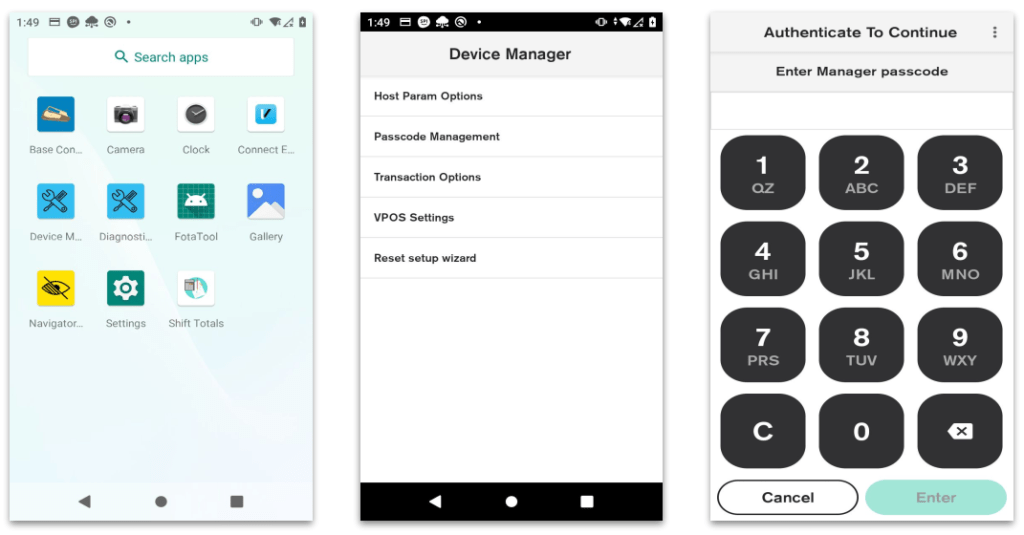
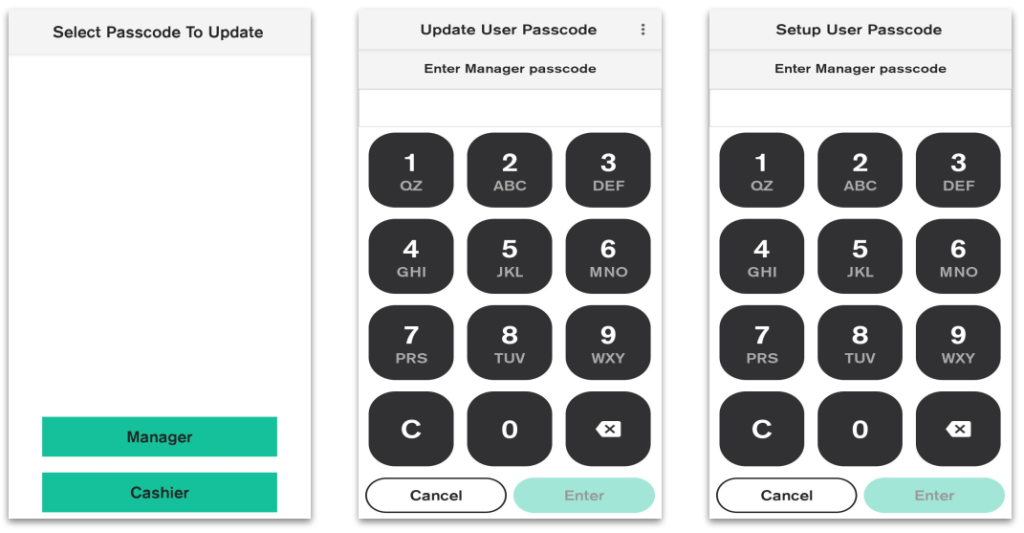
- Select which passcode you would like to update. Manager or Cashier
- When selecting either Manager or Cashier you will be prompted to enter the current manager passcode
- Enter the current manager passcode
- Enter the new manager or Cashier passcode
- Reenter the Manager or Cashier passcode
- Once successful you will see ‘New password is set’ select OK
You Don’t Know Current Passcode
- Swipe down from the top of the terminal screen
- Select Launcher
- From the Launcher menu select Device Manager
NOTE: If you only see Gallery after selecting launcher, swipe up on the screen to get to Device Manager
- Select Passcode Management
- You will be prompted for the manager passcode
- Select the 3 dots in the top right corner and select Switch to Admin
NOTE: If you do not know the admin passcode, contact YumaPAY support for assistance.
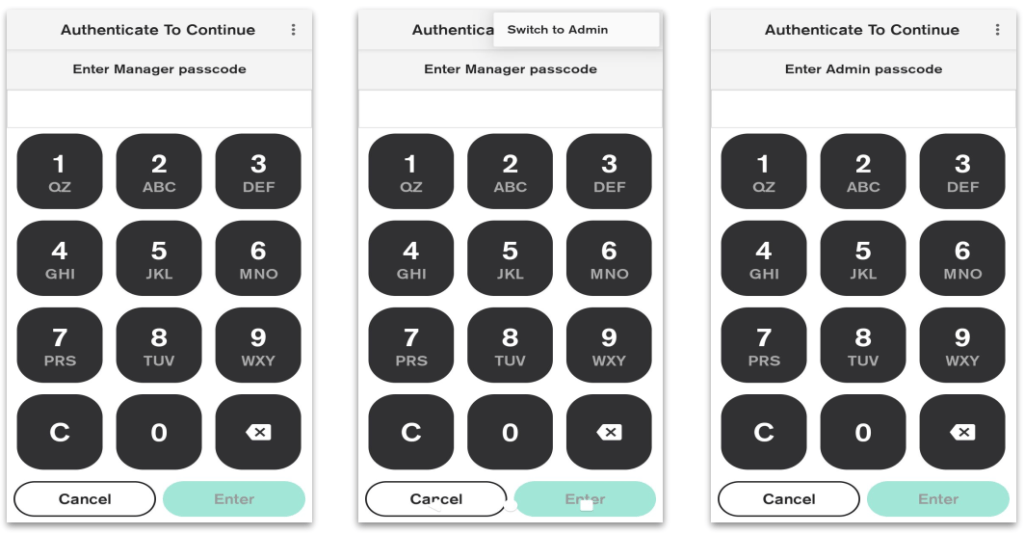
- Once you switch to admin and enter in the admin passcode, you will be prompted to select which passcode to update
- Select which passcode you would like to update. Manager or Cashier
- Enter the new manager or Cashier passcode
- Reenter the Manager or Cashier passcode
- Once successful you will see ‘New password is set’ select OK
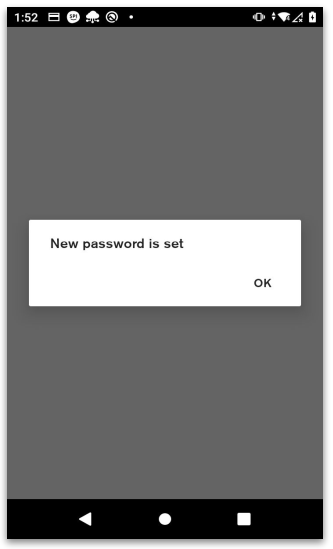
Table of Contents