-
YumaPOS
-
- The YumaPOS Ecosystem
- Plan Where You Want to be in 6 and 12 Months from Now
- Create Your YumaPOS TENANT
- Create STORES in your YumaPOS TENANT
- Make Life Easy : Preset Some Basic Settings
- Which is best for You? Manual Entry or Data Import?
- Great Structure Makes Selling Easier
- Positive Planning Prevents Poor Performance
- POS and ORDER Fundamentals
- Getting to Know Your New BOM
- Cheap Internet Can Cost Businesses Time, Money and Productivity
- Security : Do you Really Want Your Staff Doing That?
- Stock Control: What It Is and How to Know If It’s Right for Your Business
- Scale Your Business : YumaPOS for Single to Franchise Growth
- A Quick Guide to Where ITEM Cost Comes From
- Know Your Customers, Earn Their Loyalty, Grow Your Sales
- Yumapos Price Lists, Holiday Promotions & Surcharging - Made Easy
- Glossary of Terms
- Show Remaining Articles (3) Collapse Articles
-
-
- Quickly List Transactions Created by Your STORES and APPs
- Easily See Transactions by Staff Member
- It is Simple to Track Sales by Terminal
- Processing Order Tracking: How to Minimise Operational Loss
- Voided Orders Explained: Why You Need to Catch Them
- Action Logs: Why they are Important to Your Business
-
-
- Articles coming soon
-
- Articles coming soon
-
- Articles coming soon
-
- Articles coming soon
-
- Articles coming soon
-
- Articles coming soon
-
- Articles coming soon
-
- Articles coming soon
-
- Articles coming soon
-
- Articles coming soon
-
- Articles coming soon
-
- Articles coming soon
-
- Articles coming soon
-
-
- Inventory Items & Menu Items: Can You Tell the Difference ?
- Your Easy Guide to Menu Item Basics
- How to View and Manage the Menu Items List
- Create and Manage Menu Categories Easily
- Understanding Item Modifiers for Accurate Production and Lower Costs
- Complete Guide to Managing Item Modifiers in Your Business
- Point of Sale Price Lists Made Easy : A Complete Guide
- Daily Menu Configuration and How to Use Them
- How to Use Stop Lists to Prevent Overselling
- Changing Default Language for Production
-
-
- Articles coming soon
-
- Articles coming soon
-
- Articles coming soon
-
- Articles coming soon
-
- Articles coming soon
-
- Articles coming soon
-
-
-
- Articles coming soon
-
- Articles coming soon
-
- Articles coming soon
-
-
-
- Articles coming soon
-
- Articles coming soon
-
- Articles coming soon
-
- Articles coming soon
-
- Articles coming soon
-
-
-
- Articles coming soon
-
- Articles coming soon
-
- Articles coming soon
-
- Articles coming soon
-
-
-
- Articles coming soon
-
- Articles coming soon
-
- Articles coming soon
-
- Articles coming soon
-
-
-
- Articles coming soon
-
- Articles coming soon
-
- Articles coming soon
-
- Articles coming soon
-
- Articles coming soon
-
- Articles coming soon
-
- Articles coming soon
-
- Articles coming soon
-
- Articles coming soon
-
- Articles coming soon
-
- Articles coming soon
-
-
-
- Articles coming soon
-
- Articles coming soon
-
- Articles coming soon
-
- Articles coming soon
-
- Articles coming soon
-
- Articles coming soon
-
- Articles coming soon
-
- Articles coming soon
-
- Articles coming soon
-
- Articles coming soon
-
- Articles coming soon
-
-
-
- Articles coming soon
-
- Articles coming soon
-
- Articles coming soon
-
- Articles coming soon
-
- Articles coming soon
-
- Articles coming soon
-
-
- Articles coming soon
-
- Articles coming soon
-
- Articles coming soon
-
- Articles coming soon
-
- Articles coming soon
-
- Articles coming soon
-
- Articles coming soon
-
-
- Articles coming soon
-
- Articles coming soon
-
- Articles coming soon
-
- Articles coming soon
-
- Articles coming soon
-
- Articles coming soon
-
- Articles coming soon
-
-
- Articles coming soon
-
-
-
YumaPAY
About Transactions List
This functionality allows you to view a history of transactions performed in your stores for specified period. Use your Back Office to display transactions for a selected store or display a summary of transactions for all of your stores.
You can also view detailed information on each transaction from the Transactions list.
View Transactions List
In the left pane of the Back Office Management console, click Transactions.
From the Store list, select a store of interest or leave this field clear to display a summary of transactions for all your stores.
Using the Payment date, Closing date, or Business Day lists, specify the period to display information for (such as Last month, This month, Last year, or Custom period).
The filter parameters are as follows:
- Payment date: the transaction date (the order payment date).
- Closing date: the order closing date (the date when you closed the order at POS terminal).
- Business Day: the business day when you registered this transaction. The business day start time is specified in the store settings. For more information, see Business Day Settings.
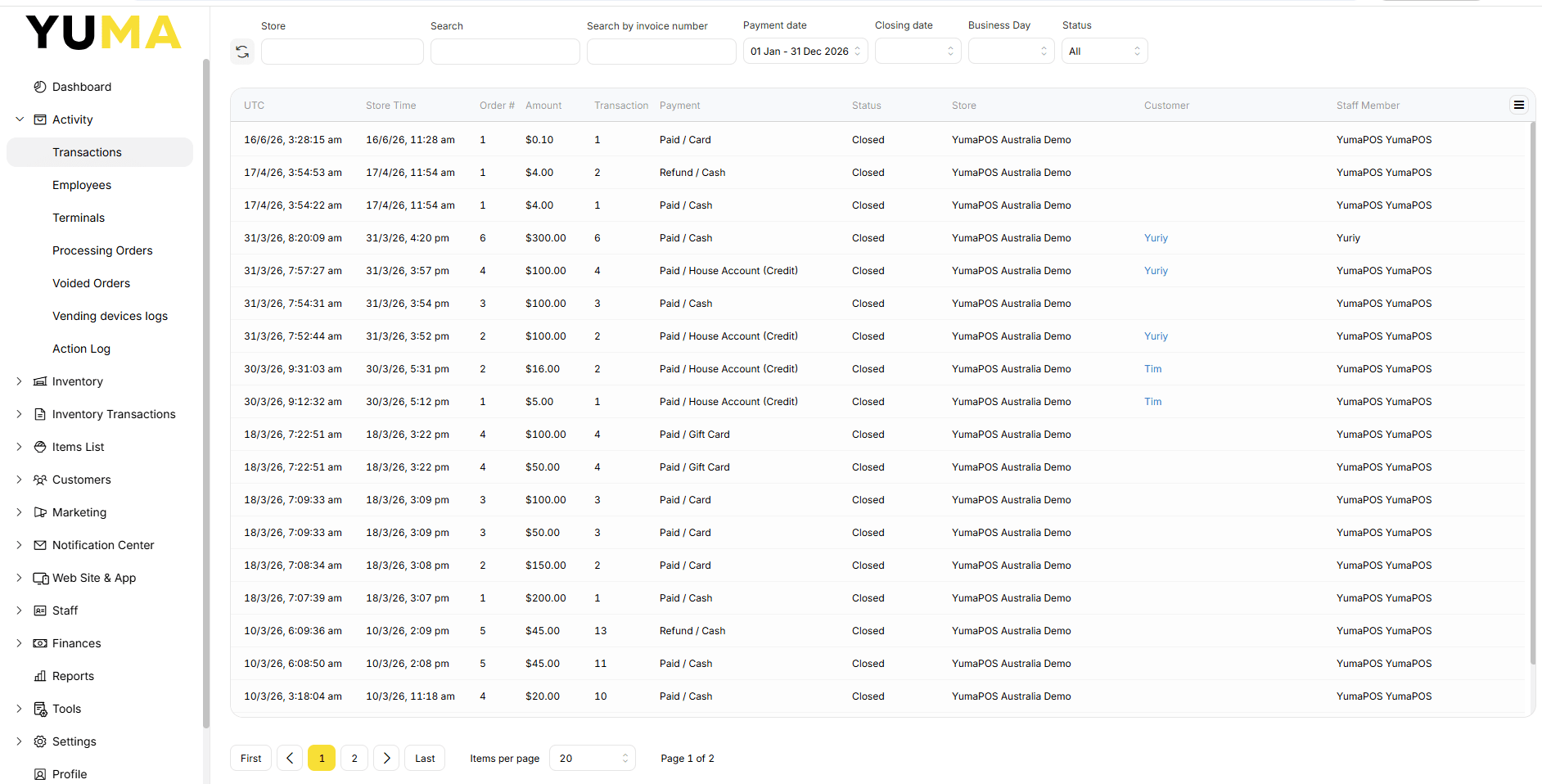
Included fields are :
- UTC: Transaction recording time (UTC)
- Store time: Transaction recording time (store time)
- Order #: The order number
- Amount: The receipt amount
- Transaction: The transaction number
- Payment: The payment type
- Status: The order status
- Store: Store name
- Customer: Customer name (if available)
- Staff Member: Name of the staff member that performed this transaction
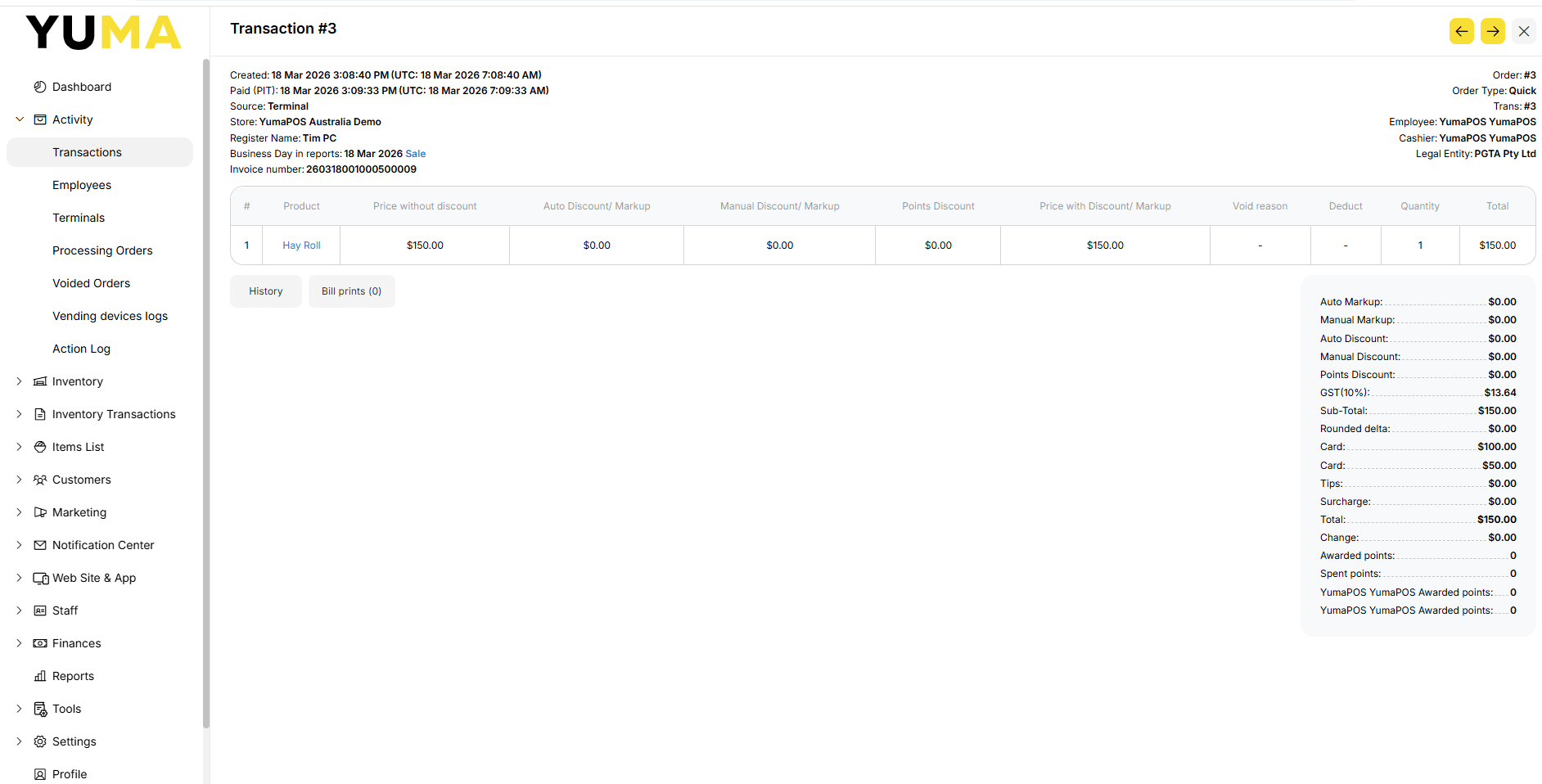
View Transaction Detail
Quickly access detailed information by clicking on a chosen transaction.
This will “drill down” into that transaction and display a lot more information.
The transaction data includes the list of purchased items, deleted items (if any), and detailed information on applied discounts and taxes.
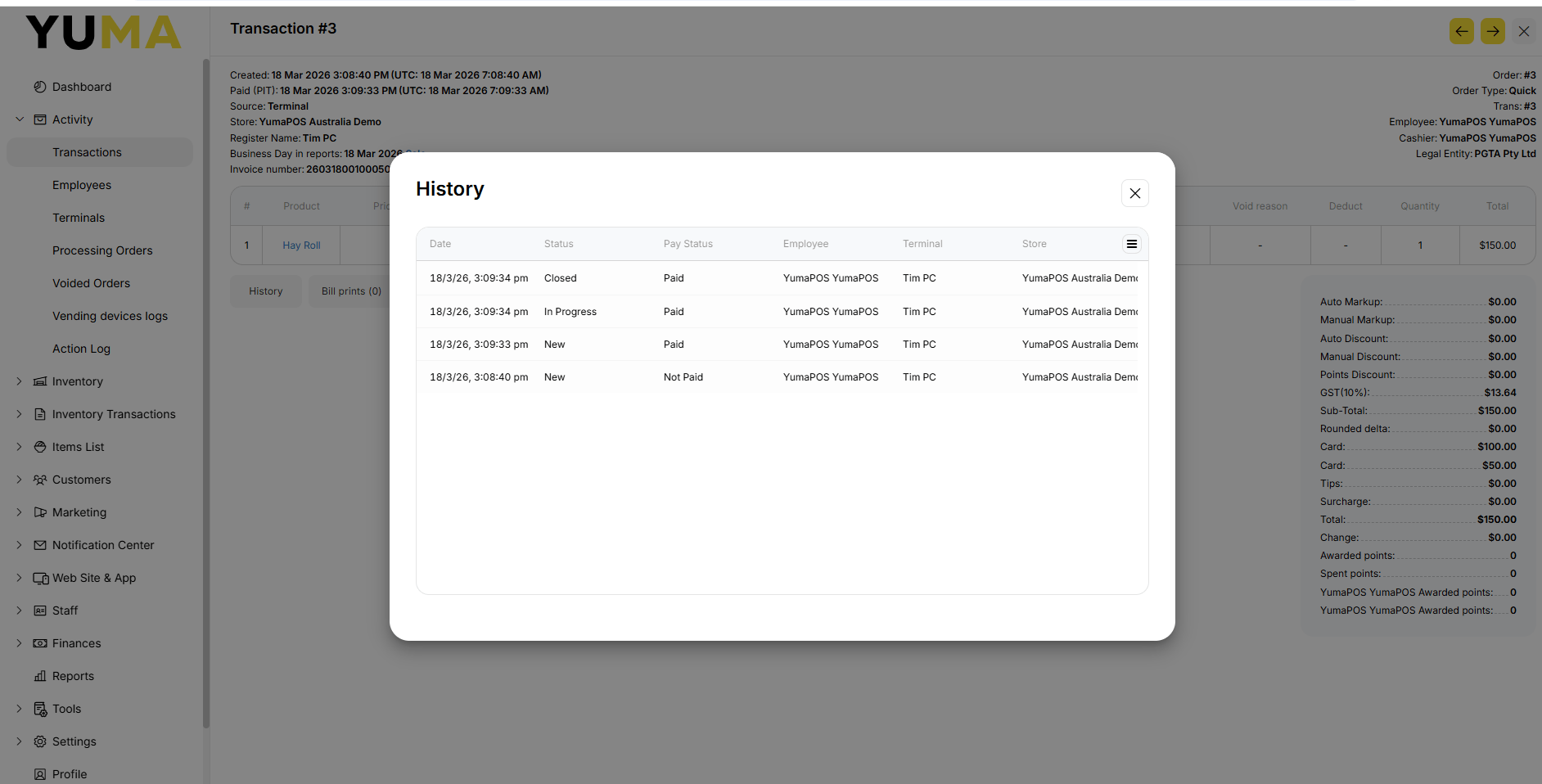
View a Transactions History
Each transaction will have different stages / status levels.
Select <history> to see these changes.
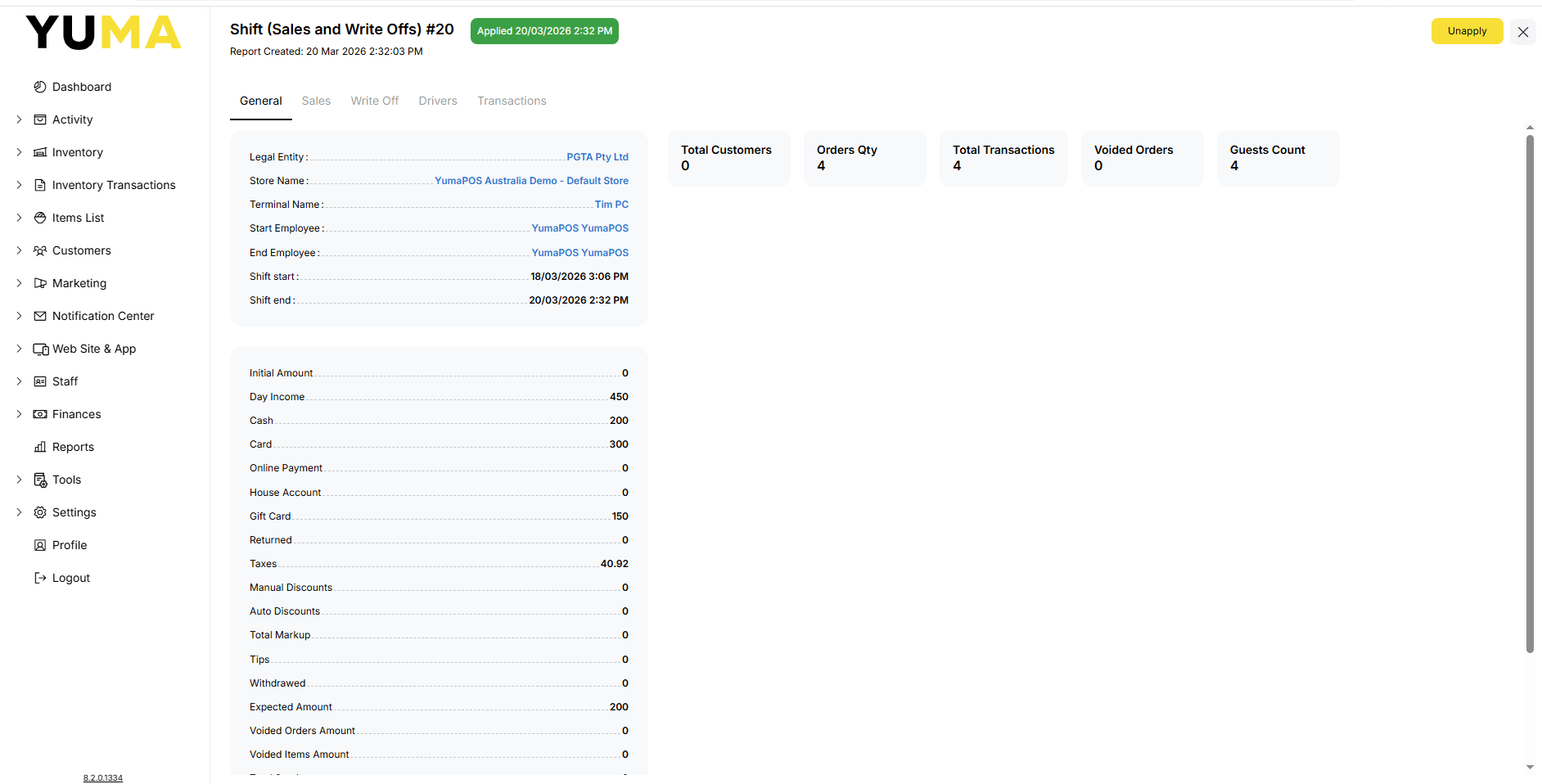
View a Transactions Shift Information
each transaction will be part of a POS SHIFT.
Select <SALE> to view that SHIFT.
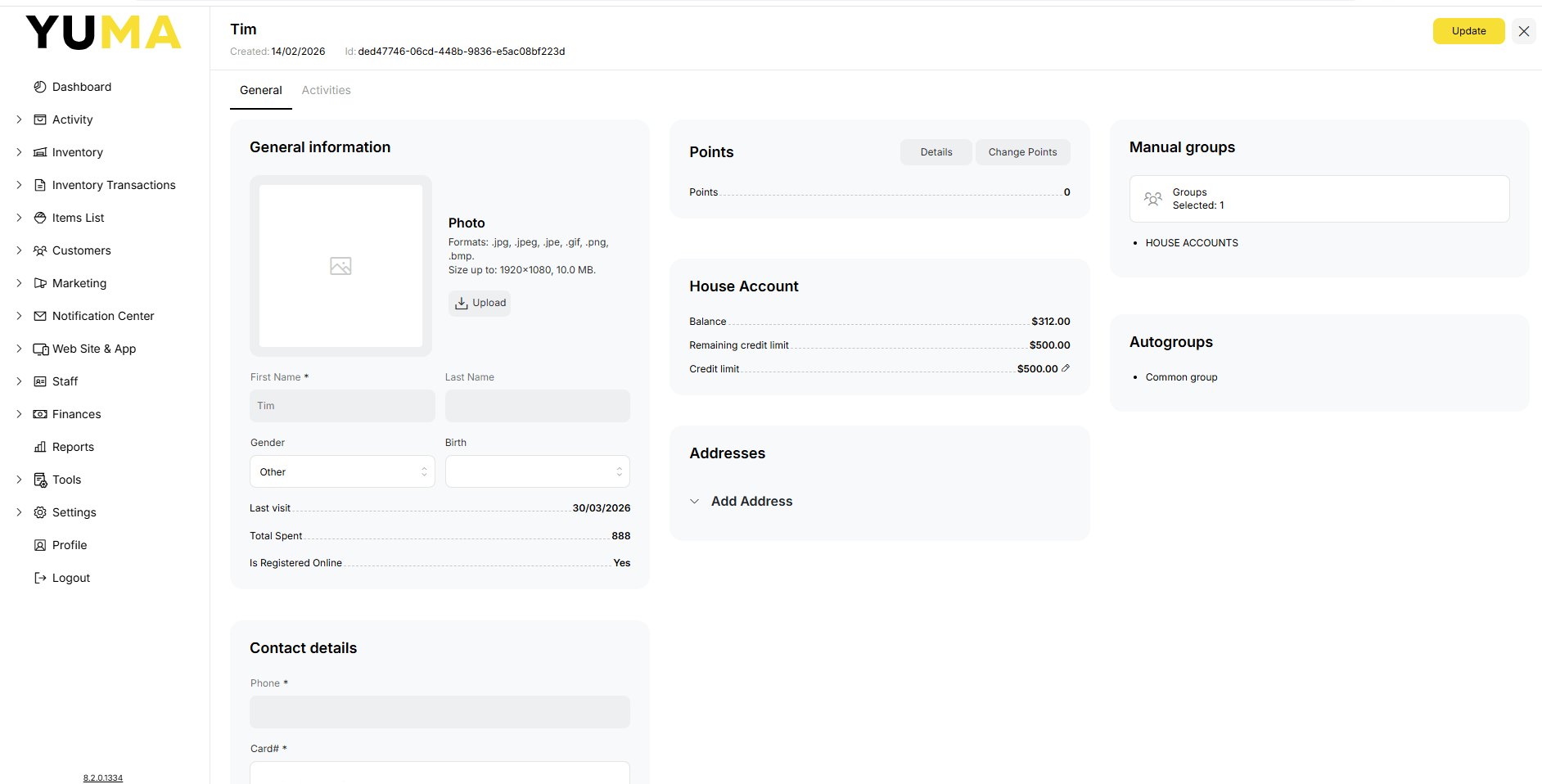
View a Transactions Customer
When the transaction information includes the customer name, you can get detailed information about that customer, such as their phone, address, the loyalty points, and more.
To view the customer information, click the client name on the Transaction details screen or in the Customer column of the Transaction list.