
-
YumaPOS
-
- The YumaPOS Ecosystem
- Plan Where You Want to be in 6 and 12 Months from Now
- Create Your YumaPOS TENANT
- Create STORES in your YumaPOS TENANT
- Make Life Easy : Preset Some Basic Settings
- Which is best for You? Manual Entry or Data Import?
- Great Structure Makes Selling Easier
- Positive Planning Prevents Poor Performance
- POS and ORDER Fundamentals
- Getting to Know Your New BOM
- Cheap Internet Can Cost Businesses Time, Money and Productivity
- Security : Do you Really Want Your Staff Doing That?
- Stock Control: What It Is and How to Know If It’s Right for Your Business
- Scale Your Business : YumaPOS for Single to Franchise Growth
- A Quick Guide to Where ITEM Cost Comes From
- Know Your Customers, Earn Their Loyalty, Grow Your Sales
- Yumapos Price Lists, Holiday Promotions & Surcharging - Made Easy
- Glossary of Terms
- Show Remaining Articles (3) Collapse Articles
-
-
- Quickly List Transactions Created by Your STORES and APPs
- Easily See Transactions by Staff Member
- It is Simple to Track Sales by Terminal
- Processing Order Tracking: How to Minimise Operational Loss
- Voided Orders Explained: Why You Need to Catch Them
- Action Logs: Why they are Important to Your Business
-
-
- Articles coming soon
-
- Articles coming soon
-
- Articles coming soon
-
- Articles coming soon
-
- Articles coming soon
-
- Articles coming soon
-
- Articles coming soon
-
- Articles coming soon
-
- Articles coming soon
-
- Articles coming soon
-
- Articles coming soon
-
- Articles coming soon
-
- Articles coming soon
-
-
- Inventory Items & Menu Items: Can You Tell the Difference ?
- Your Easy Guide to Menu Item Basics
- How to View and Manage the Menu Items List
- Create and Manage Menu Categories Easily
- Understanding Item Modifiers for Accurate Production and Lower Costs
- Complete Guide to Managing Item Modifiers in Your Business
- Point of Sale Price Lists Made Easy : A Complete Guide
- Daily Menu Configuration and How to Use Them
- How to Use Stop Lists to Prevent Overselling
- Changing Default Language for Production
-
-
- Articles coming soon
-
- Articles coming soon
-
- Articles coming soon
-
- Articles coming soon
-
- Articles coming soon
-
- Articles coming soon
-
-
-
- Articles coming soon
-
- Articles coming soon
-
- Articles coming soon
-
-
-
- Articles coming soon
-
- Articles coming soon
-
- Articles coming soon
-
- Articles coming soon
-
- Articles coming soon
-
-
-
- Articles coming soon
-
- Articles coming soon
-
- Articles coming soon
-
- Articles coming soon
-
-
-
- Articles coming soon
-
- Articles coming soon
-
- Articles coming soon
-
- Articles coming soon
-
-
-
- Articles coming soon
-
- Articles coming soon
-
- Articles coming soon
-
- Articles coming soon
-
- Articles coming soon
-
- Articles coming soon
-
- Articles coming soon
-
- Articles coming soon
-
- Articles coming soon
-
- Articles coming soon
-
- Articles coming soon
-
-
-
- Articles coming soon
-
- Articles coming soon
-
- Articles coming soon
-
- Articles coming soon
-
- Articles coming soon
-
- Articles coming soon
-
- Articles coming soon
-
- Articles coming soon
-
- Articles coming soon
-
- Articles coming soon
-
- Articles coming soon
-
-
-
- Articles coming soon
-
- Articles coming soon
-
- Articles coming soon
-
- Articles coming soon
-
- Articles coming soon
-
- Articles coming soon
-
-
- Articles coming soon
-
- Articles coming soon
-
- Articles coming soon
-
- Articles coming soon
-
- Articles coming soon
-
- Articles coming soon
-
- Articles coming soon
-
-
- Articles coming soon
-
- Articles coming soon
-
- Articles coming soon
-
- Articles coming soon
-
- Articles coming soon
-
- Articles coming soon
-
- Articles coming soon
-
-
- Articles coming soon
-
-
-
YumaPAY
Definition of Counterparties
A counterparty is the other participant in a financial transaction or contract. Every trade requires two sides – such as a buyer and a seller, or a lender and a borrower. Counterparties can be individuals, businesses, governments, or institutions.
To be able to create PURCHASE ORDERS or ENTER SUPPLIER INVOICES, you need to create COUNTERPARTIES in YumaPOS.
View a List of Counterparties
Sign into your BOM and navigate to Inventory / Counterparties.
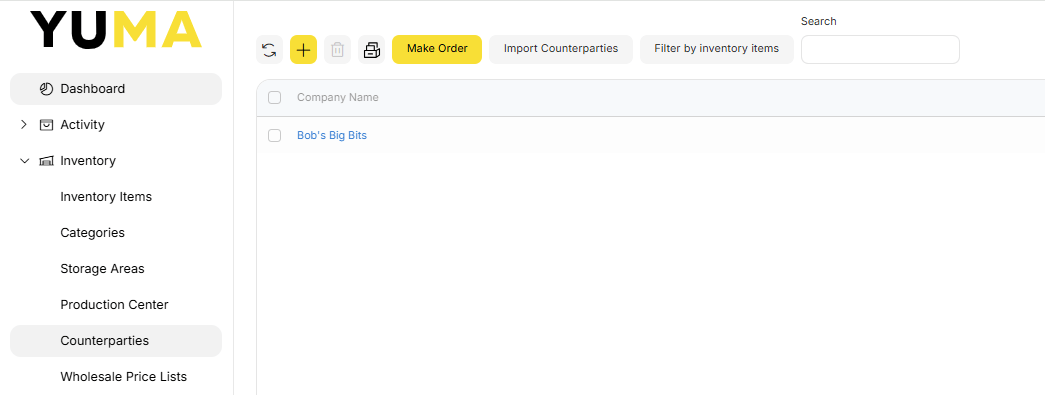
At the top of the screen we have the ever present menu bar of options and filters.
Below is a list of the COUNTERPARTIES that have been created in YumaPOS.
Add New Counterparty
To add new COUNTERPARTY, open the list of registered counterparties as described earlier in this article and then complete the following steps :
- Click <+>
- Complete the Add Counterparty form
- click <Save>
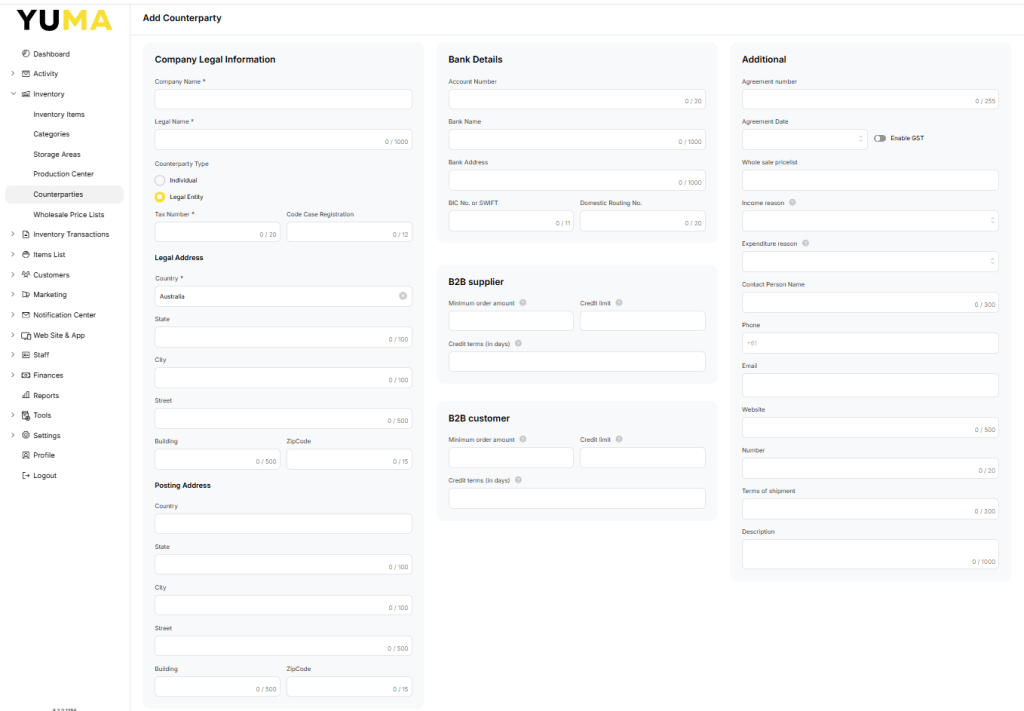
Required fields (marked with an asterisk *) :
- Company Name : Usually the trading name / registered business name
- Legal Name : Usually the one attached to the ABN
- Tax Number : Either ABN or ACN
- Country : Defaults to Australia
All other fields are optional and informational
If new counterparty has a wholesale price list, select that price list from the Wholesale pricelist list dropdown. For more information, see the Wholesale price lists section.
<Save> your work.
Edit Counterparty
Select an entry from the list
Make your changes
<Save> your changes
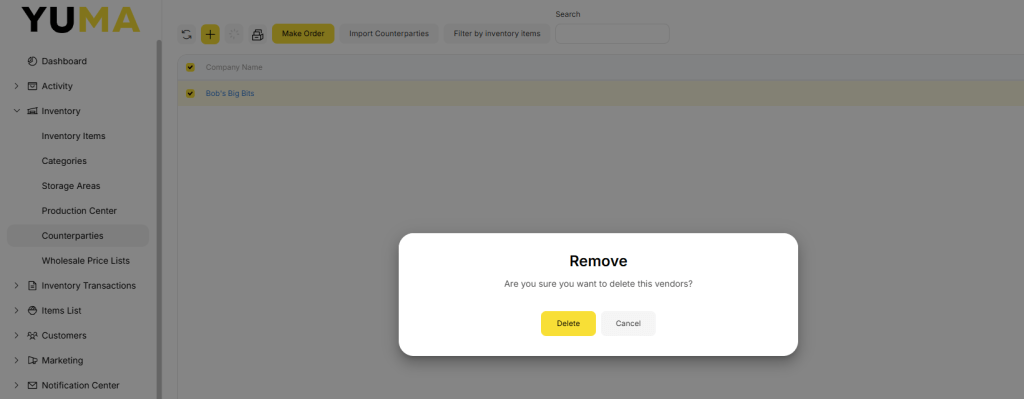
Delete Counterparty
- Select the NAME to be sent to the archive
- Click <Delete> and confirm deletion
NOTE : You cannot delete vendors that are mentioned in applied inventory documents, such as Acts of receiving, purchase orders, etc
View Dealings with Counterparty
YumaPOS logs all information about the work you do with your counterparties (such as purchase orders, the orders statuses, etc.). You can view the counterparty profile to quickly get a filtered list of these actions.
- Navigate to Inventory / Counterparties
- Select the NAME you want
- Select the INVENTORY ACTION you are interested in
- Define a FILTER if needed
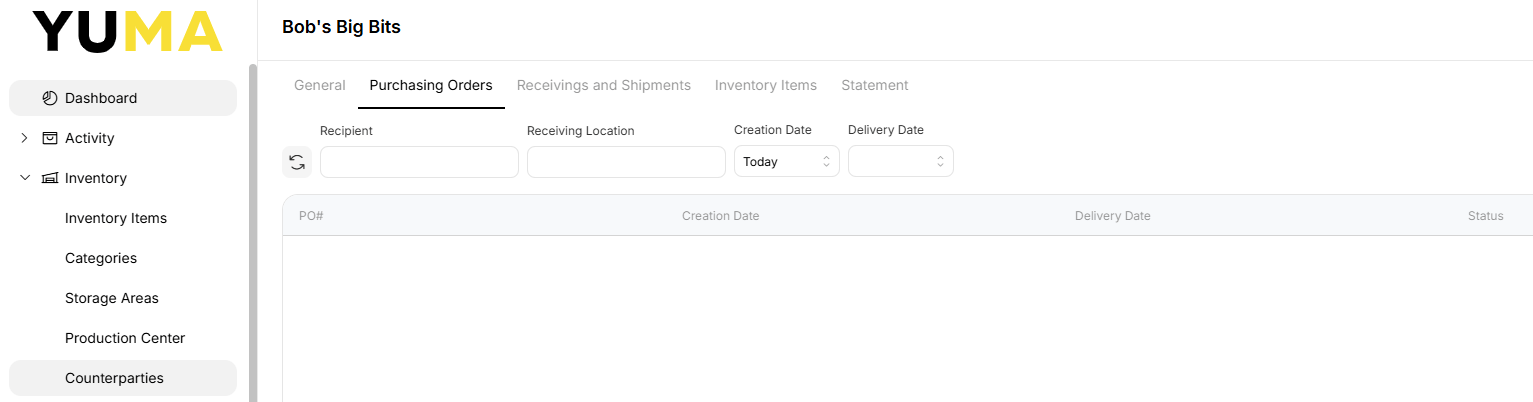
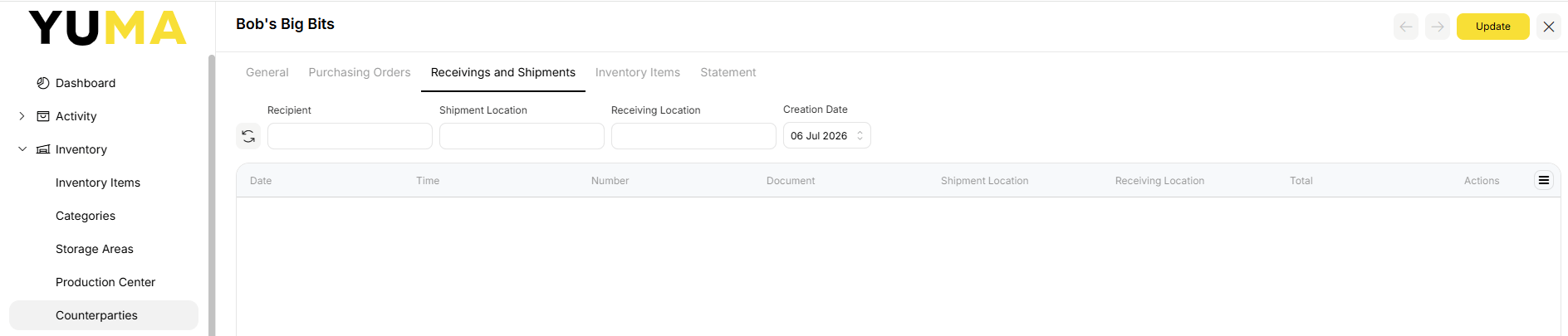
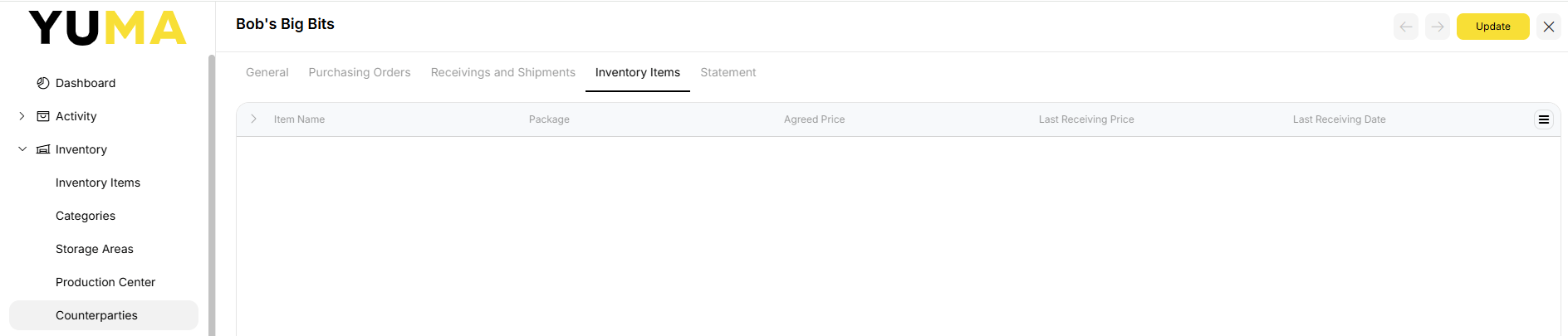
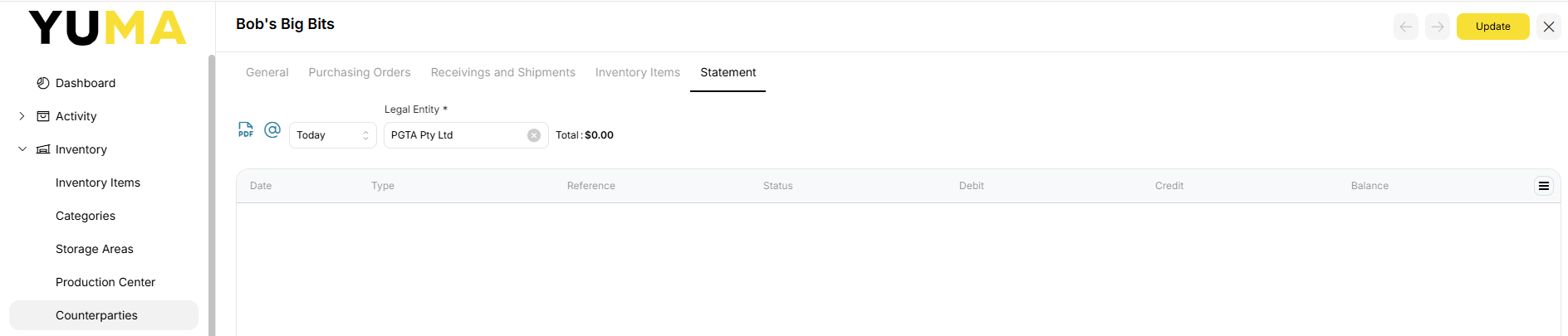
- General : displays the counterparty profile
- Purchasing Orders : displays overall information about all purchase orders raised against counterparty
- Receivings & Shipments : will list all invoices for the chosen counterparty
- Inventory Items : displays a list of inventory items purchased from this vendor
- Statement : can be used to generate transactional lists by period
Many entries will be blue to indicate that you may drill down into the selection for more detailed information.
Make Order
This is covered in depth under Inventory Transactions / Purchasing Orders.