
-
YumaPOS
-
- The YumaPOS Ecosystem
- Plan Where You Want to be in 6 and 12 Months from Now
- Create Your YumaPOS TENANT
- Create STORES in your YumaPOS TENANT
- Make Life Easy : Preset Some Basic Settings
- Which is best for You? Manual Entry or Data Import?
- Great Structure Makes Selling Easier
- Positive Planning Prevents Poor Performance
- POS and ORDER Fundamentals
- Getting to Know Your New BOM
- Cheap Internet Can Cost Businesses Time, Money and Productivity
- Security : Do you Really Want Your Staff Doing That?
- Stock Control: What It Is and How to Know If It’s Right for Your Business
- Scale Your Business : YumaPOS for Single to Franchise Growth
- A Quick Guide to Where ITEM Cost Comes From
- Know Your Customers, Earn Their Loyalty, Grow Your Sales
- Yumapos Price Lists, Holiday Promotions & Surcharging - Made Easy
- Glossary of Terms
- Show Remaining Articles (3) Collapse Articles
-
-
- Quickly List Transactions Created by Your STORES and APPs
- Easily See Transactions by Staff Member
- It is Simple to Track Sales by Terminal
- Processing Order Tracking: How to Minimise Operational Loss
- Voided Orders Explained: Why You Need to Catch Them
- Action Logs: Why they are Important to Your Business
-
-
- Articles coming soon
-
- Articles coming soon
-
- Articles coming soon
-
- Articles coming soon
-
- Articles coming soon
-
- Articles coming soon
-
- Articles coming soon
-
- Articles coming soon
-
- Articles coming soon
-
- Articles coming soon
-
- Articles coming soon
-
- Articles coming soon
-
- Articles coming soon
-
-
- Inventory Items & Menu Items: Can You Tell the Difference ?
- Your Easy Guide to Menu Item Basics
- How to View and Manage the Menu Items List
- Create and Manage Menu Categories Easily
- Understanding Item Modifiers for Accurate Production and Lower Costs
- Complete Guide to Managing Item Modifiers in Your Business
- Point of Sale Price Lists Made Easy : A Complete Guide
- Daily Menu Configuration and How to Use Them
- How to Use Stop Lists to Prevent Overselling
- Changing Default Language for Production
-
-
- Articles coming soon
-
- Articles coming soon
-
- Articles coming soon
-
- Articles coming soon
-
- Articles coming soon
-
- Articles coming soon
-
-
-
- Articles coming soon
-
- Articles coming soon
-
- Articles coming soon
-
-
-
- Articles coming soon
-
- Articles coming soon
-
- Articles coming soon
-
- Articles coming soon
-
- Articles coming soon
-
-
-
- Articles coming soon
-
- Articles coming soon
-
- Articles coming soon
-
- Articles coming soon
-
-
-
- Articles coming soon
-
- Articles coming soon
-
- Articles coming soon
-
- Articles coming soon
-
-
-
- Articles coming soon
-
- Articles coming soon
-
- Articles coming soon
-
- Articles coming soon
-
- Articles coming soon
-
- Articles coming soon
-
- Articles coming soon
-
- Articles coming soon
-
- Articles coming soon
-
- Articles coming soon
-
- Articles coming soon
-
-
-
- Articles coming soon
-
- Articles coming soon
-
- Articles coming soon
-
- Articles coming soon
-
- Articles coming soon
-
- Articles coming soon
-
- Articles coming soon
-
- Articles coming soon
-
- Articles coming soon
-
- Articles coming soon
-
- Articles coming soon
-
-
-
- Articles coming soon
-
- Articles coming soon
-
- Articles coming soon
-
- Articles coming soon
-
- Articles coming soon
-
- Articles coming soon
-
-
- Articles coming soon
-
- Articles coming soon
-
- Articles coming soon
-
- Articles coming soon
-
- Articles coming soon
-
- Articles coming soon
-
- Articles coming soon
-
-
- Articles coming soon
-
- Articles coming soon
-
- Articles coming soon
-
- Articles coming soon
-
- Articles coming soon
-
- Articles coming soon
-
- Articles coming soon
-
-
- Articles coming soon
-
-
-
YumaPAY
Definition of Storage Areas
A storage area ( aka stock location ) is a defined physical or logical place where your inventory is stored, tracked, and managed.
It may be a specific warehouse shelf or building, a bar or space within a venue, or an entire storefront.
Managing stock locations effectively ensures accurate inventory counts and faster order processing.
YumaPOS Default Behaviour
When you create a new STORE in your BOM, YumaPOS will create a STORAGE AREA with the same Name.
You have the option to keep this simple 1:1 relationship or to modify it to suit your business model.
View a List of Storage Areas
Log into your BOM and navigate to Inventory / Storage Areas.

As always, there are actions and filters available in the top bar.
For each defined STORAGE AREA :
- Name : This will usually / initially be the default created when the STORE is created.
- Count : The number of INVENTORY ITEMS that are held in this location.
- Sales Mode : Specifies the SALES MODE for the given STORE.
- Everything : All items sold are deducted from INVENTORY. This is the default mode.
- By Category : Items must belong to defined CATEGORIES to be deducted from INVENTORY.
- Nothing : In this mode, YumaPOS does not reduce stock on hand for sold items.
- Store : The name of the STORE/S that use this STORAGE AREA for stock control.
Add Storage Location
Navigate to BOM / Inventory / Storage Areas and select <+>
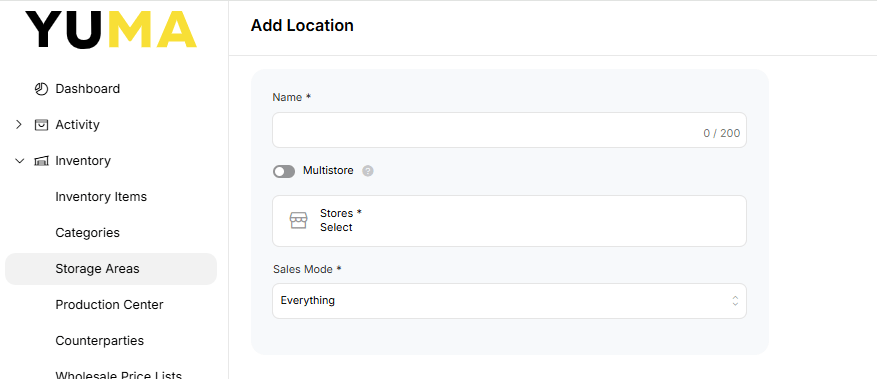
- Name : Enter a NAME for this STORAGE LOCATION.
- Multistore : Enable this option if more than one STORE will hold INVENTORY at this STORAGE LOCATION.
- Stores : Select which STORES will be “attached”.
- Sales Mode : Unless you have a special use case, leave this set to everything.
Don’t forget to <save> your work.
Remove Storage Area
From the available list of STORAGE AREAS, put a tick in the box next to the one you do not want and select <delete>.
Confirm you want to remove the selected entry.
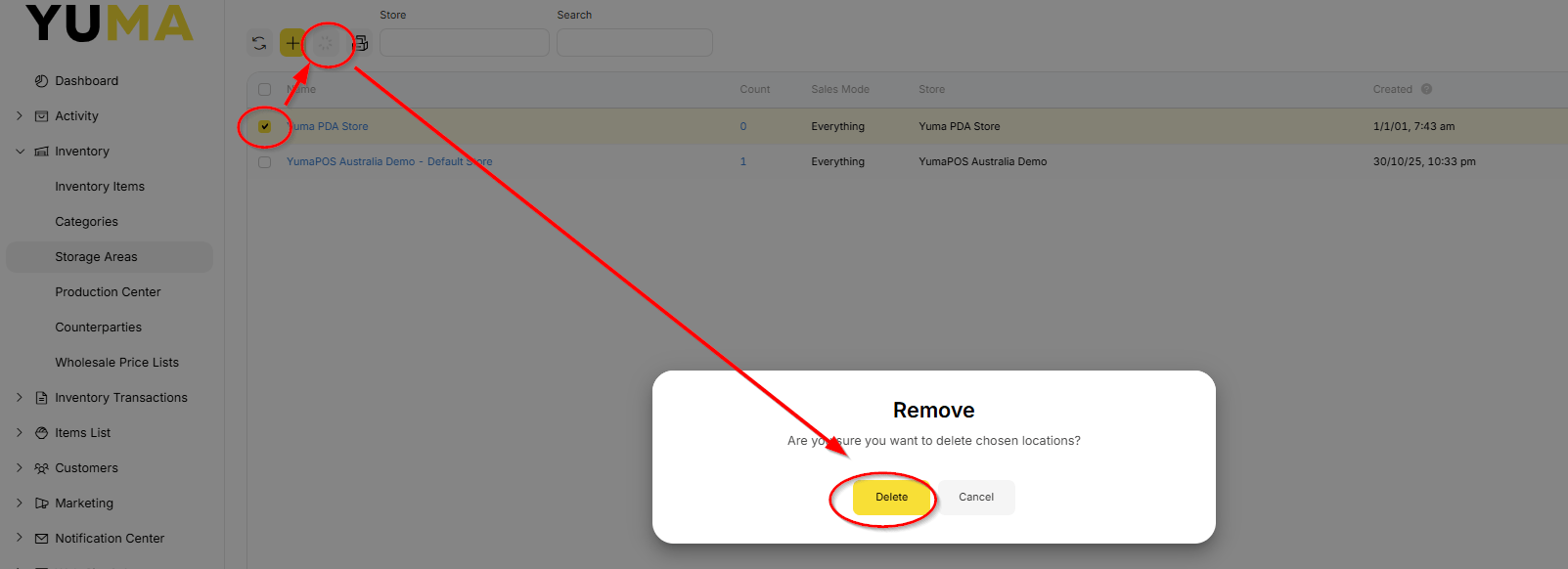
NOTE : You cannot delete a location with non-zero amount of inventory items. In this scenario, before deleting the location, write-off all inventory items stocked into that location. For detailed instructions, see “Writing-off Inventory Items”