
-
YumaPOS
-
- The YumaPOS Ecosystem
- Plan Where You Want to be in 6 and 12 Months from Now
- Create Your YumaPOS TENANT
- Create STORES in your YumaPOS TENANT
- Make Life Easy : Preset Some Basic Settings
- Which is best for You? Manual Entry or Data Import?
- Great Structure Makes Selling Easier
- Positive Planning Prevents Poor Performance
- POS and ORDER Fundamentals
- Getting to Know Your New BOM
- Cheap Internet Can Cost Businesses Time, Money and Productivity
- Security : Do you Really Want Your Staff Doing That?
- Stock Control: What It Is and How to Know If It’s Right for Your Business
- Scale Your Business : YumaPOS for Single to Franchise Growth
- A Quick Guide to Where ITEM Cost Comes From
- Know Your Customers, Earn Their Loyalty, Grow Your Sales
- Yumapos Price Lists, Holiday Promotions & Surcharging - Made Easy
- Glossary of Terms
- Show Remaining Articles (3) Collapse Articles
-
-
- Quickly List Transactions Created by Your STORES and APPs
- Easily See Transactions by Staff Member
- It is Simple to Track Sales by Terminal
- Processing Order Tracking: How to Minimise Operational Loss
- Voided Orders Explained: Why You Need to Catch Them
- Action Logs: Why they are Important to Your Business
-
-
- Articles coming soon
-
- Articles coming soon
-
- Articles coming soon
-
- Articles coming soon
-
- Articles coming soon
-
- Articles coming soon
-
- Articles coming soon
-
- Articles coming soon
-
- Articles coming soon
-
- Articles coming soon
-
- Articles coming soon
-
- Articles coming soon
-
- Articles coming soon
-
-
- Inventory Items & Menu Items: Can You Tell the Difference ?
- Your Easy Guide to Menu Item Basics
- How to View and Manage the Menu Items List
- Create and Manage Menu Categories Easily
- Understanding Item Modifiers for Accurate Production and Lower Costs
- Complete Guide to Managing Item Modifiers in Your Business
- Point of Sale Price Lists Made Easy : A Complete Guide
- Daily Menu Configuration and How to Use Them
- How to Use Stop Lists to Prevent Overselling
- Changing Default Language for Production
-
-
- Articles coming soon
-
- Articles coming soon
-
- Articles coming soon
-
- Articles coming soon
-
- Articles coming soon
-
- Articles coming soon
-
-
-
- Articles coming soon
-
- Articles coming soon
-
- Articles coming soon
-
-
-
- Articles coming soon
-
- Articles coming soon
-
- Articles coming soon
-
- Articles coming soon
-
- Articles coming soon
-
-
-
- Articles coming soon
-
- Articles coming soon
-
- Articles coming soon
-
- Articles coming soon
-
-
-
- Articles coming soon
-
- Articles coming soon
-
- Articles coming soon
-
- Articles coming soon
-
-
-
- Articles coming soon
-
- Articles coming soon
-
- Articles coming soon
-
- Articles coming soon
-
- Articles coming soon
-
- Articles coming soon
-
- Articles coming soon
-
- Articles coming soon
-
- Articles coming soon
-
- Articles coming soon
-
- Articles coming soon
-
-
-
- Articles coming soon
-
- Articles coming soon
-
- Articles coming soon
-
- Articles coming soon
-
- Articles coming soon
-
- Articles coming soon
-
- Articles coming soon
-
- Articles coming soon
-
- Articles coming soon
-
- Articles coming soon
-
- Articles coming soon
-
-
-
- Articles coming soon
-
- Articles coming soon
-
- Articles coming soon
-
- Articles coming soon
-
- Articles coming soon
-
- Articles coming soon
-
-
- Articles coming soon
-
- Articles coming soon
-
- Articles coming soon
-
- Articles coming soon
-
- Articles coming soon
-
- Articles coming soon
-
- Articles coming soon
-
-
- Articles coming soon
-
- Articles coming soon
-
- Articles coming soon
-
- Articles coming soon
-
- Articles coming soon
-
- Articles coming soon
-
- Articles coming soon
-
-
- Articles coming soon
-
-
-
YumaPAY
Definition
Not every business model is suited to running full on INVENTORY control with the associated extra administrative work.
There may still be a need to put a “hold” on an ITEMS availability to prevent it from being ordered, sold or oversold.
- Doesn’t want the additional administrative cost of entering VENDOR invoices
- Sells services or downloadable ITEMS, but needs to put a temporary stop on something
- Only has a handful of goods so makes more sense to simplify stock management
- Makes portion serves ( eg slices of quiche ) and doesn’t want staff to oversell on Waiter APPs
- Prepares a limited number of pizza bases and doesn’t want online orders exceeding that amount
- A piece of equipment used in the production process has broken, so needs to put a stop on the ability to order some ITEMS
With YumaPOS, you can manage the STOP LIST from the POS APP and from the BOM.
YumaPOS / POS Terminal articles will cover using the POS APP.
While the STOP LISTS are the same :
- POS APP will only show the STOP LIST for the “attached” STORE.
- BOM will list all STOP LISTS for all STORES.
- BOM gives you a little bit more control with the “auto-renewal” toggle.
What Can You Put in a Stop List ?
At this point in time, if you haven’t already worked it out from the pizza base scenario given above, in the STORE STOP LIST you can have MENU ITEMS as well as COMMON MODIFIERS and RELATED MODIFIERS.
Here is that word again … planning !
If I had created 20+ pizzas, each with a RELATED MODIFIER for a “thin base”, how many places would I have to do a MANUAL STOP LIST entry if we ran out of bases ?
20+
Even though they are essentially all “thin base”, as RELATED MODIFIERS they are unique entries.
This also means AUTO STOP wouldn’t work.
Put my thinking cap on, before I start entering MENU ITEMS, and logic tells me if I create the “base option …” as a COMMON MODIFIER GROUP, each base type is a single entry that is applied to multiple MENU ITEMS, that I can make AUTO STOP.
View Stop Lists
Navigate in your BOM to Items List / Stop Lists.
Select the STOP LIST you are interested in.
STOP LISTS are named after the STORE they are available for.
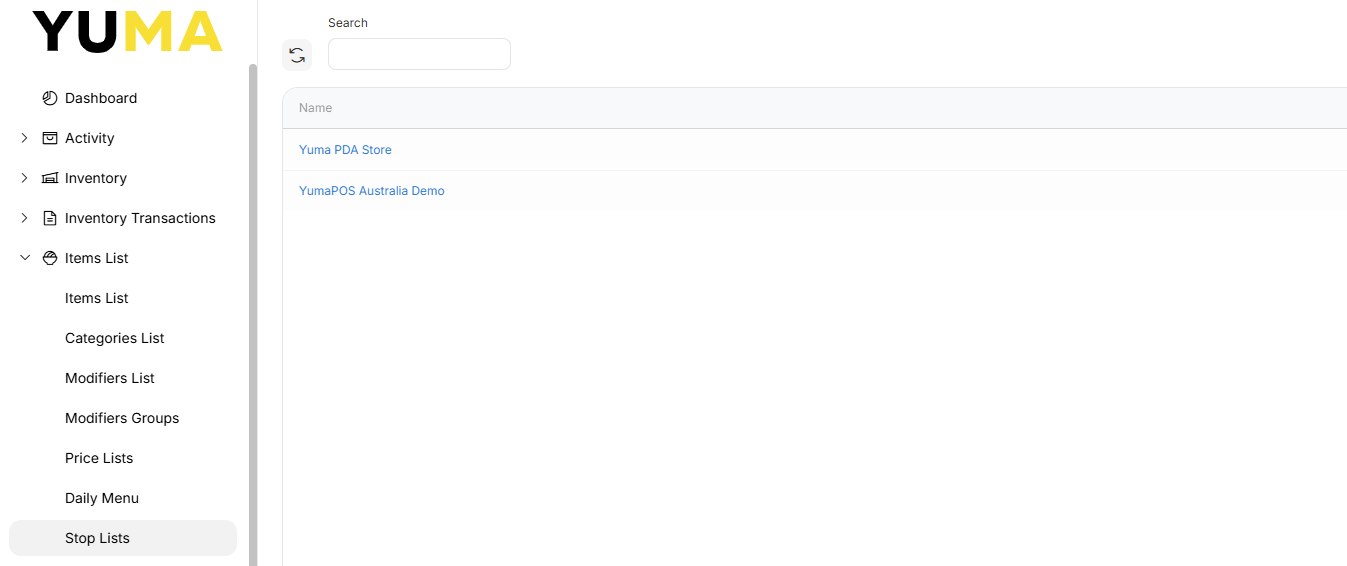
View a Stores Stop List
Drill down into our chosen STORE to see the current status for all MENU ITEMS, RELATED MODIFIERS & COMMON MODIFIERS.
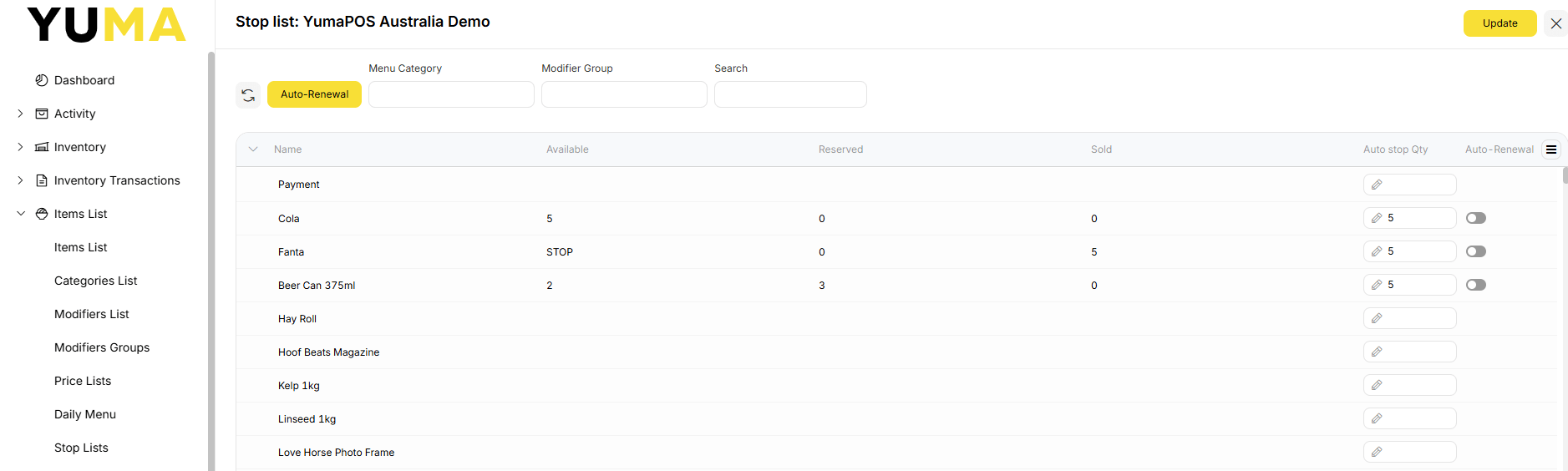
We have our usual FILTERS to help us limit the list or find what we are looking for.
Followed by a list of every MENU ITEM and MODIFER ( common & related ) that have been assigned to the chosen STORE.
- Name : is the MENU ITEM NAME. Any MODIFIER will appear as a CHILD entry.
- Available : has 3 calculated values
- Blank : is not on the STOP LIST
- Value : is on the STOP LIST and this is how many more can be added to new ORDERS
- Stop : is on the STOP LIST and there are no more available
- Reserved : How many are in OPEN ORDERS and therefore cannot be added to new ones
- Sold : is the number in CLOSED ORDERS
- Auto Stop Qty : is an editable field here the BOM user can set how many are available
- Auto-Renewal : By default, this is toggled off
- Off : When the new BUSINESS DAY starts, the STOP LIST will be cleared
- On : When the new BUSINESS DAY starts, the STOP LIST is carried over
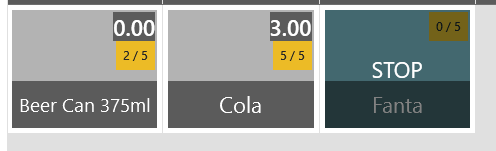
Looking at the above image, I started the day with 5 cans each of Cola, Fanta & Beer.
- Cola : I still have 5 that can be put into new ORDERS.
- Fanta : I have sold all 5, so YumaPOS has put Fanta on STOP.
- Beer : I have not sold any ( or the ORDER has not been CLOSED ), 3 are reserved as they are currently in OPEN ORDERS, meaning I have 2 more than may be used.
What it looks like on the POS & Waiter Apps
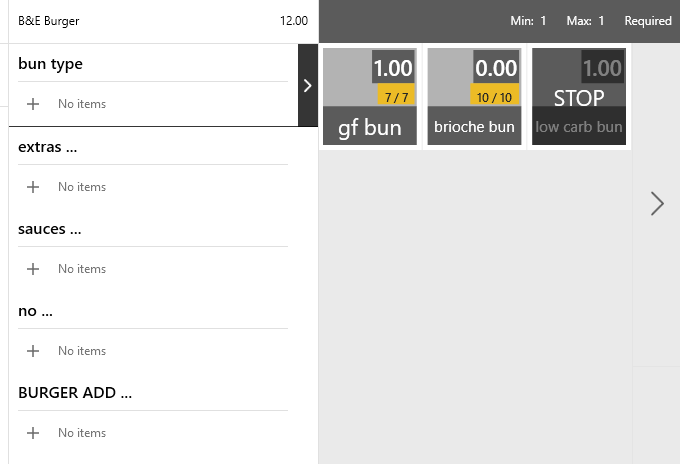
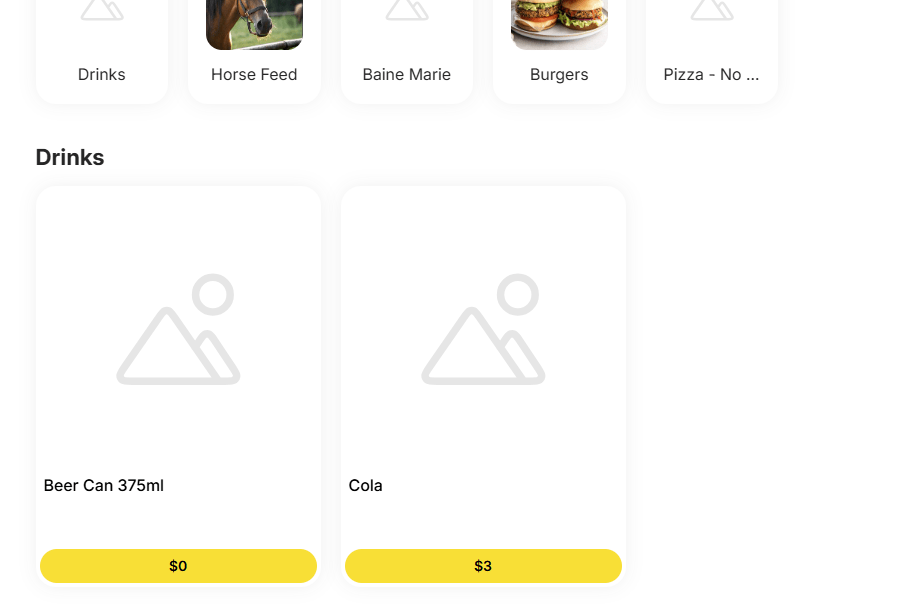
We show the quantity available and anything on STOP.
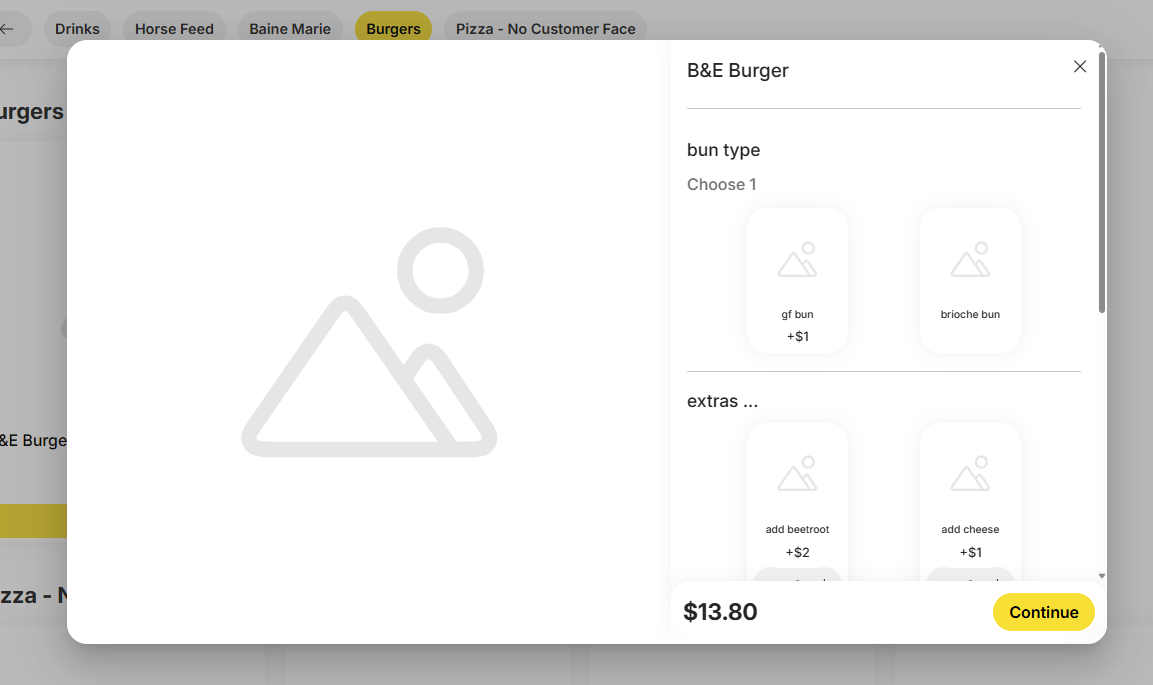
The second image is using COMMON MODIFIERS and is to show how it could look if you are controlling “bun type” for your burgers..
What it looks like on Web App
We take a slightly different approach for online ordering. We do not show how many are in stock and nor do we show anything that is on the STOP LIST.
This the default behaviour, but it can be modified in BOM / Web Site & App / Common Settings.
Please ignore my very plain and basic ESHOP – this is from my dev system and is not intended to be used to make sales using sexy images and tantalising descriptions.
This image is for MENU ITEMS
Here is an example using COMMON MODIFIERS
Stop List Auto-Renewal
- Auto-Renewal : By default, this is toggled off
- Off : When the new BUSINESS DAY starts, the STOP LIST will be cleared
- On : When the new BUSINESS DAY starts, the STOP LIST is carried over
While there are settings that will base availability on INVENTORY STOCK ON HAND, users who do not want the added complexity often use STOP LISTS to prevent over-ordering. Some will use as a rudimentary form of basic STOCK CONTROL.
Pizza Shop Scenario
Bases are made by staff who come in early. There are 3 sizes and 3 styles. Manager to stop online ORDERS being placed when the “Base Type…” is sold out.
- Use COMMON MODIFIER GROUPS
- Base Type Small
- Base Type Medium
- Base Type Large
- Each will have 3 entries
- Thin
- Deep
- Stuffed
- Staff will prep bases and enter the quantity available either in the BOM or using the POS.
- During trade, the number of bases available is shown on the POS APP and is available online.
- When Available reaches “0” the cashier can no longer select that base and it is not available online.
What happens with unused bases is a business decision.
If they are used the next day, set the AUTO-RENEWAL toggle to ON. This way staff just add the prepped number to the existing. I imagine this number could get pretty high though, so it might be better to leave the toggle off and enter “new” + “old”.
If they are wasted using the POS before the end of your BUSINESS DAY, leave it OFF to reset the AUTO-STOP LIST.
Cafe & Cake Shop
While they don’t have online ordering, they have staff using the WAITER APP. They buy in muffins, as well as whole cakes that get cut into slices. The owner needs to stop staff from placing an ORDER for cakes that have run out.
- Use MENU ITEMS
- Each muffin flavour is a new MENU ITEM
- Each cake slice flavour is a new MENU ITEM
- Staff will enter the quantity available each morning
- The CSR will be able to see how many of that cake slice are available, but more importantly the WAITER APP tells the staff how many serves are available – at the table.
Small Auto Parts Shop
Doesn’t want to bother with entering invoice lines one-by-one, but has a lot of small bits and pieces to keep track of.
- For taxation, supplier & utility invoices are entered as an invoice total only so he can track GST.
- MENU ITEMS are created for his stocks.
- An initial stock take is done so he can enter it as AUTO STOP QTY.
- AUTO-RENEWAL is ENABLED so that the quantity is NOT reset every business day.
- Periodically, the STOP-LIST can be reviewed comparing what is listed as “Available” to what is needed.