
-
YumaPOS
-
- The YumaPOS Ecosystem
- Plan Where You Want to be in 6 and 12 Months from Now
- Create Your YumaPOS TENANT
- Create STORES in your YumaPOS TENANT
- Make Life Easy : Preset Some Basic Settings
- Which is best for You? Manual Entry or Data Import?
- Great Structure Makes Selling Easier
- Positive Planning Prevents Poor Performance
- POS and ORDER Fundamentals
- Getting to Know Your New BOM
- Cheap Internet Can Cost Businesses Time, Money and Productivity
- Security : Do you Really Want Your Staff Doing That?
- Stock Control: What It Is and How to Know If It’s Right for Your Business
- Scale Your Business : YumaPOS for Single to Franchise Growth
- A Quick Guide to Where ITEM Cost Comes From
- Know Your Customers, Earn Their Loyalty, Grow Your Sales
- Yumapos Price Lists, Holiday Promotions & Surcharging - Made Easy
- Glossary of Terms
- Show Remaining Articles (3) Collapse Articles
-
-
- Quickly List Transactions Created by Your STORES and APPs
- Easily See Transactions by Staff Member
- It is Simple to Track Sales by Terminal
- Processing Order Tracking: How to Minimise Operational Loss
- Voided Orders Explained: Why You Need to Catch Them
- Action Logs: Why they are Important to Your Business
-
-
- Articles coming soon
-
- Articles coming soon
-
- Articles coming soon
-
- Articles coming soon
-
- Articles coming soon
-
- Articles coming soon
-
- Articles coming soon
-
- Articles coming soon
-
- Articles coming soon
-
- Articles coming soon
-
- Articles coming soon
-
- Articles coming soon
-
- Articles coming soon
-
-
- Inventory Items & Menu Items: Can You Tell the Difference ?
- Your Easy Guide to Menu Item Basics
- How to View and Manage the Menu Items List
- Create and Manage Menu Categories Easily
- Understanding Item Modifiers for Accurate Production and Lower Costs
- Complete Guide to Managing Item Modifiers in Your Business
- Point of Sale Price Lists Made Easy : A Complete Guide
- Daily Menu Configuration and How to Use Them
- How to Use Stop Lists to Prevent Overselling
- Changing Default Language for Production
-
-
- Articles coming soon
-
- Articles coming soon
-
- Articles coming soon
-
- Articles coming soon
-
- Articles coming soon
-
- Articles coming soon
-
-
-
- Articles coming soon
-
- Articles coming soon
-
- Articles coming soon
-
-
-
- Articles coming soon
-
- Articles coming soon
-
- Articles coming soon
-
- Articles coming soon
-
- Articles coming soon
-
-
-
- Articles coming soon
-
- Articles coming soon
-
- Articles coming soon
-
- Articles coming soon
-
-
-
- Articles coming soon
-
- Articles coming soon
-
- Articles coming soon
-
- Articles coming soon
-
-
-
- Articles coming soon
-
- Articles coming soon
-
- Articles coming soon
-
- Articles coming soon
-
- Articles coming soon
-
- Articles coming soon
-
- Articles coming soon
-
- Articles coming soon
-
- Articles coming soon
-
- Articles coming soon
-
- Articles coming soon
-
-
-
- Articles coming soon
-
- Articles coming soon
-
- Articles coming soon
-
- Articles coming soon
-
- Articles coming soon
-
- Articles coming soon
-
- Articles coming soon
-
- Articles coming soon
-
- Articles coming soon
-
- Articles coming soon
-
- Articles coming soon
-
-
-
- Articles coming soon
-
- Articles coming soon
-
- Articles coming soon
-
- Articles coming soon
-
- Articles coming soon
-
- Articles coming soon
-
-
- Articles coming soon
-
- Articles coming soon
-
- Articles coming soon
-
- Articles coming soon
-
- Articles coming soon
-
- Articles coming soon
-
- Articles coming soon
-
-
- Articles coming soon
-
- Articles coming soon
-
- Articles coming soon
-
- Articles coming soon
-
- Articles coming soon
-
- Articles coming soon
-
- Articles coming soon
-
-
- Articles coming soon
-
-
-
YumaPAY
Definition
The goods & services that you sell on your Point of Sale, will have a BASE PRICE LIST.
This is the baseline reference for your customers and sales team to work from.
It serves as a “starting price point” before any negotiations, discounts or promotions are applied.
Why Have Different Price Lists ?
- function with agreed pricing
- public holiday pricing
- stores in different regions that need to recoup freight expenses
- a customer who gets special pricing
- split retail and wholesale prices
- offset charges from an online aggregator
- happy hour
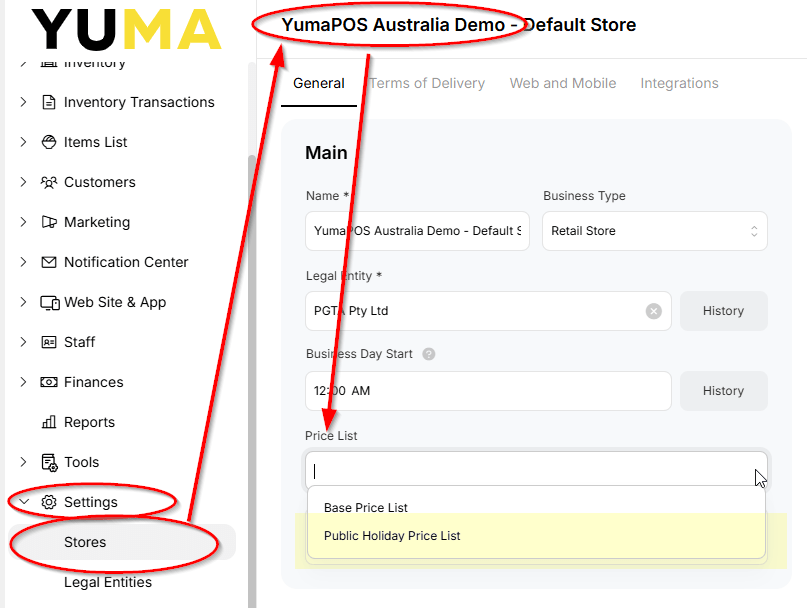
Assign Base Price List to a STORE
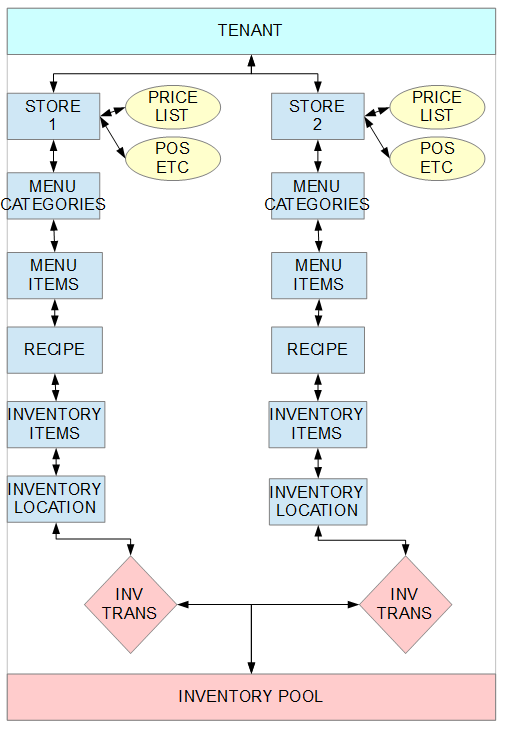
Each STORE in your TENANT will have a PRICE LIST “attached” using the STORE CARD. See BOM / Settings/ Stores.
Show Price Lists
Sign into your BOM and navigate to Items List / Price Lists.
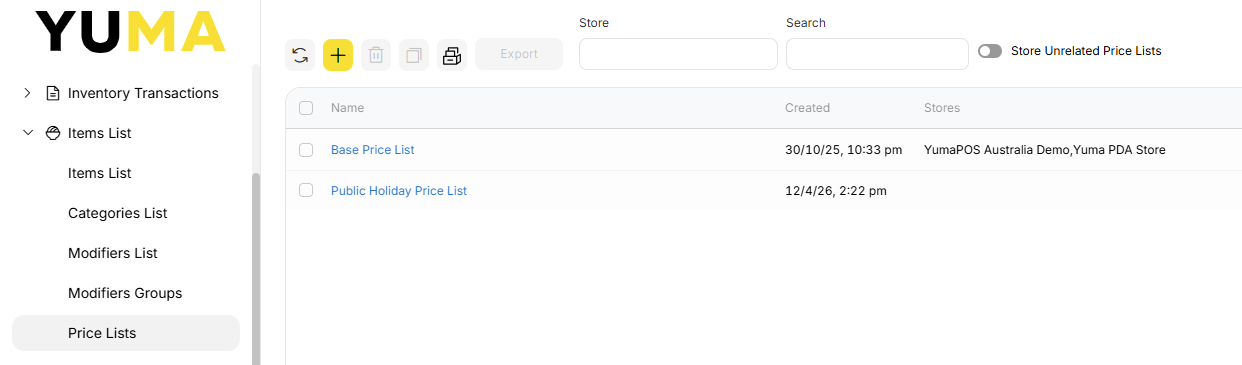
We will have our usual menu bar across the top of the page.
The list of created PRICE LISTS will follow, along with their creation date and which STORE/S are using which as their default.
Delete Price List
Select the one you want to delete & <trashcan>. There is no confirmation dialogue.
Any STORES or PROMOTIONS that are referencing this PRICE LIST will probably break.
Restore Price List
Select the <Archive> & <Restore>.
Copy Price List
Select the one you want to copy & <Copy>.
You should then click into the copied price list, change its name and tweak the prices.
See “add new” for how to do bulk updates.
Add New Price List
In your BOM, navigate to Items List / Price Lists.
Select <+> and you will get a screen something like this …
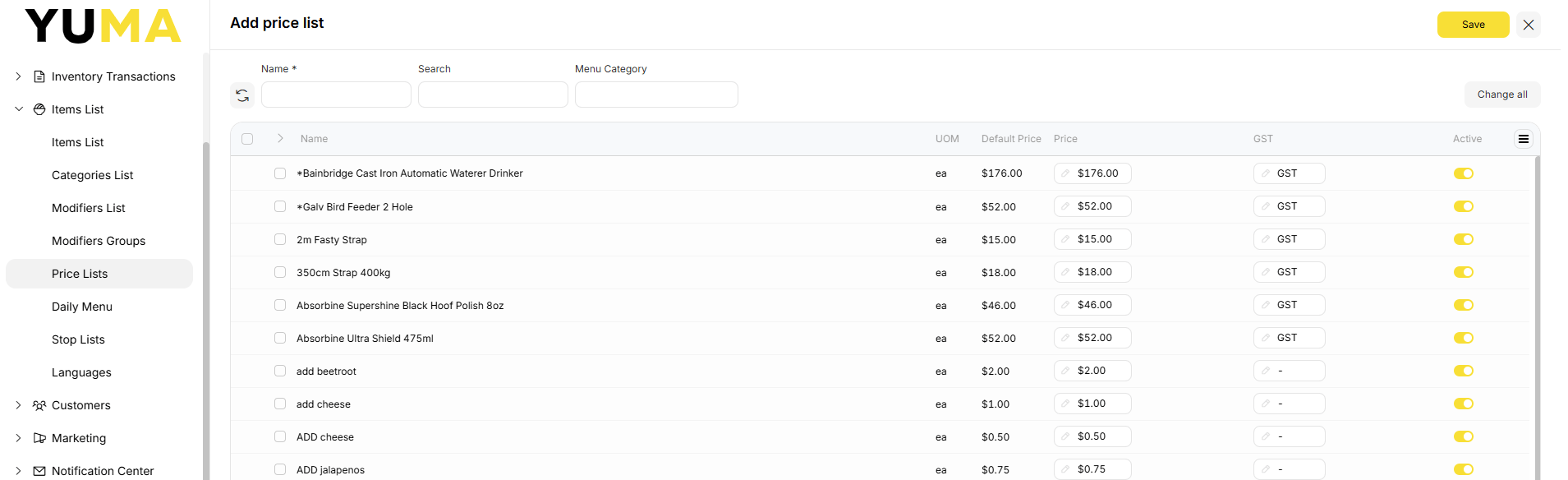
Before you can <Save> it, you need to give it a useful Name.
Set Your Prices
You can do this in a number of ways.
One at a Time
Edit the Price column one at a time and then UPDATE.
Search or Filter by Menu Category
This is a good way to “narrow the field” a bit.
You may then update one at a time or choose the ones you want to apply a set rate to and select :
- EDIT
- SET PRICE
- Set New Price
- Change Current Price
- Fill at default price
- SET
- UPDATE
Public Holiday Example
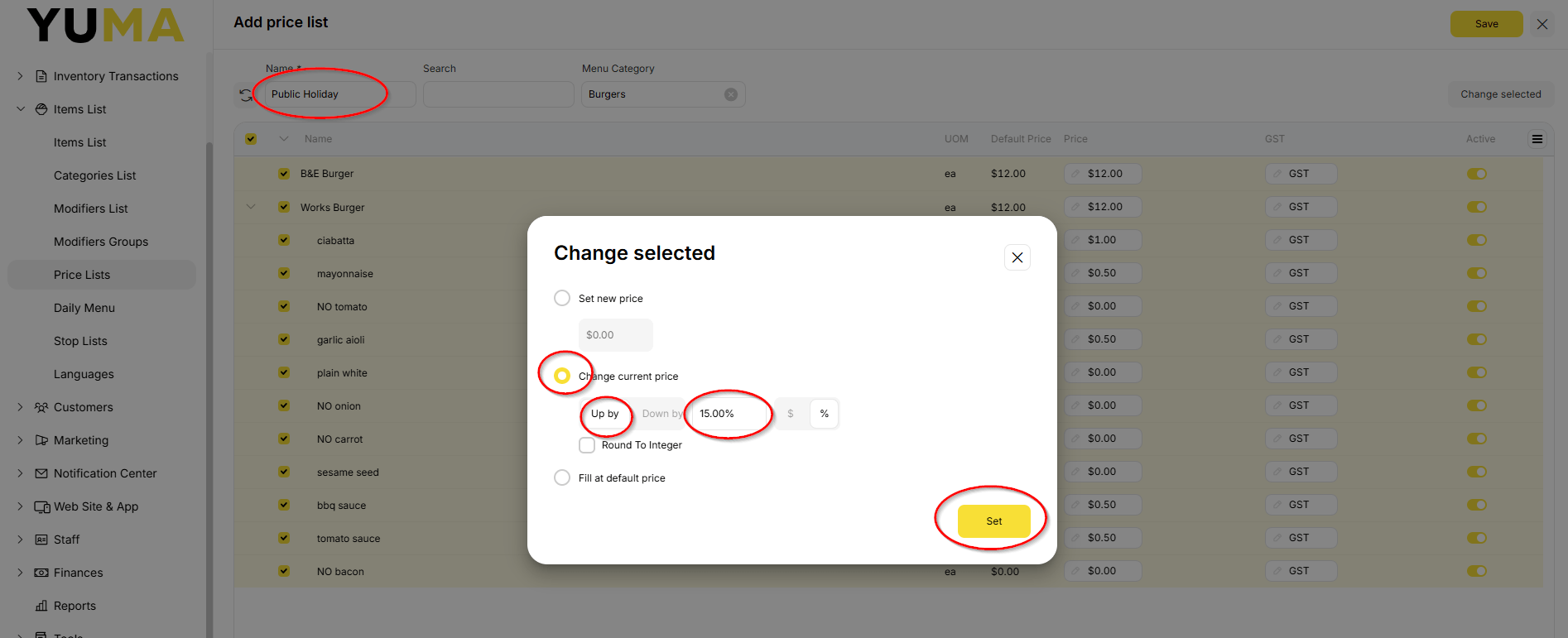
I am copying the BASE PRICE LIST, selecting all MENU ITEMS and <Change Selected> by adding 15%
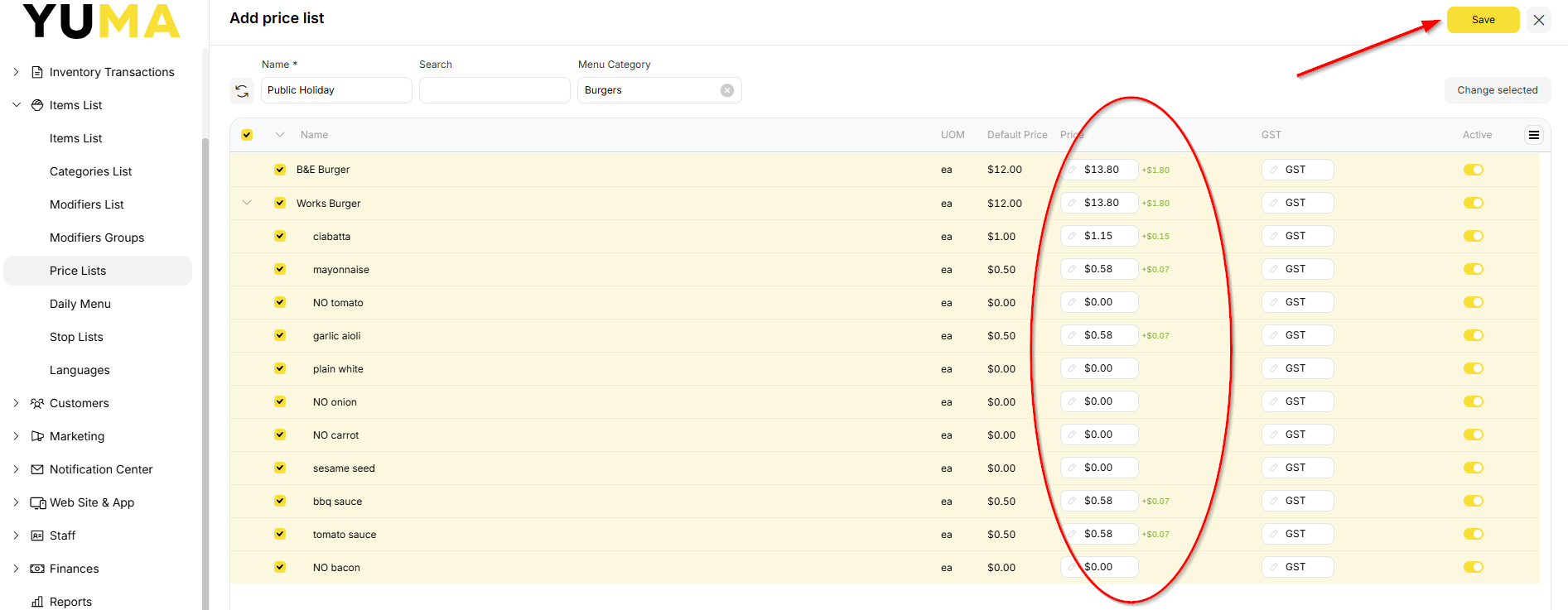
Don’t forget to <Save> your work.
Use Your New Price List
The manual way is to navigate to your STORE in your BOM and manually choose which PRICE LIST to use.
So before I open for business on the public holiday, I would select Public Holiday Price List and UPDATE.
All your POS and devices attached to your STORE will now be using the Public Holiday Price List.
This will remain until you manually change it back.
All my POS and devices attached to my STORE will now be using the Public Holiday Price List.
This will remain until I manually change it back.
Automate the Process using a PROMOTION
BOM / Marketing / Promotional Campaigns / Add New
- Name : Public Holiday PL
- Description : Something that tells me what this PROMOTION is all about
- Stores : Select the STORE names
- Awards Actions : Price List ( Replace ) & select Public Holiday Price List
- Availability : Make it ACTIVE and Restrict Availability by Dates.
- Select start date
- Select end
- Apply
- Update
I can reuse this PROMOTION for every public holiday just by changing the AVAILABILITY or copying the PROMOTION multiple times and setting an entire years worth of dates.
There are a lot more options available ( such as making it trigger for set order types eg online), but the same principle applies to all PROMOTIONS – define a given set of criteria to make something happen.
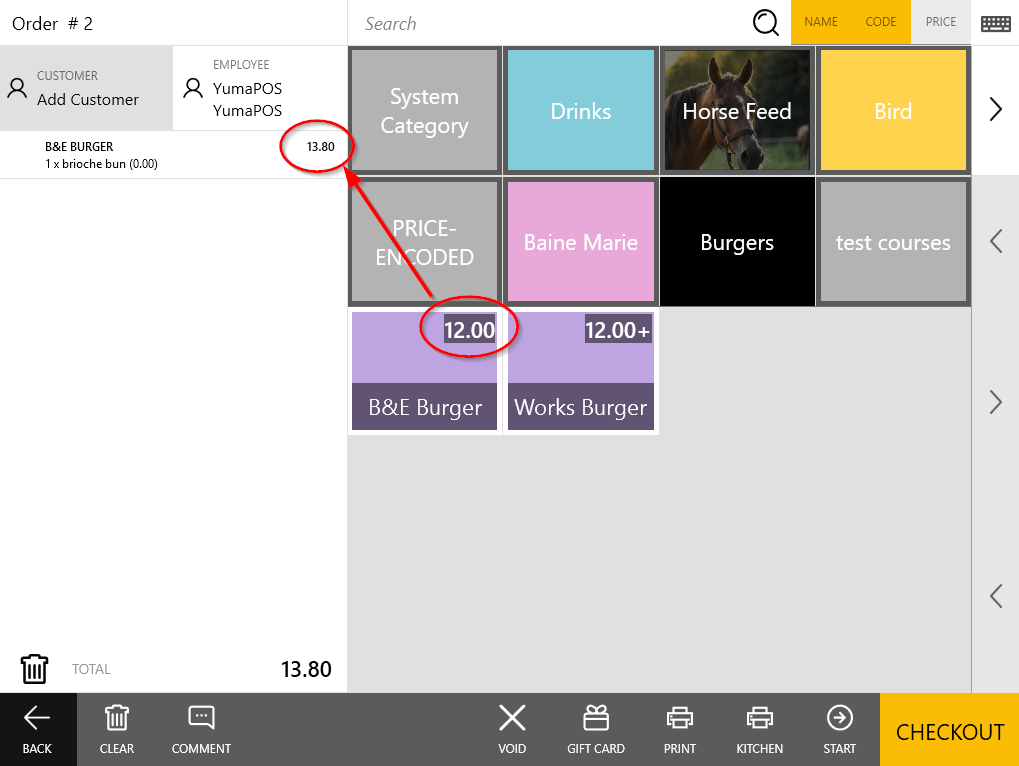
Above we can see the BASE PRICE “attached” to the STORE is $12.00.
The Public Holiday PROMOTION is active and is overwriting the VIRTUAL ORDER to $13.80.
PROMOTIONS will be covered in an in-depth article, under Back Office Management Console / Marketing / Promos.