
-
YumaPOS
-
- The YumaPOS Ecosystem
- Plan Where You Want to be in 6 and 12 Months from Now
- Create Your YumaPOS TENANT
- Create STORES in your YumaPOS TENANT
- Make Life Easy : Preset Some Basic Settings
- Which is best for You? Manual Entry or Data Import?
- Great Structure Makes Selling Easier
- Positive Planning Prevents Poor Performance
- POS and ORDER Fundamentals
- Getting to Know Your New BOM
- Cheap Internet Can Cost Businesses Time, Money and Productivity
- Security : Do you Really Want Your Staff Doing That?
- Stock Control: What It Is and How to Know If It’s Right for Your Business
- Scale Your Business : YumaPOS for Single to Franchise Growth
- A Quick Guide to Where ITEM Cost Comes From
- Know Your Customers, Earn Their Loyalty, Grow Your Sales
- Yumapos Price Lists, Holiday Promotions & Surcharging - Made Easy
- Glossary of Terms
- Show Remaining Articles (3) Collapse Articles
-
-
- Quickly List Transactions Created by Your STORES and APPs
- Easily See Transactions by Staff Member
- It is Simple to Track Sales by Terminal
- Processing Order Tracking: How to Minimise Operational Loss
- Voided Orders Explained: Why You Need to Catch Them
- Action Logs: Why they are Important to Your Business
-
-
- Articles coming soon
-
- Articles coming soon
-
- Articles coming soon
-
- Articles coming soon
-
- Articles coming soon
-
- Articles coming soon
-
- Articles coming soon
-
- Articles coming soon
-
- Articles coming soon
-
- Articles coming soon
-
- Articles coming soon
-
- Articles coming soon
-
- Articles coming soon
-
-
- Inventory Items & Menu Items: Can You Tell the Difference ?
- Your Easy Guide to Menu Item Basics
- How to View and Manage the Menu Items List
- Create and Manage Menu Categories Easily
- Understanding Item Modifiers for Accurate Production and Lower Costs
- Complete Guide to Managing Item Modifiers in Your Business
- Point of Sale Price Lists Made Easy : A Complete Guide
- Daily Menu Configuration and How to Use Them
- How to Use Stop Lists to Prevent Overselling
- Changing Default Language for Production
-
-
- Articles coming soon
-
- Articles coming soon
-
- Articles coming soon
-
- Articles coming soon
-
- Articles coming soon
-
- Articles coming soon
-
-
-
- Articles coming soon
-
- Articles coming soon
-
- Articles coming soon
-
-
-
- Articles coming soon
-
- Articles coming soon
-
- Articles coming soon
-
- Articles coming soon
-
- Articles coming soon
-
-
-
- Articles coming soon
-
- Articles coming soon
-
- Articles coming soon
-
- Articles coming soon
-
-
-
- Articles coming soon
-
- Articles coming soon
-
- Articles coming soon
-
- Articles coming soon
-
-
-
- Articles coming soon
-
- Articles coming soon
-
- Articles coming soon
-
- Articles coming soon
-
- Articles coming soon
-
- Articles coming soon
-
- Articles coming soon
-
- Articles coming soon
-
- Articles coming soon
-
- Articles coming soon
-
- Articles coming soon
-
-
-
- Articles coming soon
-
- Articles coming soon
-
- Articles coming soon
-
- Articles coming soon
-
- Articles coming soon
-
- Articles coming soon
-
- Articles coming soon
-
- Articles coming soon
-
- Articles coming soon
-
- Articles coming soon
-
- Articles coming soon
-
-
-
- Articles coming soon
-
- Articles coming soon
-
- Articles coming soon
-
- Articles coming soon
-
- Articles coming soon
-
- Articles coming soon
-
-
- Articles coming soon
-
- Articles coming soon
-
- Articles coming soon
-
- Articles coming soon
-
- Articles coming soon
-
- Articles coming soon
-
- Articles coming soon
-
-
- Articles coming soon
-
- Articles coming soon
-
- Articles coming soon
-
- Articles coming soon
-
- Articles coming soon
-
- Articles coming soon
-
- Articles coming soon
-
-
- Articles coming soon
-
-
-
YumaPAY
Introduction
This article is to introduce you to your Back Office Management console.
It is definitely easier to call it BOM.
This article is not really a “howto” do something, but is more akin to an overview with detailed information available from your support team and / or the knowledgebase.
What is BOM ?
Your Back Office Management console is the core module of YumaPOS. Anything and everything that your integrated systems do, will be reflected here.
The BOM is also responsible for :
- Generating sales screens and menus
- Managing CUSTOMERS
- Controlling INVENTORY
- Creating MARKETING campaigns
- Sending NOTIFICATIONS
- Defining PROMOTIONS
- Setting Up GIFT CARDS
- Tweaking POS behaviour
- Defining ROLES for your STAFF
- Managing integrations such as Uber, Mobile APP and Web pages
Accessing your BOM
Your BOM can be accessed using pretty much any internet enabled device, from anywhere in the world with internet. This allows you to control & monitor your STORE/STORES remotely.
As part of your introduction package, you would have been given a URL. It will look something like :
https://admin-TENANT.yumapos.io
Enter this into your favourite web browser and you will be asked to enter a username and password.
YumaPOS Dashboard
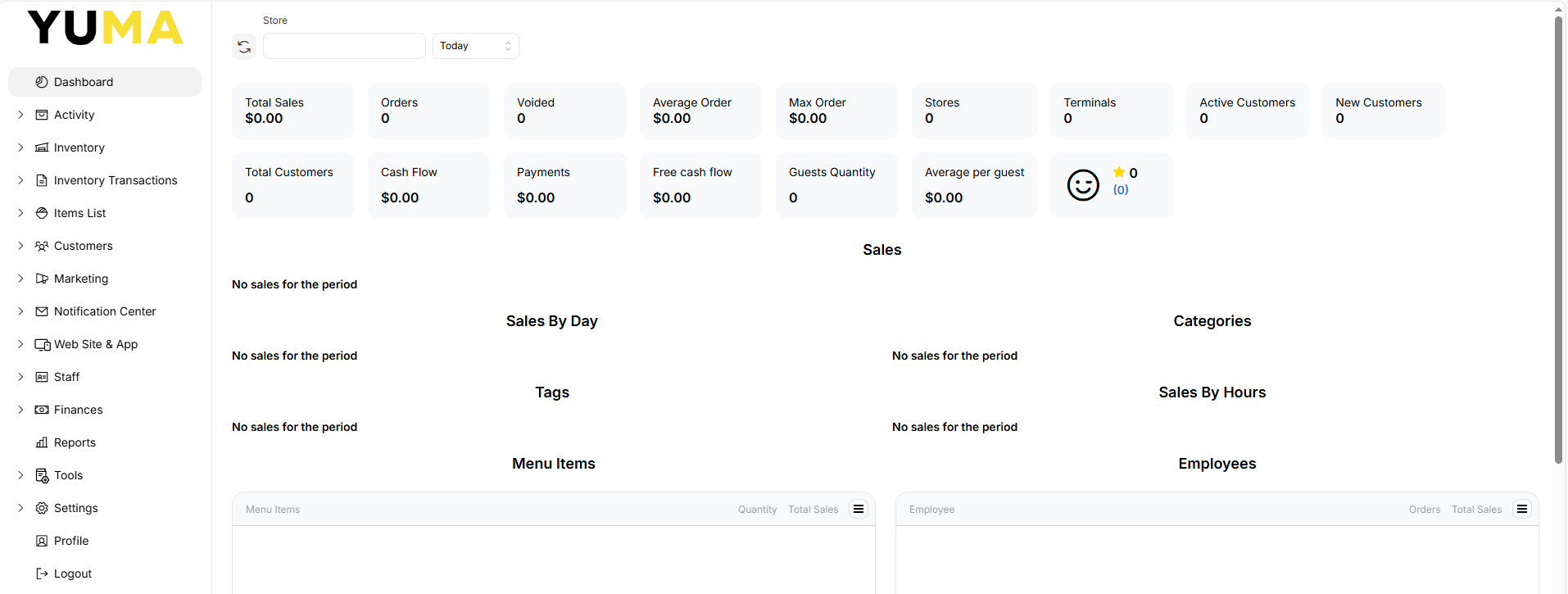
Once logged in, you will be presented with the YumaPOS dashboard.
Dashboard is the default screen when you log into your BOM.
It is a representation of the current state of your STORE/STORES performance in the current BUSINESS DAY.
Down the left hand side, are a series of “nodes”. By clicking the YUMA logo, you can collapse this side menu.
Filters are Every Where
There is one set of “features” that can be applied across most of the BOM and that is FILTERS.
There are many different ways to FILTER the data shown to you in your BOM as well as your POS. I often hear “such and such is missing”, when in reality, the BOM / POS user has just created or used a FILTER that does not include what they are looking for.
Usually, at the top of the screen, you will have something like STORE or ITEM or CATEGORY or SEARCH.
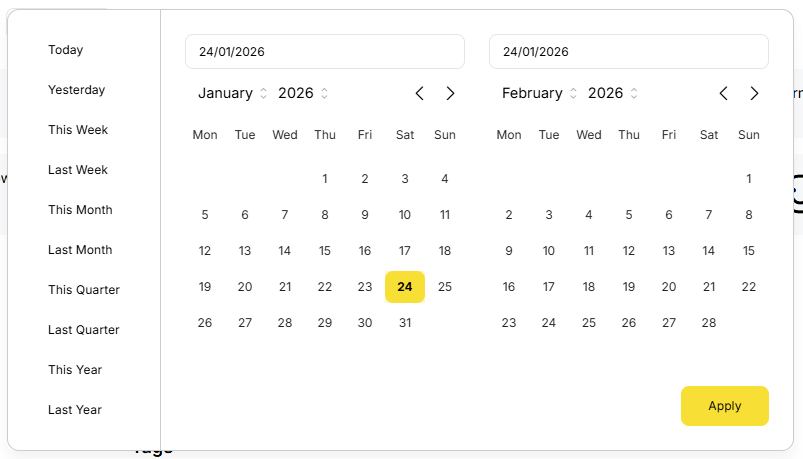
In DASHBOARD you have”Store” & “Today”.
Select “Today” and you are presented with a series of predefined filters or you can create your own.
While DASHBOARD filters are pretty simple, the ones for REPORTS get pretty complex allowing for some fantastic customisations.
Activity
Like most of these side menu SECTIONS, this one has lots of sub-menus.
TRANSACTIONS is where you will see each and every SALE that has been FINALISED on your POS APP. One that is not finalised is still an ORDER and will appear under PROCESSING ORDERS.
You can open TRANSACTIONS and select a SALE and see the full detail about that SALE – including PRICE OVERRIDES, CUSTOMER if added, PAYMENT METHOD, etc.
The HISTORY tab is great for looking at the different STATUSES the ORDER went through, potentially identifying bottle necks in your processes.
Where a CUSTOMER has been added, you can even click on that CUSTOMER and drill down directly into details about that CUSTOMER.
You can also see TRANSACTIONS by EMPLOYEE or POS TERMINAL.
VOIDED ORDERS are important as too many will often indicate as issue with training or theft.
The last one I want to mention here is ACTION LOG. It is one of the places that can be used to see WHO did WHAT and WHEN and from WHERE. While probably not very useful to you, it has allowed me to fault find on more than one occasion.
Inventory
Think of INVENTORY as what you “buy” and “count”.
When you create INVENTORY ITEMS and INVENTORY CATEGORIES, you can then start getting reports on the COST of what you are selling.
INVENTORY may be held in multiple STORAGE AREAS.
You can also do PRODUCTION RUNS that take multiple INVENTORY ITEMS to produce a new INVENTORY ITEM.
INVENTORY may be a simple or complex setup, depending on your business model.
There is a separate Article in this KB discussing what level of INVENTORY control may be suitable for your business.
Inventory Transactions
Here is where you get a granular view of what is happening with your INVENTORY.
Anything that represents inbound or outbound stock movement will be seen here :
- POS APP sales linked via RECIPE
- Receiving via supplier invoice
- Inventory write off
- Inventory Transfer
- Inventory Audit
- Production Run
- Returns via supplier invoice
- Create PURCHASE ORDERS
- Perform A PRODUCTION RUN.
Items List
We have already determined that what you “buy and count” are called INVENTORY ITEMS.
Under ITEMS LIST is what ( and how ) you “sell” things.
ITEMS may be broken down into CATEGORIES and SUB-CATEGORIES to make it easier to select ITEMS on your POS APP and eSHOP.
ITEMS may also have RELATED MODIFERS and COMMON MODIFIERS
- “How do you want your steak cooked ?”
- “What size / colour shirt ?”
- “No anchovies” ).
PRICE LISTS can be assigned via the STORE or automatically via a PROMOTION.
You can turn ITEM availability on and off via DAILY MENUS. This is ideal for when you have a breakfast / lunch / dinner service and want to prevent unavailable ITEMS from being ordered via POS APP, eSHOP or QR Order at Table.
STOP LISTS are used to signify an ITEM has been sold out and can be set via INVENTORY or a MANUAL STOP or an AUTO STOP.
Customers
Data is power.
The more information you can collect about your CUSTOMERS, the greater your ability to make repeat sales.
You get CUSTOMER data from :
- being entered on the POS APP
- interaction with MOB APP
- entered as part of an eSHOP transaction
- data import on your BOM
Customer Groups & Auto-Filled Groups
Every CUSTOMER will belong to the COMMON GROUP, but you can get real creative with AUTO-FILLED GROUPS.
Every 15 minutes, your BOM will look at the criteria you have defined for your AUTOFILLED GROUPS and add matching CUSTOMERS to that GROUP.
Some of the criteria your BOM can look for :
- Gender
- Registration date
- Inactivity in a period
- Date of Birth
- Total Spend in a period
- Number of ORDERS in a period
- ORDER type in a period
- POINTS balance in a period
- ORDER review votes
- Location
Using CUSTOMER GROUPS will allow you to create targeted PROMOTIONS and MARKETING campaigns, as well as use NOTIFICATIONS efficiently.
Marketing
Promotional Campaigns
- a discount
- free delivery
- free items
- mandatory items
- loyalty points
- a set price
- issuing a promo code
- alter the customer group
- BOGO
Gift Cards
Discounts & Markups
- cash discount
- percentage discount
- cash markup
- percentage markup
Media Broadcasts
- customer screen
- electronic queue screen
- self service kiosk
- dedicated promotion screen
Promotional Codes
Notification Centre
Manual Messages
Event Messages
- Forgot Password
- Registration Confirmation
- Password Changed
- Send Receipt
- Send Purchasing Order Email
Push Settings
It is possible to configure :
- order status updates
- points earnt
- one-time promotional codes
- feedback requests
- point expiration
Web Site & APP
Your BOM provides an eSHOP so that you can add the HTML code into your existing website. Alternatively, you could enable the landing page, make some DNS modifications and you have yourself a quick and easy website with an integrated eSHOP.
All driven from your BOM, where making a change to an ITEM is immediately reflected in your online presence.
In either case, you would want to be able to control the layout and colour theme, do some basic SEO as well as add some extra pages.
Where you decide to use the MOBILE APP, you can also modify some of its settings here.
You can alter the need for CUSTOMERS to “register” or use “guest check out”, as well as altering content layout and behaviour.
Staff
We all need them, but do you trust them with ADMIN access?
Roles
Allows you to define access to BOM sections and POS APP functions. They could be yes or no, with or without minimum and maximum values, grant read only or read & write access. The common ROLES that I use :
- ADMIN : access to everything POS & BOM
- CASHIER : enough access to the POS to make sales and use predefined discounts, but not do large refunds nor access settings. No access to BOM.
- SUPERVISOR : access to POS to make sales, perform predefined and open discounts, do refunds and price overrides, void orders, but no access to POS settings or BOM.
- HOUSEKEEPING / KITCHEN : can only log in, take a break and log out on the POS. No access to BOM.
- BOOKKEEPER : No POS access. Read only access to BOM. Ideal for giving your number cruncher remote access to your BOM reports.
Schedule
Allows you to compose the work schedule for your registered stores.
The schedule allows you to establish the planned working time of your employees, as well as to record the actual working time. You can compose or view work schedules for a month, a week, or a day.
You can filter your schedules by stores, period or employee roles.
Payroll
Where you can compose staff CLOCKING RECORDS into a PAY RUN.
Where you have defined hourly rates etc, you will also be presented with dollar values.
Finances
Bringing all of the accumulated data together happens here.
- CASH FLOWS : is the net amount of cash and cash-equivalents being transferred into and out of a business. YumaPOS Back Office lets you view, register, and control cash flows (referred to as financial operations) that concern all your legal entities.
- INVOICES
- BILLS
- BALANCE displays overall financial information on all your legal entities in real time. The following information is available:
- The cash balance (it includes the amount of cash in the safe deposit and in cash drawers of all your POS terminals)
- The bank accounts balances (non-cash funds)
- Accounts payables
- Accounts receivables
- Balance of each POS terminal at your stores.
Reports
Provides extensive reporting with key business data and marketing activity management.
You can generate, view and save reports of the following categories (the list is not complete):
- Sales
- Profit & Loss
- POS
- Inventory
- Customers
- Employees
- Marketing
- Finances
Remember FILTERS ?
Tools & Settings
This is all black magic stuff.
Most things tucked away under these NODES control the behaviour of the different YumaPOS applications and how they interact with each other.
Profile
This is you ( or at least the user you are logged into the BOM as ).
While mostly set and forget, I would make sure that UI LANGUAGE is set the same as your other apps, usually Australian English, to avoid confusion when running reports.