
-
YumaPOS
-
- The YumaPOS Ecosystem
- Plan Where You Want to be in 6 and 12 Months from Now
- Create Your YumaPOS TENANT
- Create STORES in your YumaPOS TENANT
- Make Life Easy : Preset Some Basic Settings
- Which is best for You? Manual Entry or Data Import?
- Great Structure Makes Selling Easier
- Positive Planning Prevents Poor Performance
- POS and ORDER Fundamentals
- Getting to Know Your New BOM
- Cheap Internet Can Cost Businesses Time, Money and Productivity
- Security : Do you Really Want Your Staff Doing That?
- Stock Control: What It Is and How to Know If It’s Right for Your Business
- Scale Your Business : YumaPOS for Single to Franchise Growth
- A Quick Guide to Where ITEM Cost Comes From
- Know Your Customers, Earn Their Loyalty, Grow Your Sales
- Yumapos Price Lists, Holiday Promotions & Surcharging - Made Easy
- Glossary of Terms
- Show Remaining Articles (3) Collapse Articles
-
-
- Quickly List Transactions Created by Your STORES and APPs
- Easily See Transactions by Staff Member
- It is Simple to Track Sales by Terminal
- Processing Order Tracking: How to Minimise Operational Loss
- Voided Orders Explained: Why You Need to Catch Them
- Action Logs: Why they are Important to Your Business
-
-
- Articles coming soon
-
- Articles coming soon
-
- Articles coming soon
-
- Articles coming soon
-
- Articles coming soon
-
- Articles coming soon
-
- Articles coming soon
-
- Articles coming soon
-
- Articles coming soon
-
- Articles coming soon
-
- Articles coming soon
-
- Articles coming soon
-
- Articles coming soon
-
-
- Inventory Items & Menu Items: Can You Tell the Difference ?
- Your Easy Guide to Menu Item Basics
- How to View and Manage the Menu Items List
- Create and Manage Menu Categories Easily
- Understanding Item Modifiers for Accurate Production and Lower Costs
- Complete Guide to Managing Item Modifiers in Your Business
- Point of Sale Price Lists Made Easy : A Complete Guide
- Daily Menu Configuration and How to Use Them
- How to Use Stop Lists to Prevent Overselling
- Changing Default Language for Production
-
-
- Articles coming soon
-
- Articles coming soon
-
- Articles coming soon
-
- Articles coming soon
-
- Articles coming soon
-
- Articles coming soon
-
-
-
- Articles coming soon
-
- Articles coming soon
-
- Articles coming soon
-
-
-
- Articles coming soon
-
- Articles coming soon
-
- Articles coming soon
-
- Articles coming soon
-
- Articles coming soon
-
-
-
- Articles coming soon
-
- Articles coming soon
-
- Articles coming soon
-
- Articles coming soon
-
-
-
- Articles coming soon
-
- Articles coming soon
-
- Articles coming soon
-
- Articles coming soon
-
-
-
- Articles coming soon
-
- Articles coming soon
-
- Articles coming soon
-
- Articles coming soon
-
- Articles coming soon
-
- Articles coming soon
-
- Articles coming soon
-
- Articles coming soon
-
- Articles coming soon
-
- Articles coming soon
-
- Articles coming soon
-
-
-
- Articles coming soon
-
- Articles coming soon
-
- Articles coming soon
-
- Articles coming soon
-
- Articles coming soon
-
- Articles coming soon
-
- Articles coming soon
-
- Articles coming soon
-
- Articles coming soon
-
- Articles coming soon
-
- Articles coming soon
-
-
-
- Articles coming soon
-
- Articles coming soon
-
- Articles coming soon
-
- Articles coming soon
-
- Articles coming soon
-
- Articles coming soon
-
-
- Articles coming soon
-
- Articles coming soon
-
- Articles coming soon
-
- Articles coming soon
-
- Articles coming soon
-
- Articles coming soon
-
- Articles coming soon
-
-
- Articles coming soon
-
- Articles coming soon
-
- Articles coming soon
-
- Articles coming soon
-
- Articles coming soon
-
- Articles coming soon
-
- Articles coming soon
-
-
- Articles coming soon
-
-
-
YumaPAY
Overview
Congratulations on getting a great deal with YumaPAY.
Just like our YumaPOS solution, you get Australian support to help you configure your new merchant facility and start keeping more hard earned dollars in your pocket.
This is a cut-down version of the full guide that is available HERE.
Inside the Shipping Carton
Contents may vary, based on individual requirement. They may even be shipped as separate deliveries. You will “usually” at least receive :
- Pinpad base / cradle / charger
- Power cable for the base
- LAN cable for the base
- The pinpad itself
- Some thermal paper
Remove & inspect the contents.
EFT pinpads are a secured device.
Please check carefully for any signs of damage or tampering.
Remove all plastic wrapping from the terminal, base and components.
Remove the clear protective film from the pinpad display.
Yes, I know you are tempted to leave in on there to “protect” the screen.
However, just like your POS, most heat is generated and dissipated through the screen.
Remove this film, rather than cook the internals.
Save the Shipping Carton & Packing
Keep the shipping carton and packing material for future repacking or moving of the device/s.
Familiarise Yourself with Your New Hardware
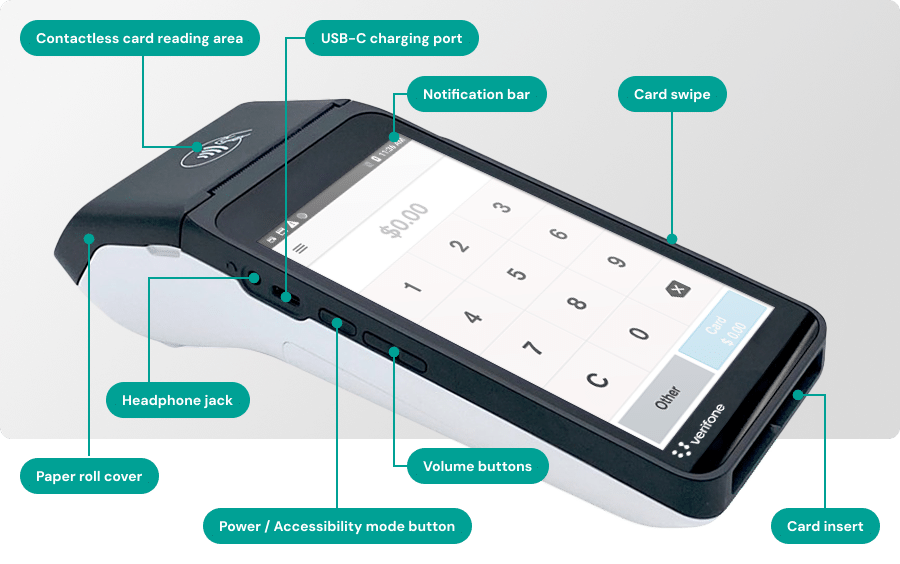

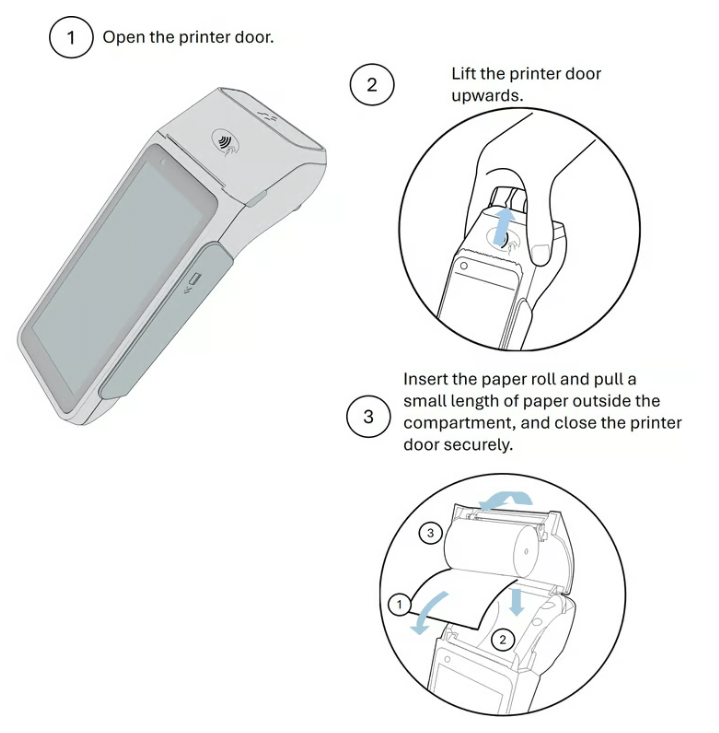
Insert Paper Roll
Even if you plan on integrating, this is a good idea as it provides you with a fail-over option.
For your reference : Calibor Thermal Roll 57mm x 38mm.
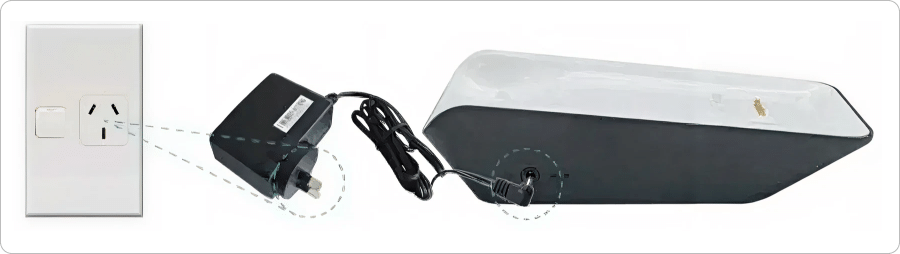
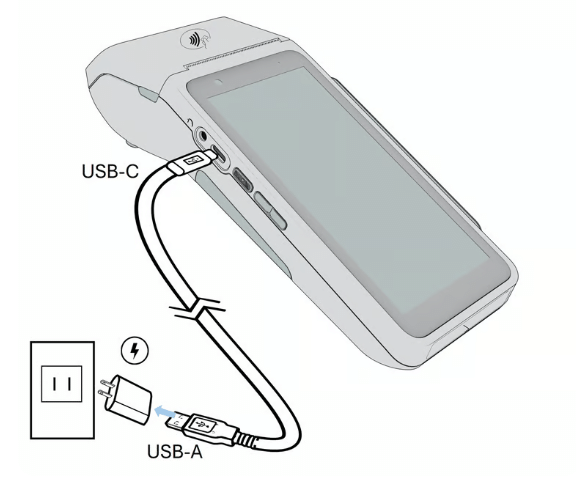
Connect to Power
This can be done in different ways.
- USB C into the pinpad : I don’t like this as it leaves the cable hanging out the side and it gets damaged – a lot !
- USB C into the base unit : I like this as it leaves the pinpad totally free. Preferred as cable management keeps it nice and neat
- 1/8″ jack plug into the base : Again, on the side, but at least the plug is set at 90 degrees
Other end will be USB-A
- Plug into POS : this is a great way to minimise power points used, but if your POS is off for a long period of time, the pinpad may go flat – depending on sleep mode set.
- Plug into 240V adaptor : this will keep the pinpad fully charged as it is on the mains.
- Plug into car : the ideal setup for mobile users.
Let it Charge
Most pinpads will have some charge in them when shipped.
If your intention is to use your pinpad as a fully mobile device, leave it a few hours to fully charge.
Power On & Boot Sequence
Some will also just turn on when they have enough charge.
If not, press and hold the <power button> for 3 seconds.
- Verifone splash screen
- Android splash screen
- Device is Starting …
Activate Pinpad
For security, your pinpad will be shipped in a non-activated state.
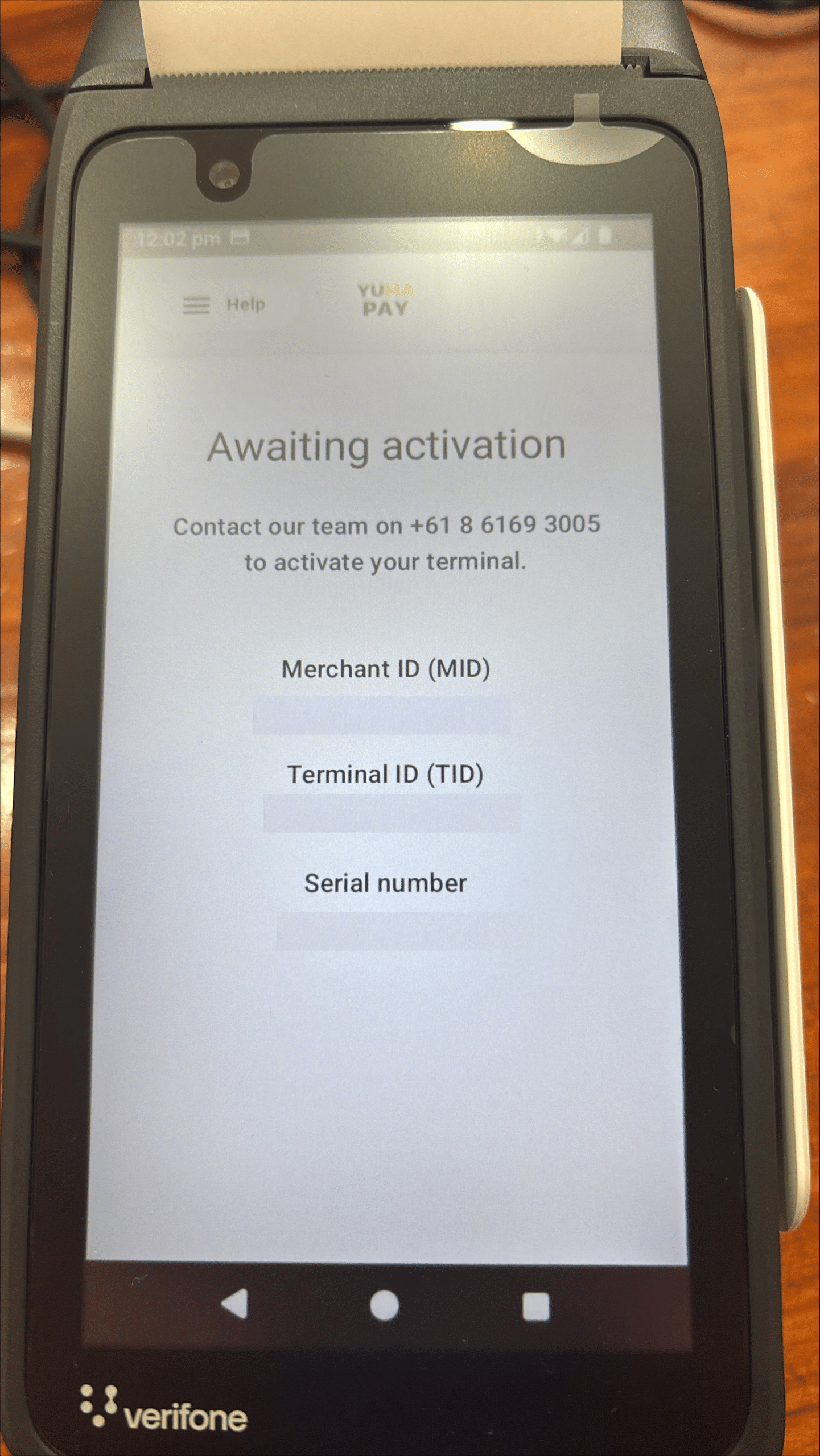
Swipe your finger down from the top of the screen.
- Select <Internet>
- 4G Disable
- Wifi <connect>
This will usually trigger the pinpad into self activating.
If not, please call your support team on the number provided.
Activated
You can now follow the process to set PINs and to use in standalone mode or integrate into your POS.