
-
YumaPOS
-
- The YumaPOS Ecosystem
- Plan Where You Want to be in 6 and 12 Months from Now
- Create Your YumaPOS TENANT
- Create STORES in your YumaPOS TENANT
- Make Life Easy : Preset Some Basic Settings
- Which is best for You? Manual Entry or Data Import?
- Great Structure Makes Selling Easier
- Positive Planning Prevents Poor Performance
- POS and ORDER Fundamentals
- Getting to Know Your New BOM
- Cheap Internet Can Cost Businesses Time, Money and Productivity
- Security : Do you Really Want Your Staff Doing That?
- Stock Control: What It Is and How to Know If It’s Right for Your Business
- Scale Your Business : YumaPOS for Single to Franchise Growth
- A Quick Guide to Where ITEM Cost Comes From
- Know Your Customers, Earn Their Loyalty, Grow Your Sales
- Yumapos Price Lists, Holiday Promotions & Surcharging - Made Easy
- Glossary of Terms
- Show Remaining Articles (3) Collapse Articles
-
-
- Quickly List Transactions Created by Your STORES and APPs
- Easily See Transactions by Staff Member
- It is Simple to Track Sales by Terminal
- Processing Order Tracking: How to Minimise Operational Loss
- Voided Orders Explained: Why You Need to Catch Them
- Action Logs: Why they are Important to Your Business
-
-
- Articles coming soon
-
- Articles coming soon
-
- Articles coming soon
-
- Articles coming soon
-
- Articles coming soon
-
- Articles coming soon
-
- Articles coming soon
-
- Articles coming soon
-
- Articles coming soon
-
- Articles coming soon
-
- Articles coming soon
-
- Articles coming soon
-
- Articles coming soon
-
-
- Inventory Items & Menu Items: Can You Tell the Difference ?
- Your Easy Guide to Menu Item Basics
- How to View and Manage the Menu Items List
- Create and Manage Menu Categories Easily
- Understanding Item Modifiers for Accurate Production and Lower Costs
- Complete Guide to Managing Item Modifiers in Your Business
- Point of Sale Price Lists Made Easy : A Complete Guide
- Daily Menu Configuration and How to Use Them
- How to Use Stop Lists to Prevent Overselling
- Changing Default Language for Production
-
-
- Articles coming soon
-
- Articles coming soon
-
- Articles coming soon
-
- Articles coming soon
-
- Articles coming soon
-
- Articles coming soon
-
-
-
- Articles coming soon
-
- Articles coming soon
-
- Articles coming soon
-
-
-
- Articles coming soon
-
- Articles coming soon
-
- Articles coming soon
-
- Articles coming soon
-
- Articles coming soon
-
-
-
- Articles coming soon
-
- Articles coming soon
-
- Articles coming soon
-
- Articles coming soon
-
-
-
- Articles coming soon
-
- Articles coming soon
-
- Articles coming soon
-
- Articles coming soon
-
-
-
- Articles coming soon
-
- Articles coming soon
-
- Articles coming soon
-
- Articles coming soon
-
- Articles coming soon
-
- Articles coming soon
-
- Articles coming soon
-
- Articles coming soon
-
- Articles coming soon
-
- Articles coming soon
-
- Articles coming soon
-
-
-
- Articles coming soon
-
- Articles coming soon
-
- Articles coming soon
-
- Articles coming soon
-
- Articles coming soon
-
- Articles coming soon
-
- Articles coming soon
-
- Articles coming soon
-
- Articles coming soon
-
- Articles coming soon
-
- Articles coming soon
-
-
-
- Articles coming soon
-
- Articles coming soon
-
- Articles coming soon
-
- Articles coming soon
-
- Articles coming soon
-
- Articles coming soon
-
-
- Articles coming soon
-
- Articles coming soon
-
- Articles coming soon
-
- Articles coming soon
-
- Articles coming soon
-
- Articles coming soon
-
- Articles coming soon
-
-
- Articles coming soon
-
- Articles coming soon
-
- Articles coming soon
-
- Articles coming soon
-
- Articles coming soon
-
- Articles coming soon
-
- Articles coming soon
-
-
- Articles coming soon
-
-
-
YumaPAY
Overview
Back Office Management (BOM) reports are the absolute backbone of a successful venue because they remove the guesswork from your daily operations. Instead of running a business based on a “gut feeling,” BOM reporting gives you hard, unarguable data on your margins, your staff and your customers.
When you collect and cross-reference all that data from your Channels of Trade (COTs), you unlock massive commercial advantages.
While your BOM has a Dashboard to show you some KPIs, there are many other reports you can generate, filter & export.
Collated by Report Type
We add new reports as the software develops, but as at the publishing date of this Article we have :
Sales Reports
Sales Summary
- Sales Summary
- Sales by Day
- Sales by Hour
- Sales by Weekdays
- Taxes
- Manual Discounts
- Online Payments by Sources
- Sales by Month
- Sales by Source Type
- Sales by Order Type
- Revenue by Payment Types
- Sales of Stores by Day
- Sales of Stores by Month
Items Sales
- Full Items
- Full Items by Day
- Full Items (Without Price)
- Full Items by Payment Type
- Full Items by Order Type
- Full Items by Cashier
- Sales by Category Including Modifiers
- Sales of Gift Cards
- Full Items by Payment Type & Customer
- Full Items by Hour
- Payment Types by Items
- Full Items by Order Creator
- Retail Items by Vendors
- Full Items by Terminals
- Full Items (Prices Details)
- Breakfast vs Lunch
- Menu Items Sales by Tags
- B2B & B2C Full Sales
Sales by Location
- Sales by Store
- Sales by Terminal
- Sales by Business Type
Wholesale
- Wholesale by Item
- Wholesale by Item (Different Prices)
- Wholesale by Category
- Wholesale by Location
- Wholesale by Legal Entity
- Wholesale by Vendor
Finance Reports
Profit & Loss
- Profit by Date
- Profit by Store
- Profit by Items
- Profit by Items (Without Price)
- Profit by Categories
- Profit by Order Type
- Profit by Employee
- Profit by Weekday
- Cost of Goods
- Cost of Goods by Days & Stores
- ABC Analysis
- Profit & Loss Report
Finances
- Cash Flow Statement Report by Month
- Cash Flow Statement Report for the Period
- Payments by Day
- Payments by Employees
- Payments by Stores
- Reconciliation Between Legal Entities & Vendors
Transactions
- Transactions for the Period
- Tax Exempt Transactions
- Discounted Transactions
- Transactions by Order Type
- Taxes in Transactions
- Menu Items in Transactions
- Daily Transactions
B2B Invoices
- B2B Invoices
- B2B Bills
Payments
- Custom Payments
- Custom Payments by Date
Like for Like Reports
- Like for Like by Store
- Like for Like by Category
- Like for Like by Payment Type
- Like for Like Summary
POS
- Terminal Online Activity
Inventory Reports
Inventory
- All Stock
- All Stock with Reorder Point
- Dynamics of Changes in Purchase Prices by Months
- Stock Balance Changes History
- Write-Offs for the Period
- Write-Offs by Acts
- Receiving for the Period
- Receiving for the Period by Categories
- Receiving by Acts
- Stock Sheet Including Valuation
- Stock Sheet
- Transfers Between Locations
- Wholesale by Acts
- Wholesale for the Period
- Wholesale & Receiving
- Calorie Content of Products
Documents
- Transfers
- Receiving
- Returns
- Write-Offs
- Audits
- Production
- Disassembly
- Refactor
- Wholesale
- Applied Documents
Menu Items & Prices
- Menu Item Sales by Price
- Comparison of Sales & Purchase Price
- Comparison of Sales Price & Cost
- Transactions Search
Marketing Reports
Marketing
- Promotional Campaigns
- Customer Promo History
- Manual Points Log
- Gift Cards
- Combo Promotions
Reports by Customers
- Sales by Customer
- Sales by Customer Group
- Customer Points by Store
- Contacts
- Debit & Credit by Customer
Employee Reports
Employees
- Sales by Cashier
- Sales by Order Creator
- Employee Points
- Shifts Report
- Employee Activity
- Tips by Employee & Payment Type
Orders Performance
- Drivers Report
- Delivery Orders
- Service by Days
- Delivery Orders by Drivers
- Orders Performance
- Orders Performance Summary
- Orders Performance by Store
- Orders Performance by Cashier
- Orders Performance by Order Creator
- Orders Performance by Order Type
Viewing Reports
Use your BOM to navigate to <Reports>.
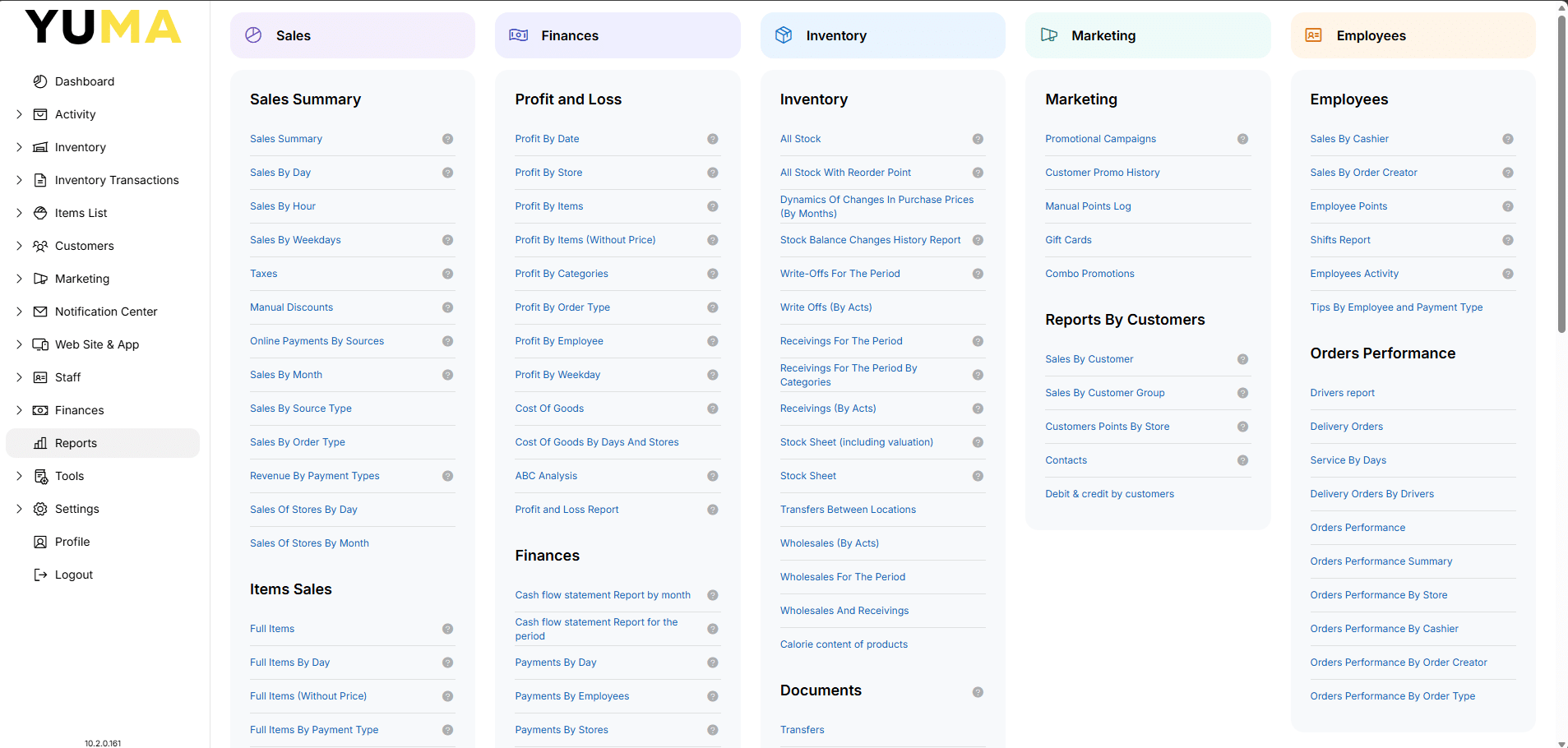
Many reports will have a question mark after the name. Hover your mouse over this symbol for a pop-up description about that report.
HINT : I find it easier to use <ctrl><f> on the Reports list, to search for a keyword when looking for a report.
What you see in the report will of course change depending on data you are viewing.
As well as different the actions/filters you can use/apply.
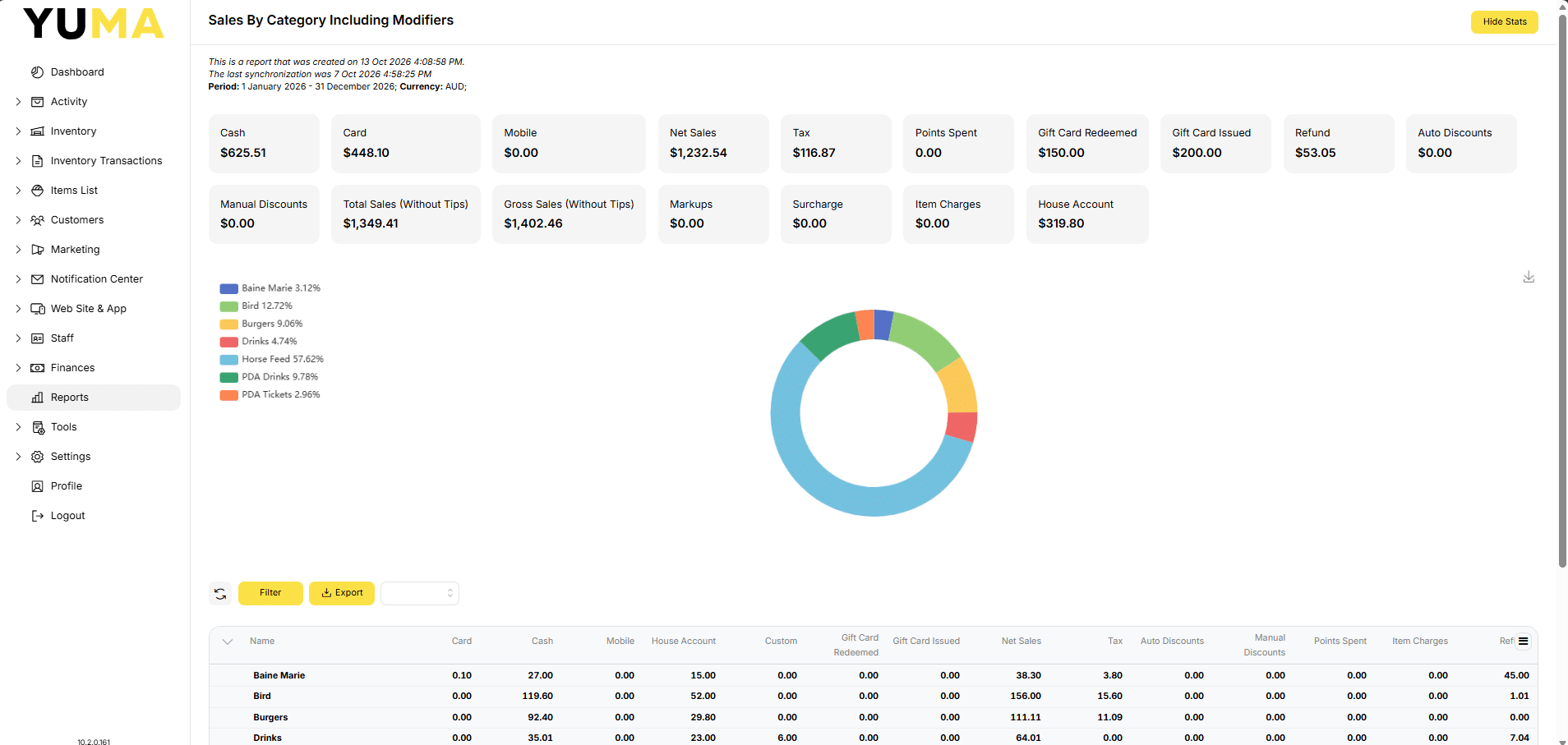
Take a while to look at the different elements shown in your chosen report.
Report Details
You will have a line with the report Name, maybe a few lines about when the report was generated, when the last data synchronisation happened, if a period of time was set and the currency used.
Report KPIs
You may have a KPI section at the top of the screen.
You may have graphs. Hover your mouse over different section of the graph for some detail about what it is representing.
Sometimes you will have icons to change the format & annotate the image, as well as download the image.
These KPIs can be hidden by selecting <HIDE STATS>. Selecting <STATS> will show them again.
Report Filters
Reports will default to the period in the name ( Day, Week, Month, Year ) and include everything in the name ( All Categories, All Employees )
Select the <Filter> button and you can customise your view.

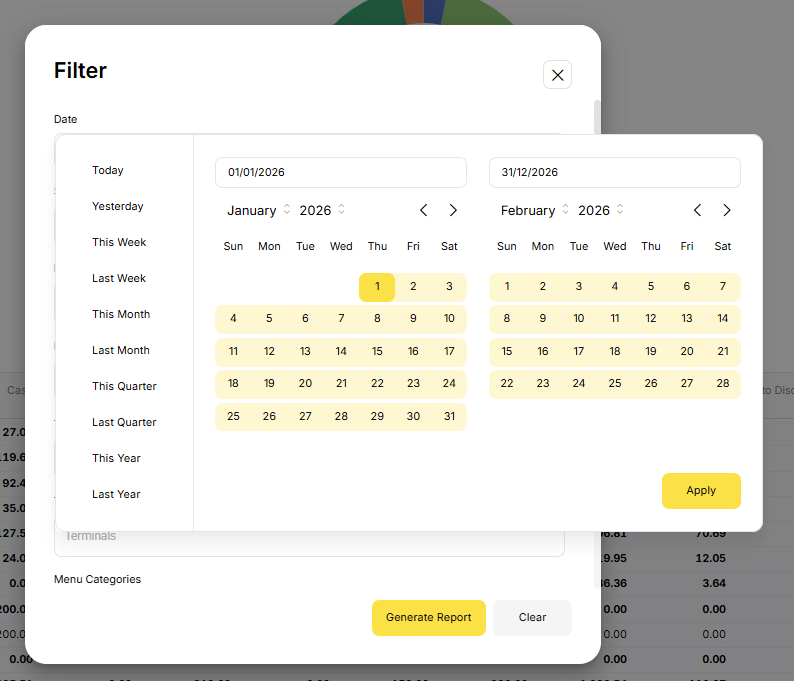
Export a Report
Select <Export> and your report can be saved. The available formats are :
- CSV
- XLSX
Clear a Filter
Select <Filter><Clear><Generate Report> to get back to the defaults.
Business Day Settings
It is important to note that any date range is based on your STORE settings. While the default is midnight to midnight, a STORE that trades after midnight might have a business day start offset.
Refer to YumaPOS STORES : Add New STORE