-
YumaPOS
-
- The YumaPOS Ecosystem
- Plan Where You Want to be in 6 and 12 Months from Now
- Create Your YumaPOS TENANT
- Create STORES in your YumaPOS TENANT
- Make Life Easy : Preset Some Basic Settings
- Which is best for You? Manual Entry or Data Import?
- Great Structure Makes Selling Easier
- Positive Planning Prevents Poor Performance
- POS and ORDER Fundamentals
- Getting to Know Your New BOM
- Cheap Internet Can Cost Businesses Time, Money and Productivity
- Security : Do you Really Want Your Staff Doing That?
- Stock Control: What It Is and How to Know If It’s Right for Your Business
- Scale Your Business : YumaPOS for Single to Franchise Growth
- A Quick Guide to Where ITEM Cost Comes From
- Know Your Customers, Earn Their Loyalty, Grow Your Sales
- Yumapos Price Lists, Holiday Promotions & Surcharging - Made Easy
- Glossary of Terms
- Show Remaining Articles (3) Collapse Articles
-
-
- Quickly List Transactions Created by Your STORES and APPs
- Easily See Transactions by Staff Member
- It is Simple to Track Sales by Terminal
- Processing Order Tracking: How to Minimise Operational Loss
- Voided Orders Explained: Why You Need to Catch Them
- Action Logs: Why they are Important to Your Business
-
-
- Articles coming soon
-
- Articles coming soon
-
- Articles coming soon
-
- Articles coming soon
-
- Articles coming soon
-
- Articles coming soon
-
- Articles coming soon
-
- Articles coming soon
-
- Articles coming soon
-
- Articles coming soon
-
- Articles coming soon
-
- Articles coming soon
-
- Articles coming soon
-
-
- Inventory Items & Menu Items: Can You Tell the Difference ?
- Your Easy Guide to Menu Item Basics
- How to View and Manage the Menu Items List
- Create and Manage Menu Categories Easily
- Understanding Item Modifiers for Accurate Production and Lower Costs
- Complete Guide to Managing Item Modifiers in Your Business
- Point of Sale Price Lists Made Easy : A Complete Guide
- Daily Menu Configuration and How to Use Them
- How to Use Stop Lists to Prevent Overselling
- Changing Default Language for Production
-
-
- Articles coming soon
-
- Articles coming soon
-
- Articles coming soon
-
- Articles coming soon
-
- Articles coming soon
-
- Articles coming soon
-
-
-
- Articles coming soon
-
- Articles coming soon
-
- Articles coming soon
-
-
-
- Articles coming soon
-
- Articles coming soon
-
- Articles coming soon
-
- Articles coming soon
-
- Articles coming soon
-
-
-
- Articles coming soon
-
- Articles coming soon
-
- Articles coming soon
-
- Articles coming soon
-
-
-
- Articles coming soon
-
- Articles coming soon
-
- Articles coming soon
-
- Articles coming soon
-
-
-
- Articles coming soon
-
- Articles coming soon
-
- Articles coming soon
-
- Articles coming soon
-
- Articles coming soon
-
- Articles coming soon
-
- Articles coming soon
-
- Articles coming soon
-
- Articles coming soon
-
- Articles coming soon
-
- Articles coming soon
-
-
-
- Articles coming soon
-
- Articles coming soon
-
- Articles coming soon
-
- Articles coming soon
-
- Articles coming soon
-
- Articles coming soon
-
- Articles coming soon
-
- Articles coming soon
-
- Articles coming soon
-
- Articles coming soon
-
- Articles coming soon
-
-
-
- Articles coming soon
-
- Articles coming soon
-
- Articles coming soon
-
- Articles coming soon
-
- Articles coming soon
-
- Articles coming soon
-
-
- Articles coming soon
-
- Articles coming soon
-
- Articles coming soon
-
- Articles coming soon
-
- Articles coming soon
-
- Articles coming soon
-
- Articles coming soon
-
-
- Articles coming soon
-
- Articles coming soon
-
- Articles coming soon
-
- Articles coming soon
-
- Articles coming soon
-
- Articles coming soon
-
- Articles coming soon
-
-
- Articles coming soon
-
-
-
YumaPAY
Introduction
Depending on your business model & strategy, you will often find the need to have a different PRICE LIST.
- Retail vs Wholesale Customers
- Dine-In & Take-Away Prices
- Public Holiday Surcharging
- Seasonal Promotions
- Member Pricing
- Happy Hour
- Offset charges from an aggregator
- Higher freight costs in different regions
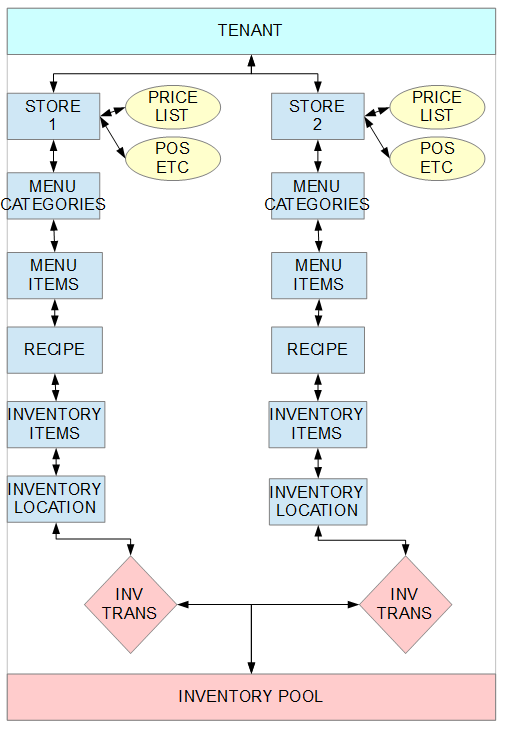
Refresher on Heirarchy
Lets’ quickly review where the PRICE LIST “sits” in relation to our STORE/S
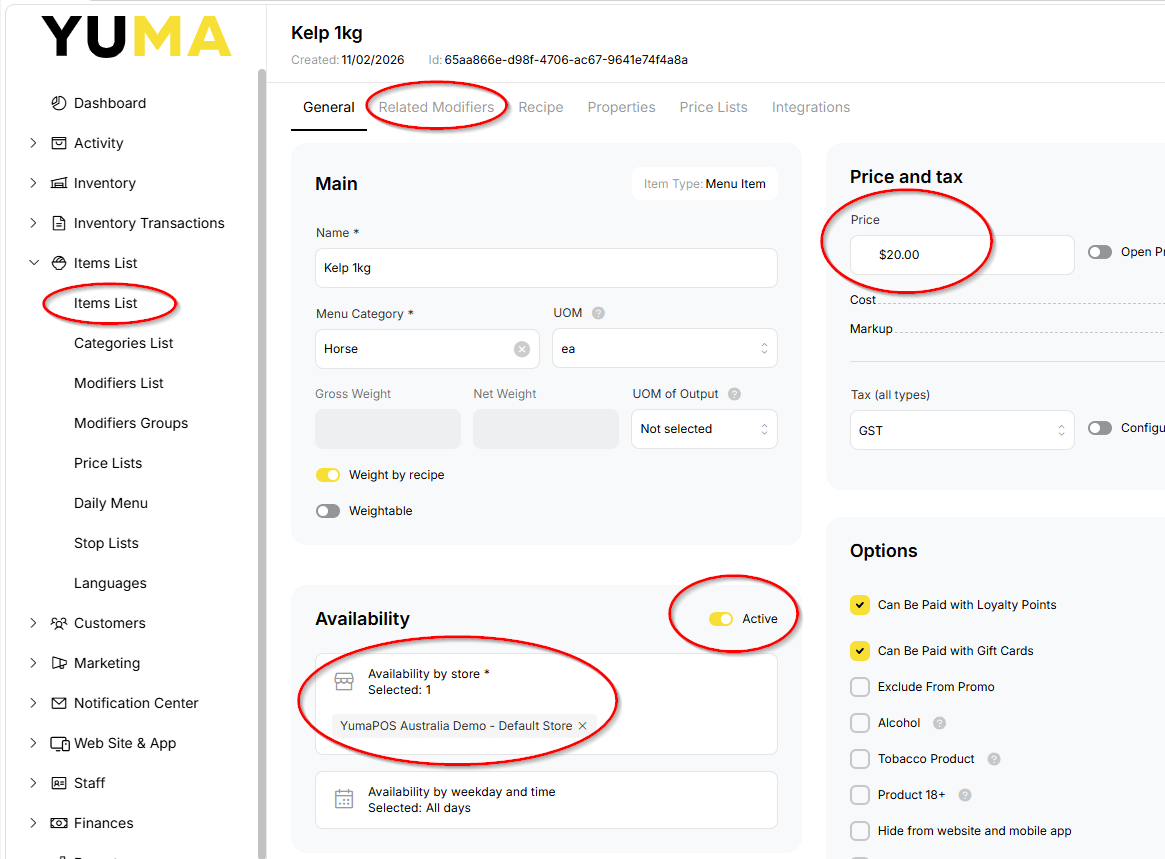
Single Store
Where you have a single STORE you can make all of your changes directly against the ITEM or MODIFIER changing the PRICE, AVAILABILITY and ACTIVE status. This also works for multiple STORES provided they are identical.
Multi Store
With multiple STORES under a single TENANT with different ITEMS or PRICES or MODIFIERS, your best place to alter prices and status is in the assigned PRICE LIST.
Single vs Multiple Stores
I have kept the two scenarios above very light on detail.
Is really too much to consider for a brief, 5 minute article.
If you are using multi-store or are looking at a franchising model where you limit the franchisees access to only their stores, your support team will walk you through it.
Create Your New Price List
In your BOM, navigate to Items List / Price Lists.
Select an existing Price List to act as your starting point and COPY it.
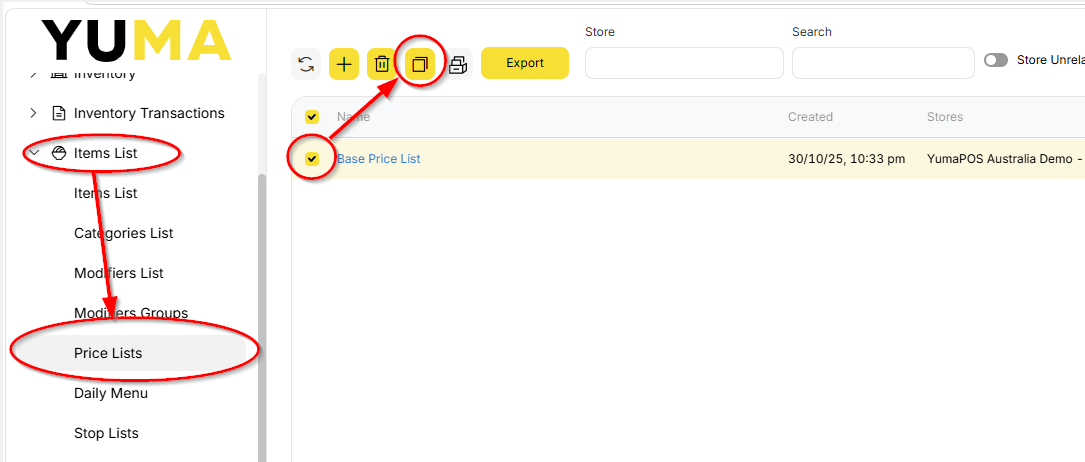
Rename the PRICELIST to something that makes sense to you and UPDATE.
In this example I am creating one to be used for public holiday surcharging… so it is called Public Holiday Price List.
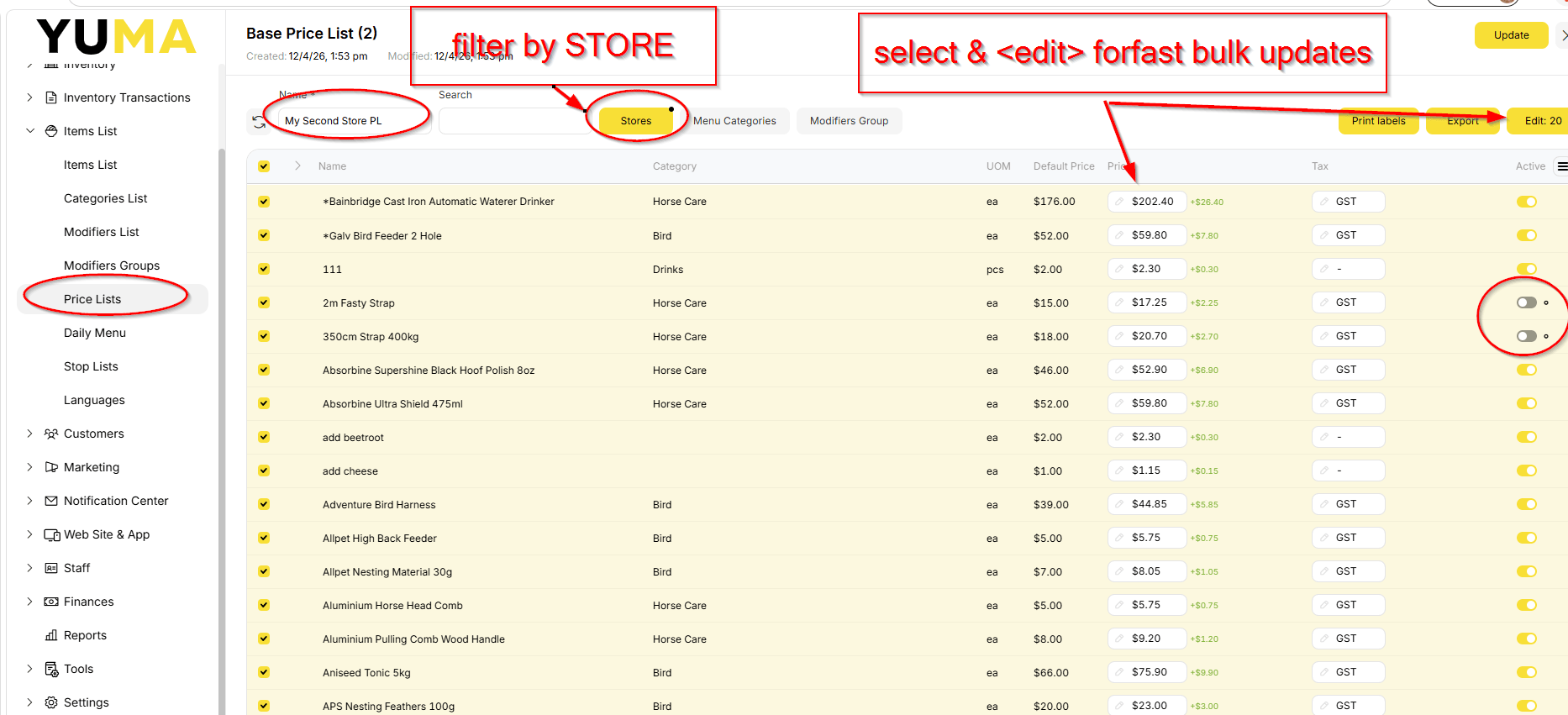
Set Your Prices
You can do this in a number of ways.
- Edit the Price column one at a time and then UPDATE.
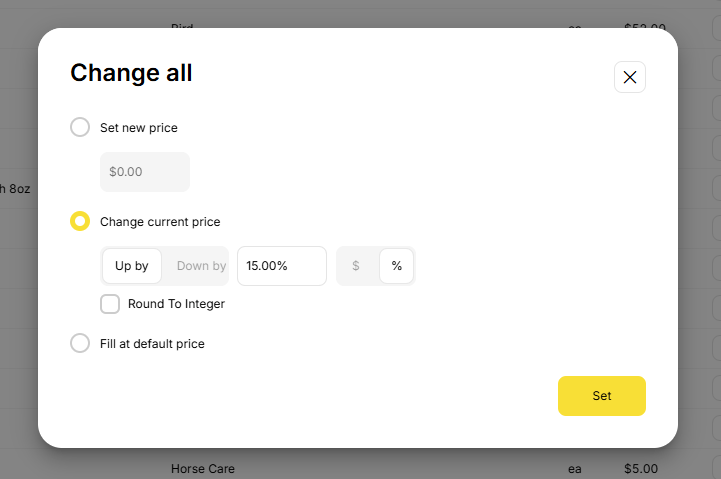
- Select the ones you want to apply a set rate to and select
- EDIT
- SET PRICE
- Set New Price
- Change Current
- Price
- Fill at default price
- SET
- UPDATE
For my Public Holiday example I am adding a flat rate of 15% to everything. Below is the screen shot.
Use Your New Price List – Manually
The simplest way is to navigate to your STORE in your BOM and manually choose which PRICE LIST to use.
So before I open for business on the public holiday, I would select Public Holiday Price List and UPDATE.
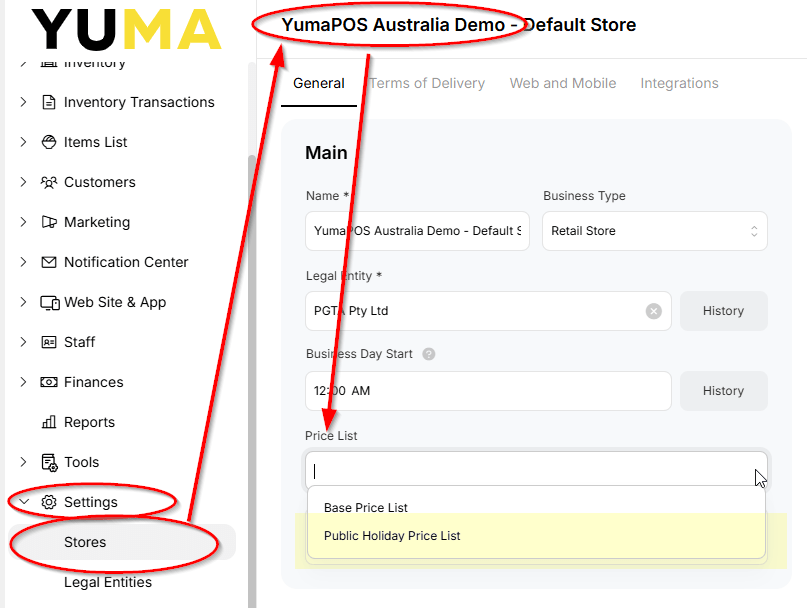
All my POS and devices attached to my STORE will now be using the Public Holiday Price List.
This will remain until I manually change it back.
Use Your New Pricelist – Automatically
YumaPOS has a great scheduling module called PROMOTIONS.
As I have said before, PROMOTIONS are not just a way to give a discount.
Met a given set of CRITERIA and the PROMOTION is triggered, making a set of actions happen.
In our Public holiday example, the criteria would be “if the date = xx/xx/xxxx” then the action is “use the public holiday pricelist”.
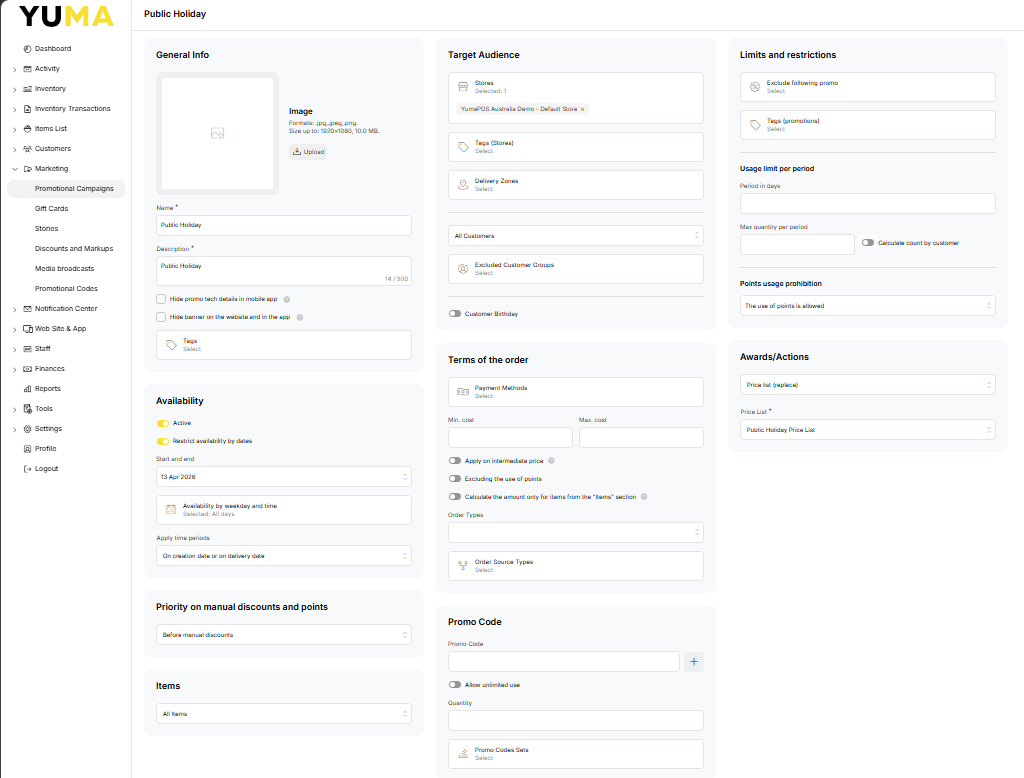
Here is how we create the PROMOTION :
- Navigate to BOM / Marketing / Promotional Campaigns / Add New
- Name : Public Holiday PL
- Description : Something that tells me what this PROMOTION is all about
- Stores : Select the STORE name/s
- Awards Actions : Price List ( Replace ) & select Public Holiday Price List
- Availability : Make it ACTIVE and Restrict Availability by Dates.
- Select start and end and set the date.
- Apply
- Update
I can reuse this PROMOTION for every public holiday just by changing the AVAILABILITY or copying the PROMOTION multiple times and setting an entire years worth of dates.
There are a lot more options available ( such as making it trigger for set order types eg online or takeaway, or a CUSTOMER GROUP), but the same principle applies to all PROMOTIONS – define a given set of criteria to make something happen.