-
YumaPOS
-
- The YumaPOS Ecosystem
- Plan Where You Want to be in 6 and 12 Months from Now
- Create Your YumaPOS TENANT
- Create STORES in your YumaPOS TENANT
- Make Life Easy : Preset Some Basic Settings
- Which is best for You? Manual Entry or Data Import?
- Great Structure Makes Selling Easier
- Positive Planning Prevents Poor Performance
- POS and ORDER Fundamentals
- Getting to Know Your New BOM
- Cheap Internet Can Cost Businesses Time, Money and Productivity
- Security : Do you Really Want Your Staff Doing That?
- Stock Control: What It Is and How to Know If It’s Right for Your Business
- Scale Your Business : YumaPOS for Single to Franchise Growth
- A Quick Guide to Where ITEM Cost Comes From
- Know Your Customers, Earn Their Loyalty, Grow Your Sales
- Yumapos Price Lists, Holiday Promotions & Surcharging - Made Easy
- Glossary of Terms
- Show Remaining Articles (3) Collapse Articles
-
-
- Quickly List Transactions Created by Your STORES and APPs
- Easily See Transactions by Staff Member
- It is Simple to Track Sales by Terminal
- Processing Order Tracking: How to Minimise Operational Loss
- Voided Orders Explained: Why You Need to Catch Them
- Action Logs: Why they are Important to Your Business
-
-
- Articles coming soon
-
- Articles coming soon
-
- Articles coming soon
-
- Articles coming soon
-
- Articles coming soon
-
- Articles coming soon
-
- Articles coming soon
-
- Articles coming soon
-
- Articles coming soon
-
- Articles coming soon
-
- Articles coming soon
-
- Articles coming soon
-
- Articles coming soon
-
-
- Inventory Items & Menu Items: Can You Tell the Difference ?
- Your Easy Guide to Menu Item Basics
- How to View and Manage the Menu Items List
- Create and Manage Menu Categories Easily
- Understanding Item Modifiers for Accurate Production and Lower Costs
- Complete Guide to Managing Item Modifiers in Your Business
- Point of Sale Price Lists Made Easy : A Complete Guide
- Daily Menu Configuration and How to Use Them
- How to Use Stop Lists to Prevent Overselling
- Changing Default Language for Production
-
-
- Articles coming soon
-
- Articles coming soon
-
- Articles coming soon
-
- Articles coming soon
-
- Articles coming soon
-
- Articles coming soon
-
-
-
- Articles coming soon
-
- Articles coming soon
-
- Articles coming soon
-
-
-
- Articles coming soon
-
- Articles coming soon
-
- Articles coming soon
-
- Articles coming soon
-
- Articles coming soon
-
-
-
- Articles coming soon
-
- Articles coming soon
-
- Articles coming soon
-
- Articles coming soon
-
-
-
- Articles coming soon
-
- Articles coming soon
-
- Articles coming soon
-
- Articles coming soon
-
-
-
- Articles coming soon
-
- Articles coming soon
-
- Articles coming soon
-
- Articles coming soon
-
- Articles coming soon
-
- Articles coming soon
-
- Articles coming soon
-
- Articles coming soon
-
- Articles coming soon
-
- Articles coming soon
-
- Articles coming soon
-
-
-
- Articles coming soon
-
- Articles coming soon
-
- Articles coming soon
-
- Articles coming soon
-
- Articles coming soon
-
- Articles coming soon
-
- Articles coming soon
-
- Articles coming soon
-
- Articles coming soon
-
- Articles coming soon
-
- Articles coming soon
-
-
-
- Articles coming soon
-
- Articles coming soon
-
- Articles coming soon
-
- Articles coming soon
-
- Articles coming soon
-
- Articles coming soon
-
-
- Articles coming soon
-
- Articles coming soon
-
- Articles coming soon
-
- Articles coming soon
-
- Articles coming soon
-
- Articles coming soon
-
- Articles coming soon
-
-
- Articles coming soon
-
- Articles coming soon
-
- Articles coming soon
-
- Articles coming soon
-
- Articles coming soon
-
- Articles coming soon
-
- Articles coming soon
-
-
- Articles coming soon
-
-
-
YumaPAY
Define Menu Item
Managing your MENU ITEMS is essential to trade.
MENU ITEMS are the goods and services that you offer your CUSTOMERS.
They must belong to a MENU ITEM CATEGORY.
They may have MODIFIERS that alter the way they are produced/ supplied.
View the Menu Items List
Sign into your BOM, expand the <Items List> node and select <Items List>.
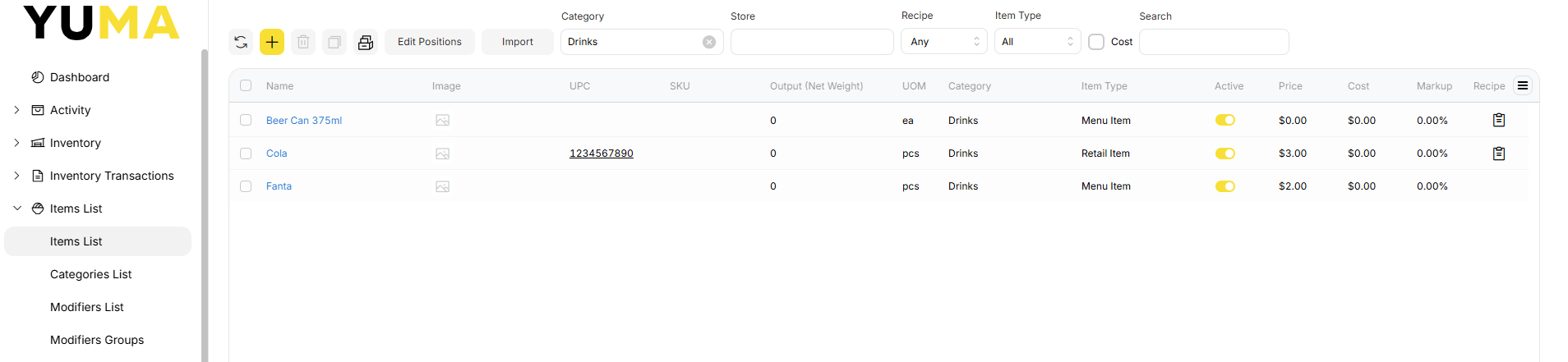
In the top bar we can see:
Refresh – to pull the latest list of MENU ITEMS without using your browsers cache
- Add – to open the new MENU ITEM dialogue
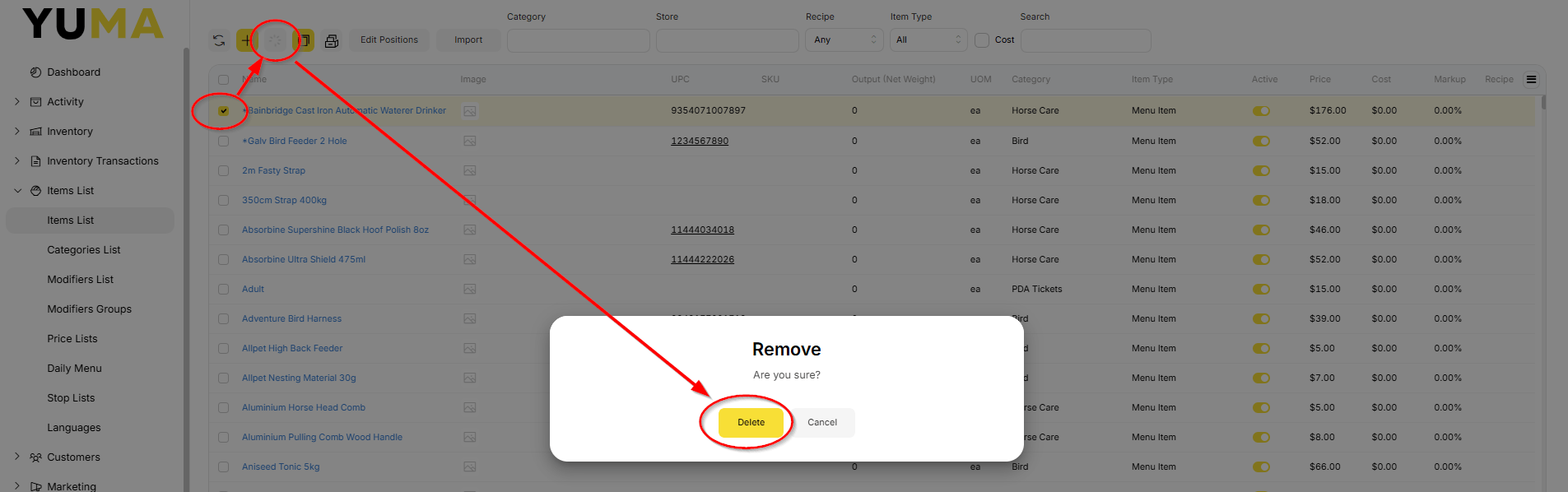
- Delete – to move the selected MENU ITEM to the Archive
- Archive – to view what has been deleted
- Edit Positions – to manually change the sort order displayed on your devices
- Import – to access data import / export functions
- Category – to filter the list by a MENU CATEGORY
- Store – to filter the list by a STORE NAME
- Recipe – to filter the list by :
- Any
- With recipe
- Without Recipe
- Item Type – to filter the list by :
- All
- Menu Item
- Recipe Item
- Cost – is a toggle to show the cost price allocated via RECIPE
- Search – to enter a string to find a MENU ITEM
Looking at each MENU ITEM as a line item, we can see:
- a check box that when selected will make available the delete icon
- the name that has been given
- if an IMAGE has been added
- UPC aka Barcode that has been used
- SKU that has been assigned for internal reporting
- Net Weight that has been given to the MENU ITEM
- UOM is the unit of measure used
- Category shows you the MENU CATEGORY this MENU ITEM belongs in
- Item Type is the INVENTORY RECIPE type that has been used
- note that I only ever use MENU ITEM as it gives more control
- the <Active> toggle that will make the MENU ITEM available or not available
- Price is the sell price in the BASE PRICE LIST
- Cost will be shown if you enable the toggle
- markup will be shown if you enable the toggle
- Recipe will show clipboard if this MENU ITEM has had a RECIPE created
Add New Menu Item
Click on the <+> icon to open the dialogue
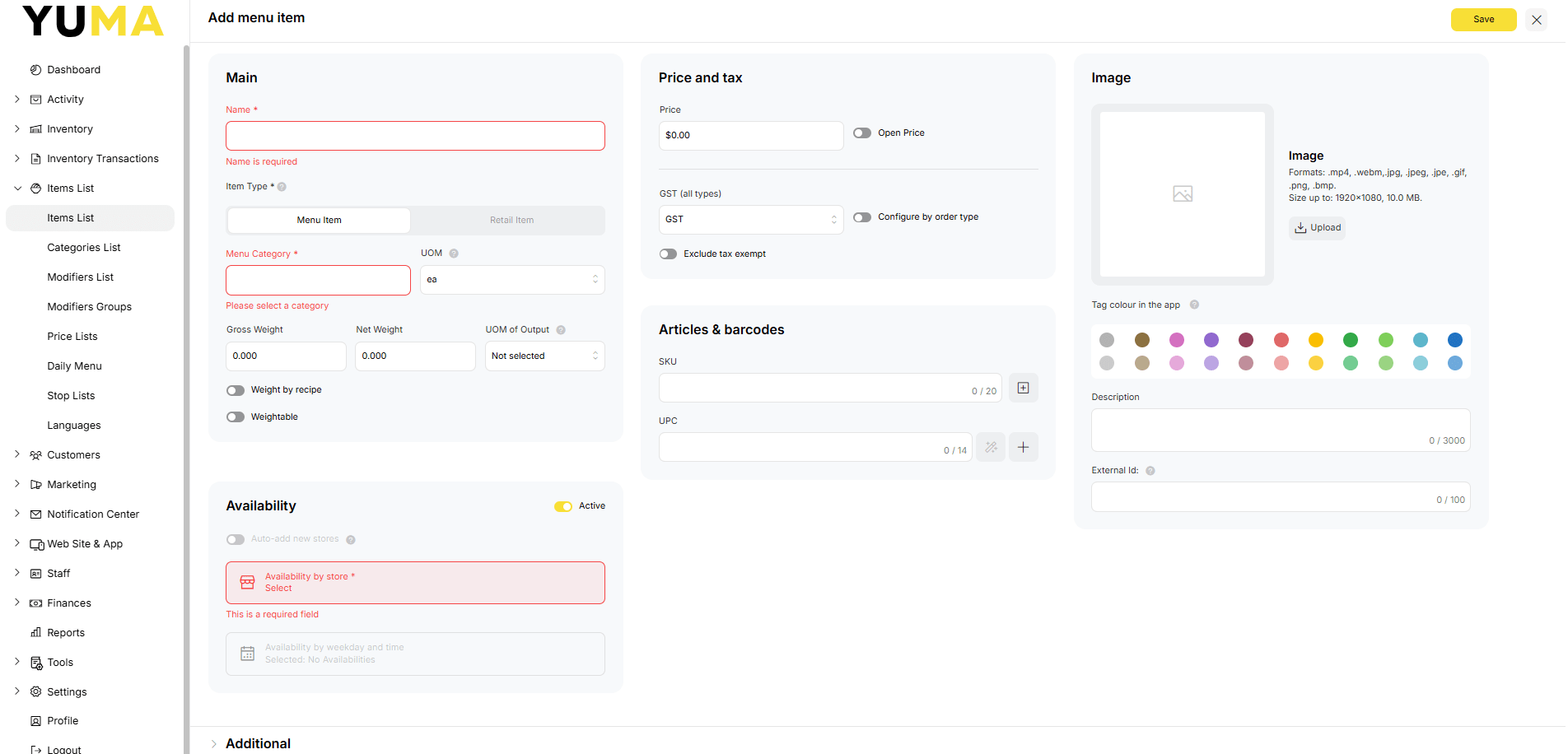
Main
Below is a brief description of each field. Note that some are compulsory and are marked with ‘*’. Please remember that these will be visible to end users, depending on your settings.
- Name* : Set a useful name to the MENU ITEM.
- Item Type : You may choose Menu Item or Retail Item.
- Even if I am selling in a retail environment, as opposed to a restaurant, I will still choose Menu Item.
- Menu Item will give greater control over your wares.
- If you are happy with a simple 1:1 RECIPE to an INVENTORY ITEM with the same name, select Retail Item.
- Retail Items will have no adjustable Recipe Tab
- Retail Items will have no RELATED MODIFIERS tab
- This cannot be changed !
- Menu Category : Select where your new item will appear under.
- your BOM will pull the defaults from the chosen one.
- UOM : this will be prefilled as you set a default one ( didn’t you ? ). You may select any enabled UOM you like.
- Gross Weight : specifies a weight, in Kgs, that includes the tare
- Net Weight : specifies a weight, in Kgs, that does not include the tare
- UOM of Output : Used to describe the Unit of Measurement of the Net Weight to be displayed on the Web App, Mob App and delivery platforms
- Weight by Recipe
- Weightable : Select this if the MENU ITEM you are creating is sold by weight eg per Kg
- if using integrated scales, the POS will get the weight automatically
- if using standalone scales, the POS will ask you to enter the weight
Availability
- Active : turns the MENU ITEM on and off.
- Auto Add New Stores : when you add a new STORE, the MENU ITEM will be automatically added to that new STORE.
- Availability by Store* : Select which STORES will show this MENU ITEM on their screens.
- Availability by weekday and time : is used for time based menus. An example would be a menu item that is only available between 0700 and 1130.+
Price & Tax
- Price : this will appear in the BASE PRICE LIST and needs to include any GST. This is your shelf price !
- Open Price : When enabled the POS will prompt the CSR to enter a price.
- Useful for miscellaneous sales
- If using price encoded labels, this needs to be enabled AND the POS needs to be configured to read the correctly.
- Tax : You may override the default TAX here.
- Configure by Order Type : is not used in AU. Leave off.
- Exclude Tax Exempt : is not used in AU. leave off.
Articles & Barcodes
- SKU : Custom, internal, and unique to a specific retailer’s catalog. It contains both letters and numbers.
- use <+> to auto generate a SKU
- UPC : Standardized, external, and universal. The same item will have the exact same UPC no matter which store in the world is selling it. It is purely numeric ( up to 14 digits). Think of it as the barcode on the product.
- if you don’t really care about stock control, you could create a MENU ITEM called “PET600ml” and put all the barcodes into UPC for easy sale. This of course would not work if you were taking online orders.
- Use <+> to add multiple barcodes to the same MENU ITEM
- Use <wand> to auto generate an internal UPC
Image
- Image : If you are going to be selling online, you really do not want to leave this as an ugly grey box.
- You can select a beautiful image that makes your ITEM iresistable. Please note the dimensions and file type & size.
- You can also select just a coloured block.
- You can use both !
- If you use both, the image will be used to show on WEB APP, eSHOP, MOB APP… On the POS APP you can override this so the POS only shows the colour block.
- Description : is used to provide the online buyer a sexy description about your ITEM that entices them to buy.
Additional
- Printers : is where you select the default “logical” production printer to use.
- Will use ITEM CATEGORY printer if set as a default
- You may override this to suit
- Course : will be used by restaurants or as a way to separate and group “like” goods and services on production printers.
- 1 could be Entree
- 2 might be Main
- Tags : are a way to sign a “label” to the MENU ITEM
- Can then be used to create PROMOTIONS, gather statistical information, etc.
- Tags may be PUBLIC or HIDDEN and will be covered in depth under BOM / TOOLS / TAGS.
- Assembly Time : is used to give a “make time” to an ITEM.
- This can then be used in TIMESLOTS to provide you CUSTOMER realistic expectations.
- Timeslots are a discussion that will have their own article.
Price Tags & Labels
Options
Fine tune your MENU ITEM with these settings :
- Can be Paid with Loyalty Points
- Select to allow your CUSTOMER to pay for this MENU ITEM using their earnt LOYALTY POINTS
- You may adjust the percentage
- LOYALTY will be covered under Marketing / Promotions
- Can be paid with Gift Cards
- If you are issuing system generated GIFT CARDS, enable this option to allow the MENU ITEM to be bought using them.
- GIFT CARDS will be covered under Marketing / Gift Cards
- Exclude from Promotion
- Allows you to fine tune your PROMOTION
- Alcohol
- Enabling will “hide” this MENU ITEM online
- When used with the POS setting “Prompt for ID” the cashier will have to verify the age of the customer
- Tobacco Product
- Enabling will “hide” this MENU ITEM online
- No manual Discounts
- If enabled, you will only be able to discount this MENU ITEM via PROMOTIONS
- Editable by Admin Only
- The logged in BOM user, must be in the Admin ROLE to be able to edit this MENU ITEM
- Exclude from Time Slots
Recipe
Save
- Make sure you <save> your hard work.
Edit Menu Item
Sign into your BOM and navigate to Items List/ Items List
Find the MENU ITEM by :
- Scrolling
- Filter by
- Category
- Store
- Recipe
- Item Type
- Search box
Click on the Name to open the edit dialogue.
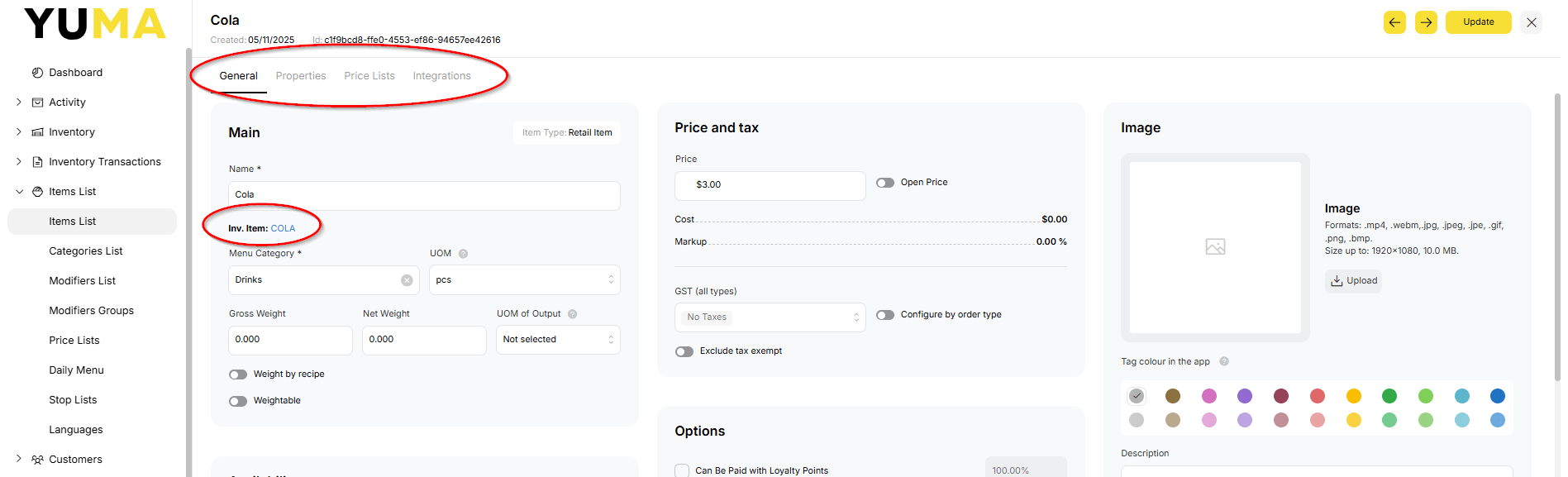
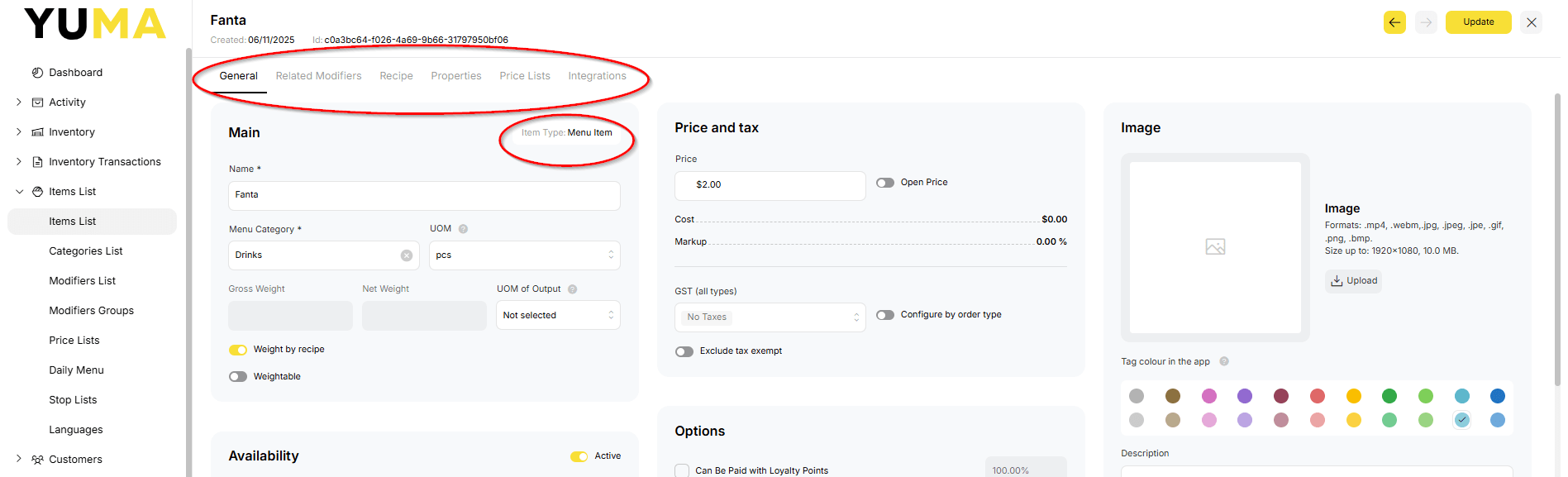
The images above show you the difference between selecting Retail Item and Menu Item, when creating your new MENU ITEM.
Edit as required and of course <save>your hard work.
You may want to perform a <Menu Sych> on your POS APPs to immediately get the update.
Each of the TABS above will be covered in separate Articles.
Delete Menu Item
Sign into your BOM and navigate to Items List/ Items List
Find the MENU ITEM by :
- Scrolling
- Filter by
- Category
- Store
- Recipe
- Item Type
- Search box
Put a tick in the box next to the Name and select <Delete>.
Confirm <Delete> to send the MENU ITEM to the ARCHIVE.
You should review any RECIPES, COMMON MODIFIERS and linked INVENTORY ITEMS for accuracy.
Restore Menu Item
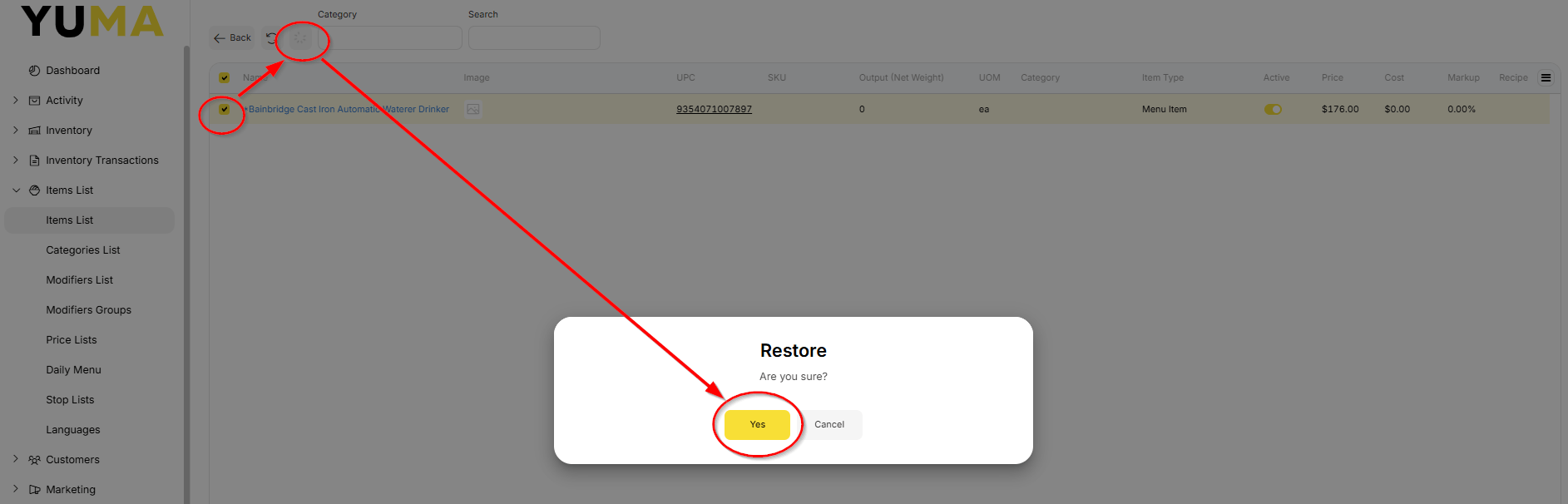
Sign into your BOM and navigate to Items List / Items List / Archive
Find the MENU ITEM by :
- Scrolling
- Filter by Category
- Search box
Put a tick in the box next to the Name and select <Restore> and <Yes>.
You should review any RECIPES, COMMON MODIFIERS and linked INVENTORY ITEMS for accuracy.