-
YumaPOS
-
- The YumaPOS Ecosystem
- Plan Where You Want to be in 6 and 12 Months from Now
- Create Your YumaPOS TENANT
- Create STORES in your YumaPOS TENANT
- Make Life Easy : Preset Some Basic Settings
- Which is best for You? Manual Entry or Data Import?
- Great Structure Makes Selling Easier
- Positive Planning Prevents Poor Performance
- POS and ORDER Fundamentals
- Getting to Know Your New BOM
- Cheap Internet Can Cost Businesses Time, Money and Productivity
- Security : Do you Really Want Your Staff Doing That?
- Stock Control: What It Is and How to Know If It’s Right for Your Business
- Scale Your Business : YumaPOS for Single to Franchise Growth
- A Quick Guide to Where ITEM Cost Comes From
- Know Your Customers, Earn Their Loyalty, Grow Your Sales
- Yumapos Price Lists, Holiday Promotions & Surcharging - Made Easy
- Glossary of Terms
- Show Remaining Articles (3) Collapse Articles
-
-
- Quickly List Transactions Created by Your STORES and APPs
- Easily See Transactions by Staff Member
- It is Simple to Track Sales by Terminal
- Processing Order Tracking: How to Minimise Operational Loss
- Voided Orders Explained: Why You Need to Catch Them
- Action Logs: Why they are Important to Your Business
-
-
- Articles coming soon
-
- Articles coming soon
-
- Articles coming soon
-
- Articles coming soon
-
- Articles coming soon
-
- Articles coming soon
-
- Articles coming soon
-
- Articles coming soon
-
- Articles coming soon
-
- Articles coming soon
-
- Articles coming soon
-
- Articles coming soon
-
- Articles coming soon
-
-
- Inventory Items & Menu Items: Can You Tell the Difference ?
- Your Easy Guide to Menu Item Basics
- How to View and Manage the Menu Items List
- Create and Manage Menu Categories Easily
- Understanding Item Modifiers for Accurate Production and Lower Costs
- Complete Guide to Managing Item Modifiers in Your Business
- Point of Sale Price Lists Made Easy : A Complete Guide
- Daily Menu Configuration and How to Use Them
- How to Use Stop Lists to Prevent Overselling
- Changing Default Language for Production
-
-
- Articles coming soon
-
- Articles coming soon
-
- Articles coming soon
-
- Articles coming soon
-
- Articles coming soon
-
- Articles coming soon
-
-
-
- Articles coming soon
-
- Articles coming soon
-
- Articles coming soon
-
-
-
- Articles coming soon
-
- Articles coming soon
-
- Articles coming soon
-
- Articles coming soon
-
- Articles coming soon
-
-
-
- Articles coming soon
-
- Articles coming soon
-
- Articles coming soon
-
- Articles coming soon
-
-
-
- Articles coming soon
-
- Articles coming soon
-
- Articles coming soon
-
- Articles coming soon
-
-
-
- Articles coming soon
-
- Articles coming soon
-
- Articles coming soon
-
- Articles coming soon
-
- Articles coming soon
-
- Articles coming soon
-
- Articles coming soon
-
- Articles coming soon
-
- Articles coming soon
-
- Articles coming soon
-
- Articles coming soon
-
-
-
- Articles coming soon
-
- Articles coming soon
-
- Articles coming soon
-
- Articles coming soon
-
- Articles coming soon
-
- Articles coming soon
-
- Articles coming soon
-
- Articles coming soon
-
- Articles coming soon
-
- Articles coming soon
-
- Articles coming soon
-
-
-
- Articles coming soon
-
- Articles coming soon
-
- Articles coming soon
-
- Articles coming soon
-
- Articles coming soon
-
- Articles coming soon
-
-
- Articles coming soon
-
- Articles coming soon
-
- Articles coming soon
-
- Articles coming soon
-
- Articles coming soon
-
- Articles coming soon
-
- Articles coming soon
-
-
- Articles coming soon
-
- Articles coming soon
-
- Articles coming soon
-
- Articles coming soon
-
- Articles coming soon
-
- Articles coming soon
-
- Articles coming soon
-
-
- Articles coming soon
-
-
-
YumaPAY
Overview
The Customers List page of the Back Office Management console allows you to view and manage the list of your registered customers and profiles of individual customers. This topic explains how to access this list and perform basic operations.
Open the Customer List
In the left hand pane of your BOM, select <Customers><Customer List>.
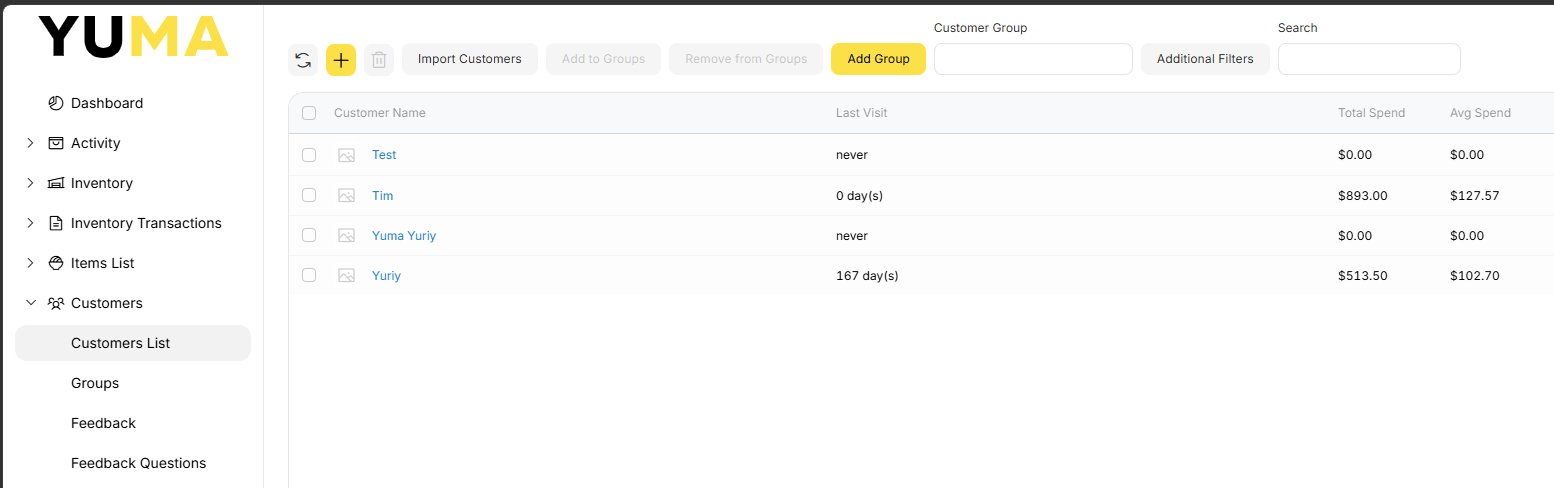
Across the top of the page are the following :
- Refresh the view
- Add a new Customer
- Delete selected Customers
- Import Customers
- Add selected Customers to Groups
- Remove selected Customers from Groups
- Add a new Customer Group
- Filter the view by Customer Group
- Filter the view by Key Performance Indicator (KPI)
- Search by partial name or phone
View Customer Profile
From the Customers list, you can easily access the customer profiles. The customer profile includes the contact, house account and loyalty points information, delivery address, purchase and transaction history and other related information.
- Click on any Customer Name
General Tab
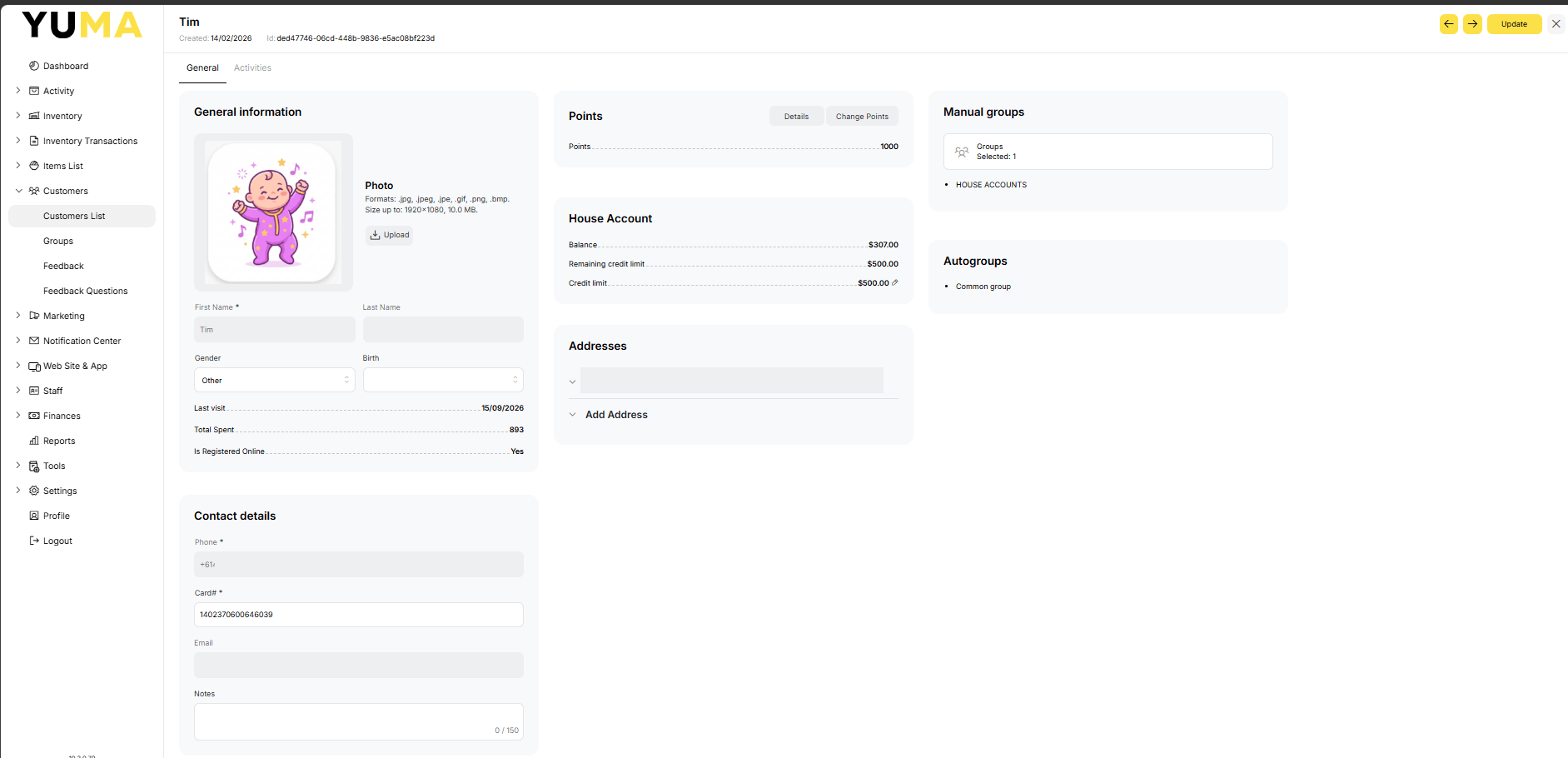
Here we can see lots of information about our Customer.
Some of this is provided when the Customer is added by a Cashier at the POS.
Others come from Customer interaction with online ordering platforms.
The Groups the Customer belongs to may be set manually or by Auto-Filled Groups.
A lot of this we can update manually ( to be covered later in this KB Article ).
Never Change Card#
Well, you can, but I strongly recommend you do not.
This is a long system generated string to uniquely identify this Customer.
It is deliberately long so your cashiers can scan it at a POS and not get partial matches.
Consider a site operator who decides to use this field for a Membership Number. So they change the Card# to 2345, to match a membership card.
When a Cashier scans the membership card at a POS, it will find multiple partial matches :
- a phone number 0415 602 345
- an address 2345 Brown Street
- a postcode 2345 for Attunga NSW
The cashier will then have to intervene and select the correct one.
Make it easy and just don’t 🙂
Activities Tab
Open <Activities>, set a date range and you get a rundown of all transactions linked with that Customer.
Note that if you click on one, you will get a detailed pop-up of that Transaction.
You can also download these activities as an XLSX.