
-
YumaPOS
-
- The YumaPOS Ecosystem
- Plan Where You Want to be in 6 and 12 Months from Now
- Create Your YumaPOS TENANT
- Create STORES in your YumaPOS TENANT
- Make Life Easy : Preset Some Basic Settings
- Which is best for You? Manual Entry or Data Import?
- Great Structure Makes Selling Easier
- Positive Planning Prevents Poor Performance
- POS and ORDER Fundamentals
- Getting to Know Your New BOM
- Cheap Internet Can Cost Businesses Time, Money and Productivity
- Security : Do you Really Want Your Staff Doing That?
- Stock Control: What It Is and How to Know If It’s Right for Your Business
- Scale Your Business : YumaPOS for Single to Franchise Growth
- A Quick Guide to Where ITEM Cost Comes From
- Know Your Customers, Earn Their Loyalty, Grow Your Sales
- Yumapos Price Lists, Holiday Promotions & Surcharging - Made Easy
- Glossary of Terms
- Show Remaining Articles (3) Collapse Articles
-
-
- Quickly List Transactions Created by Your STORES and APPs
- Easily See Transactions by Staff Member
- It is Simple to Track Sales by Terminal
- Processing Order Tracking: How to Minimise Operational Loss
- Voided Orders Explained: Why You Need to Catch Them
- Action Logs: Why they are Important to Your Business
-
-
- Articles coming soon
-
- Articles coming soon
-
- Articles coming soon
-
- Articles coming soon
-
- Articles coming soon
-
- Articles coming soon
-
- Articles coming soon
-
- Articles coming soon
-
- Articles coming soon
-
- Articles coming soon
-
- Articles coming soon
-
- Articles coming soon
-
- Articles coming soon
-
-
- Inventory Items & Menu Items: Can You Tell the Difference ?
- Your Easy Guide to Menu Item Basics
- How to View and Manage the Menu Items List
- Create and Manage Menu Categories Easily
- Understanding Item Modifiers for Accurate Production and Lower Costs
- Complete Guide to Managing Item Modifiers in Your Business
- Point of Sale Price Lists Made Easy : A Complete Guide
- Daily Menu Configuration and How to Use Them
- How to Use Stop Lists to Prevent Overselling
- Changing Default Language for Production
-
-
- Articles coming soon
-
- Articles coming soon
-
- Articles coming soon
-
- Articles coming soon
-
- Articles coming soon
-
- Articles coming soon
-
-
-
- Articles coming soon
-
- Articles coming soon
-
- Articles coming soon
-
-
-
- Articles coming soon
-
- Articles coming soon
-
- Articles coming soon
-
- Articles coming soon
-
- Articles coming soon
-
-
-
- Articles coming soon
-
- Articles coming soon
-
- Articles coming soon
-
- Articles coming soon
-
-
-
- Articles coming soon
-
- Articles coming soon
-
- Articles coming soon
-
- Articles coming soon
-
-
-
- Articles coming soon
-
- Articles coming soon
-
- Articles coming soon
-
- Articles coming soon
-
- Articles coming soon
-
- Articles coming soon
-
- Articles coming soon
-
- Articles coming soon
-
- Articles coming soon
-
- Articles coming soon
-
- Articles coming soon
-
-
-
- Articles coming soon
-
- Articles coming soon
-
- Articles coming soon
-
- Articles coming soon
-
- Articles coming soon
-
- Articles coming soon
-
- Articles coming soon
-
- Articles coming soon
-
- Articles coming soon
-
- Articles coming soon
-
- Articles coming soon
-
-
-
- Articles coming soon
-
- Articles coming soon
-
- Articles coming soon
-
- Articles coming soon
-
- Articles coming soon
-
- Articles coming soon
-
-
- Articles coming soon
-
- Articles coming soon
-
- Articles coming soon
-
- Articles coming soon
-
- Articles coming soon
-
- Articles coming soon
-
- Articles coming soon
-
-
- Articles coming soon
-
- Articles coming soon
-
- Articles coming soon
-
- Articles coming soon
-
- Articles coming soon
-
- Articles coming soon
-
- Articles coming soon
-
-
- Articles coming soon
-
-
-
YumaPAY
Overview
Auto-Filled Customer Groups are perhaps one of my favourite features in YumaPOS.
Across numerous sections of our website and knowledgebase, I have highlighted the intrinsic value of your Customer data. It makes no business sense to just let it sit there.
Using an auto‑filled Customer Group lets your BOM automatically move customers in and out, using criteria you have set.
You could then, as an example, use a marketing campaign, targeting that Group, to encourage return sales.
Create Auto-Filled Customer Group
Using your BOM, navigate to Customers / Customer Groups and select <+>.
Give your new Customer Group a relevant and meaningful Name.
Enabling <Auto-Filled> will open up a long list of possible Criteria.
Let’s break these possibilities down by some basic sub-sets to minimise overload.
As with all images, you can click on an image to enlarge it.
Auto Filled Criteria
With the exception of “Exclude from Groups”, it is important to remember that these criteria are connected using “AND”. That is, for the BOM to add a Customer as a participant, all set criteria must be true.
Auto-Filled
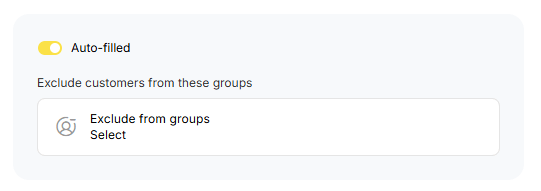
- Auto-Filled : Enable this option to signify this Customer Group is to be updated automatically, by the BOM, roughly every 15 minutes.
- Exclude from Groups : Open this and select any Customer Groups whose participants are to be excluded from this Group.
About the Customer
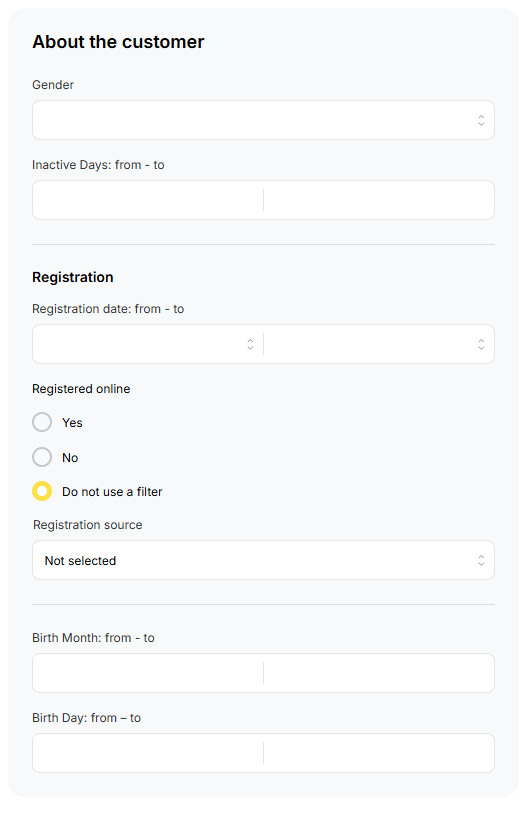
- Gender
- All Genders
- Other
- Male
- Female
- Inactive Days
- Define a from:to Period
- Registration Date
- Define a from:to Period
- Registered Online
- Yes
- No
- Do not use a filter
- Registration Source
- Not Selected
- Terminal / BOM
- Mobile Application
- Web Site
- Birth Month
- Define a from:to Period
- Birth Day
- Define a from:to Period
Location
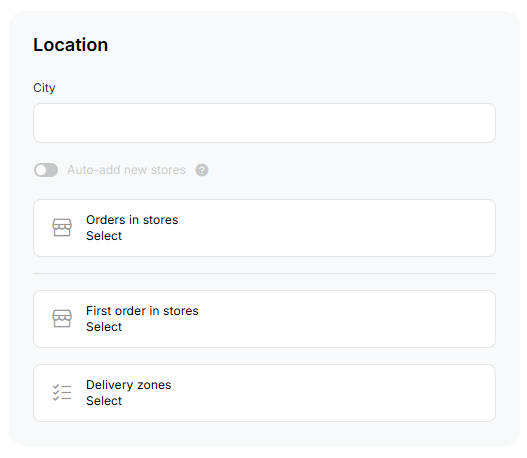
- City : This is a bit messy and relies on you and the Customer typing in an exact match.
- Auto-Add New Store : Where you are using a multi-store model, any new Stores you create will be automatically added to the criteria.
- Orders in Stores : When enabled, the Customer must have Orders in the selected Stores.
- First Order in Stores : When enabled, this must be the very 1st Order created by the Customer, in that Store.
- Delivery Zones : Here you can choose from pre-defined Delivery Zones.
All Time Purchases
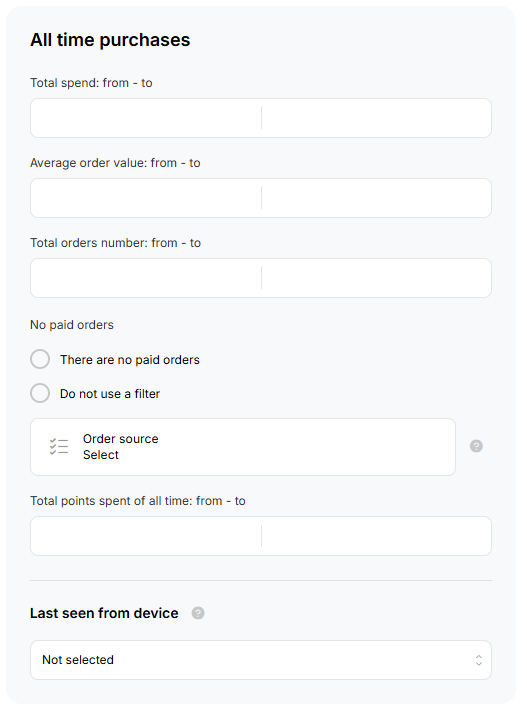
- Total Spend
- Define a from/to dollar value
- Average Order Value
- Define a from/to dollar value
- Total Orders Number
- Define a from/to quantity
- No Paid Orders
- There are no paid orders
- Do not use a filter
- Order Source ( where multiple selections are “OR” )
- Terminal
- Mobile App
- Web Shop
- Kiosk
- Uber Eats
- Total Points Spent of All Time
- Specify a from/to points value
- Last Seen from Device
- Not Selected
- Mobile App iOS
- Mobile App Android
- Web Site
Marketing
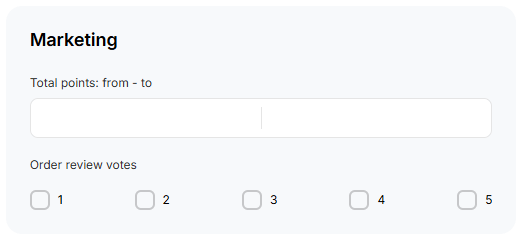
- Total Points
- Specify a from/to points value
- Order Review Votes are generated from Customers Feedback
- Select applicable values
- The connector here is “OR”
Purchases for the Period
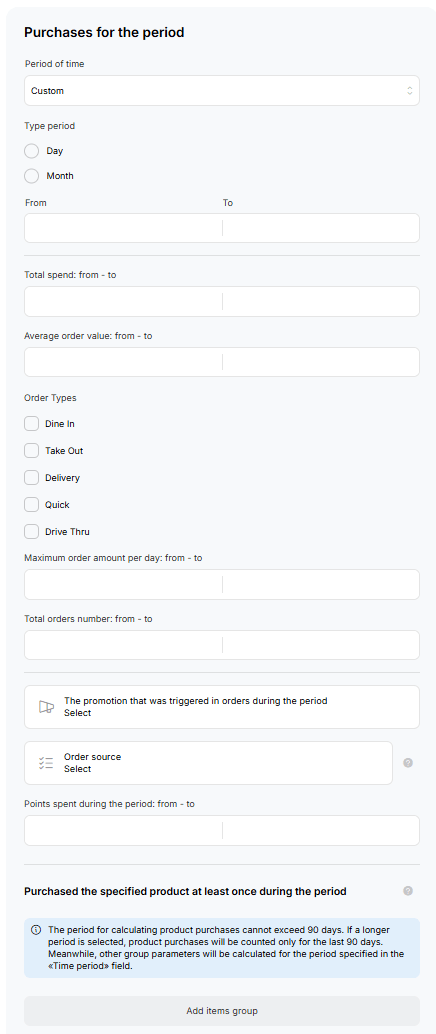
- Period of Time
- Previous 30 days
- Current Month
- Previous Month
- Previous 3 Months
- Previous 6 Months
- Previous 12 Months
- Custom
- Choose Days or Months
- Select the from/to period to use
- Total Spend
- Select the from/to dollar value to use
- Average Order Value
- Select the from/to dollar value to use
- Order Types where the connector is “OR”
- Dine In
- Take Out
- Delivery
- Quick
- Drive Thru
- Maximum Daily Order Amount
- Select a from/to dollar value
- Total Number of Orders
- Select a from/to value
- The promotion that was triggered in orders during the period
- Select from the available Promotions
- Order Source where the connector is “OR”
- Terminal
- Mobile App
- Web Shop
- Kiosk
- Uber Eats
- Points Spent during the Period
- Set a from/to value
- Purchased a Product ( Max is Last 90 Days )
- Select by CATEGORY
- Select by ITEM
- Use <+> to create an “AND”
- Use <Add Items Group> to create an “OR”
Some Examples
As you can see, many options exist for Auto-Filled Customer Groups.
Letting your BOM handle the heavy lifting saves you time. Using the resulting group for marketing and reporting prevents customers from slipping through the cracks.
Ultimately, retaining a customer, just by identifying a trend/issue and sending a personalised email, is preferable to trying to win them back after loss.
You would let the BOM add participants into the Group and then create a PROMOTION or NOTIFICATION or both.
Customers who have not ordered in last 60 days
- About the Customer
- inactive for 30 – 60 days
Birthday in a Month
- About the Customer
- Birth Month
- Select the Month
A Special Welcome for their 1st Order
- Location
- First Orders in Stores
- Select the Store/s
Those are all simple ones. Let’s exercise the brain cells a bit …
A Multi Level Loyalty System
We want to reward our Customers based on how much they spend with us each month. The more they spend, the higher the tier. If they don’t spend in a month, their tier drops. The higher the tier, the better the “Reward”.
Our Tiers and monthly spends are :
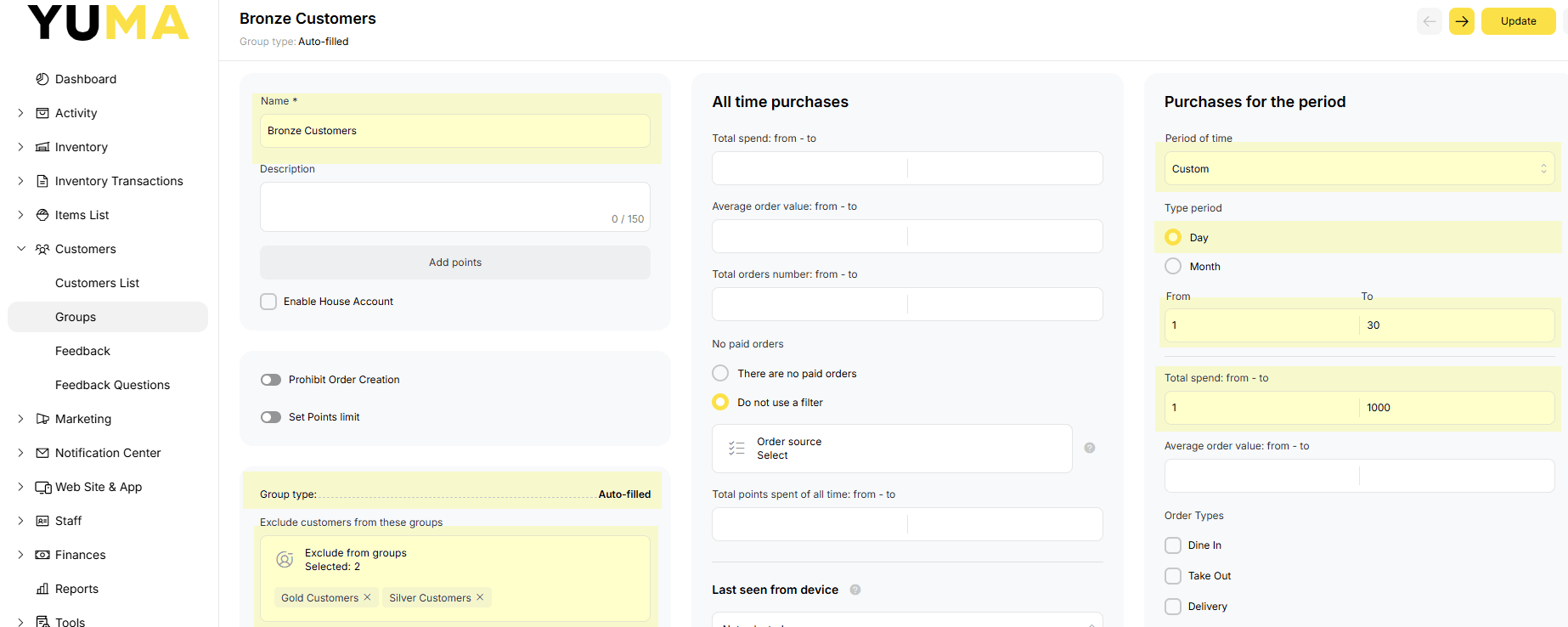
- Bronze $1 to $1000 in the last month (30 days)
- Silver $1001 to $2000 in the last 2 months (60 days)
- Gold $2001+ in the last 3 months (90 days)
We will create 3 Auto-Filled Customer Groups to represent each tier.
We will let the BOM add / remove participants every 15 minutes.
Create Bronze Group
- Add Customer Group
- Auto-Filled
- Purchases for the Period
- Custom
- Day
- 1-30
- Total Spend
- From 1
- To 1000
- Custom
Create Silver Group
- Add Customer Group
- Auto-Filled
- Purchases for the Period
- Custom
- Day
- 1-60
- Total Spend
- From 1001
- To 2000
- Custom
Create Gold Group
- Add Customer Group
- Auto-Filled
- Purchases for the Period
- Custom
- Day
- 1-90
- Total Spend
- From 2001
- To 9999
- Custom
Have you already seen the issue with this setup ?
By definition a Gold Customer is also a Silver and a Bronze one.
So, we need to now set some EXCLUSIONS. We couldn’t do this before because the Customer Groups didn’t exist.
Exclusions for Bronze Group
- Exclude Customers from :
- Gold
- Silver
Exclusions for Silver Group
- Exclude Customers from :
- Gold
- Bronze
Exclusions for Gold Group
- Exclude Customers from :
- Bronze
- Silver
Here is an image of my Auto-Filled Bronze Customer Group.
How to actually use your Groups will be covered under Articles in :